If you cannot access cybozu.com because of a failure in the access control settings
When administrators cannot access cybozu.com because of a failure in the access control settings, log in to cybozu.com Store and change the settings.
The settings were incomplete or invalid when allowing IP addresses
If one of the following applies to your environment, you cannot access cybozu.com.
- You have selected Deny Allfor IP address restrictions.
- You have selected Allow specific IP addresses but you have forgot to add your source IP address to the IP addresses that are allowed for access.
You can regain access by following the steps below to remove the IP address restrictions in cybozu.com Store.
-
Log in to cybozu.com Store.
Logging In to cybozu.com Store -
Click Domains.
-
Click the Security & Authentication tab.
If you have multiple domains, select the desired domain from the dropdown list.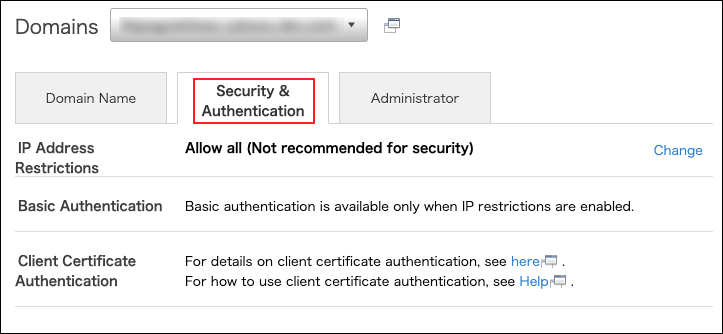
-
In the IP address restrictions section, click Change.

-
Select Allow all.
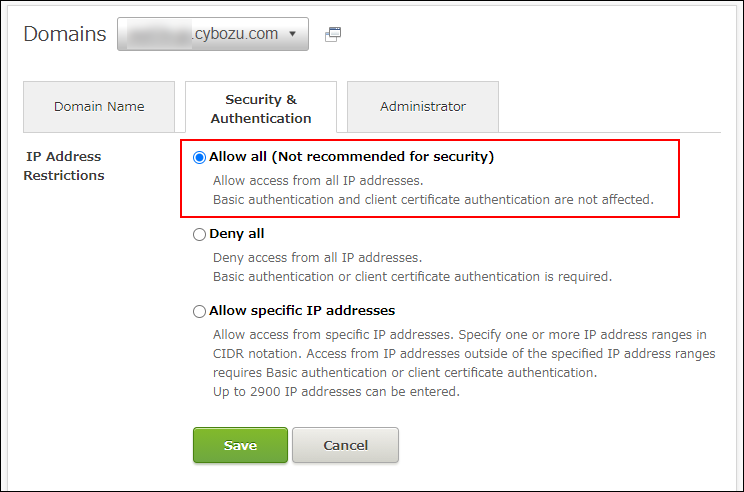
-
Click Save.
Once the configuration completes, an email is sent to the email address of cybozu.com Store Administrator. -
Make sure that you can access cybozu.com.
The procedure to remove IP address restrictions is complete.
Then, configure the access control settings again.
You failed to configure client certificate authentication
To access cybozu.com using Client certificate authentication, you need to install a client certificate.
Issue a client certificate and install it on the device where you use cybozu.com.
Issue client certificate
You failed to configure basic authentication
If one of the following applies to your environment, you cannot access cybozu.com.
- Cause 1: You forgot your user name or password for basic authentication
- Cause 2: You have configured basic authentication that you did not intend
Take appropriate actions according to the cause.
Cause 1: You forgot your user name or password for basic authentication
Configure your user name or password for Basic authentication again.
-
Log in to cybozu.com Store.
Logging In to cybozu.com Store -
Click Domains.
-
Click the Security & Authentication tab.
If you have multiple domains, select the desired domain from the dropdown list. -
In the Basic authentication section, click Change.

-
Change the User nameand Password used for Basic authentication.
Take a note of the updated information.
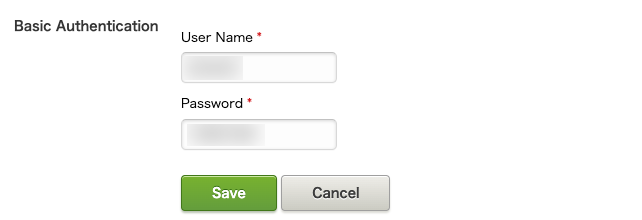
-
Click Save.
Once the configuration completes, an email is sent to the email address of cybozu.com Store Administrator. -
Access cybozu.com and enter the User name and password you changed in Step 6.
-
Make sure that cybozu.com is displayed.
Cause 2: You have configured basic authentication that you did not intend
Delete the Basic authentication settings by following the steps below.
-
Log in to cybozu.com Store.
Logging In to cybozu.com Store -
Click Domains.
-
Click the Security & Authentication tab.
If you have multiple domains, select the desired domain from the dropdown list. -
In the Basic authentication section, click Delete.

-
In the Delete basic authentication Setting dialog, click Delete.
Once the configuration completes, an email is sent to the email address of cybozu.com Store Administrator. -
Make sure that you can access cybozu.com.