
I want to carry over a previous balance and calculate a new total
By using the Actions feature, you can retrieve a previous balance and use it when calculating a new balance.
Actions setting
This article explains how to calculate a new balance by applying deposits and withdrawals to the cumulative balance from the previous day.
Configuring fields
Place the following fields on your app form. We'll call this app the "Cash Deposits and Withdrawals App".
| Field name | Field code | Field type |
|---|---|---|
| Date | Date | Date |
| Balance as of Yesterday | Balance as of Yesterday | Number |
| Deposit | Deposit | Number |
| Withdrawal | Withdrawal | Number |
| Total Balance | Total Balance | Calculated
|
After placing the above fields, save the app form.
Configuring actions
Next, we'll configure an action to use.
-
On the App settings screen, select the App settings tab, and then click Actions under Advanced settings.
-
Click Create action on the upper left of the screen.
-
Configure the settings for the action and click Save.
See below for an example of how the settings should look.Example of action settings Action name Add record and get the balance Target Cash Deposits and Withdrawals App (This app) Field mappings Total Balance > Balance as of Yesterday 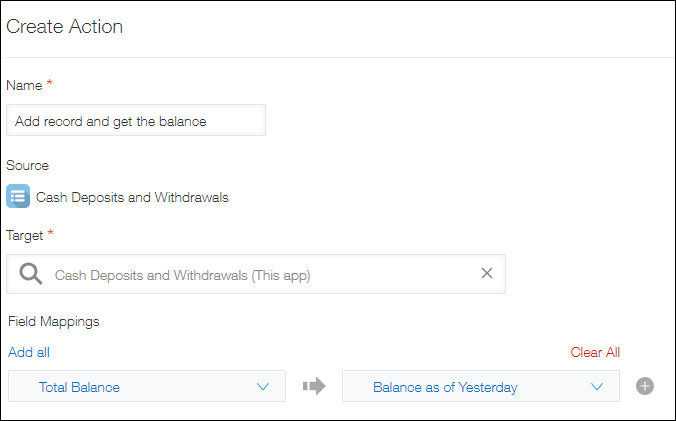
-
Go back to App settings and click Update app.
-
On the confirmation dialog, click Update app.
Adding a record and retrieving the previous balance to calculate the total balance
-
Open the "Cash Deposits and Withdrawals" app, then click the New record icon at the upper right of the screen.
-
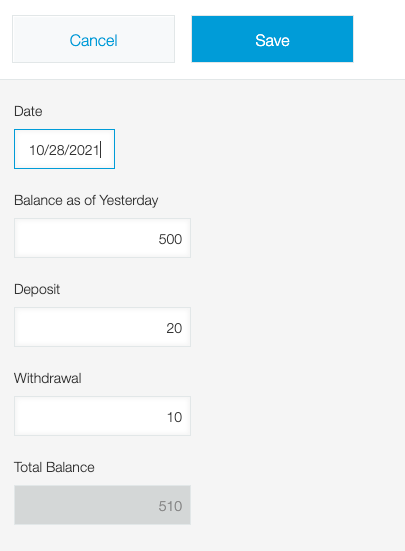
Enter a number into each field and save the record.
The value of the "Total Balance" field will be calculated automatically according to the specified formula.
-
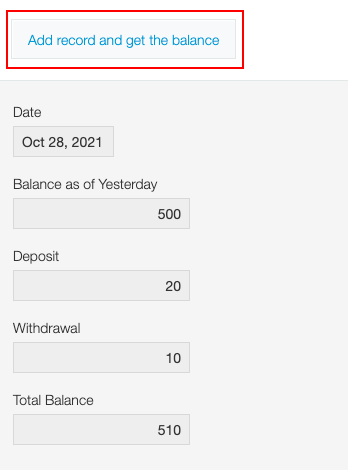
On the Record details screen of the record added in Step 2, click Add record and get the balance.
The New record screen will open with the value for the "Balance as of Yesterday" field populated.
-
Change the date, enter the deposit and withdrawal amounts, and then save the record.
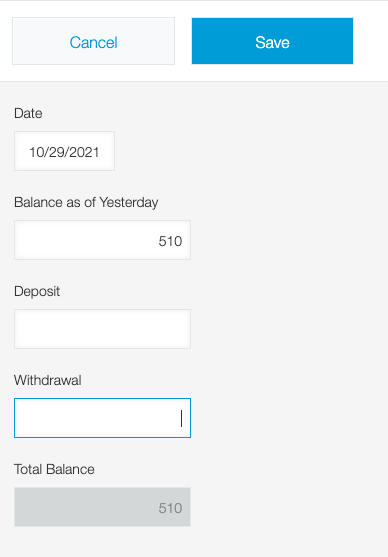
If you add a new record the next day, the updated balance will be retrieved into the "Balance as of Yesterday" field.