
Check box
Placing a Check box field on an app form creates a field that allows users to select one or more options from a predefined list.
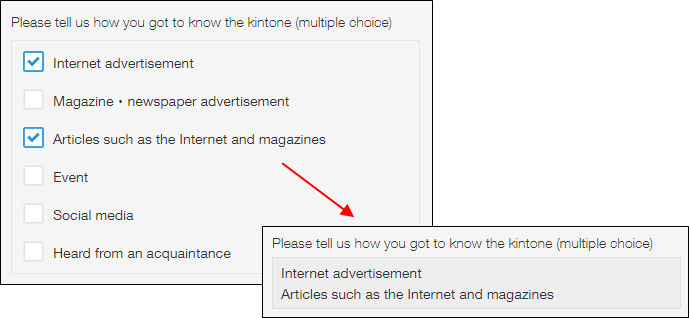
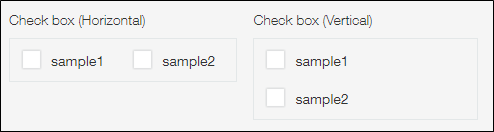
On the add or edit record screen, all options are displayed, and you can select multiple options. You can specify whether options are listed vertically or horizontally from the Form settings screen.
Only the options that have been selected are displayed on the
Record details screen.
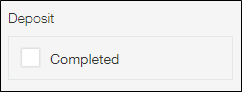
You can also create a Check box field with only a single option so that users can select whether or not a certain option applies.
Field settings
Name
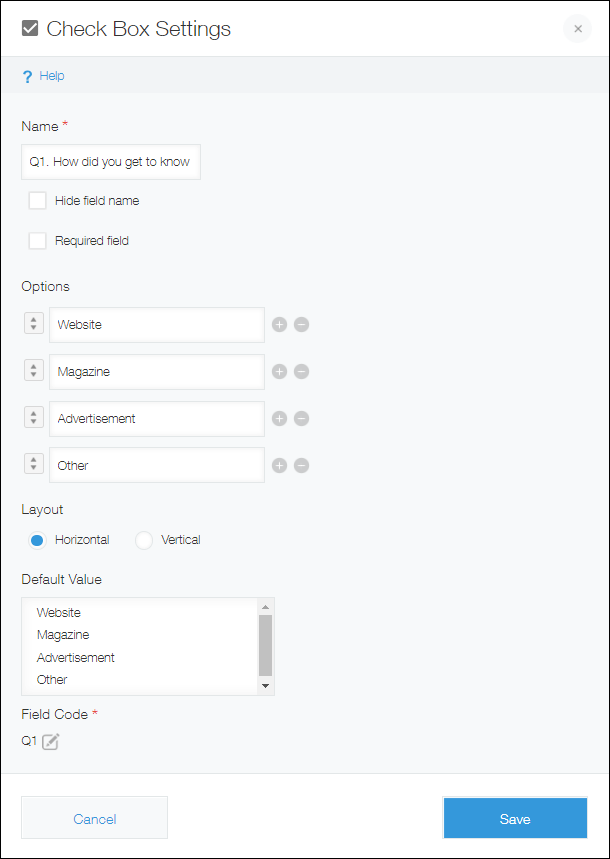
Specify the field name. The field name is displayed as the label of the field in the app.
Hide field name
Selecting the Hide field name checkbox hides the field name on the following screens.
- The Add record screen
- The Edit record screen
- The Record details screen
- The screen for printing a record
- The Form settings screen
Required field
Selecting the Required field checkbox makes specifying a value mandatory.
Options
Enter option names. You can add up to 1,000 options, with up to 128 characters for each option.
To add an option, click the plus-sign Add icon to the right of an input field, or press Enter key while editing the last option field.
To remove an option, click the minus-sign Delete icon to the right of an input field.
To reorder options, drag and drop the arrow-shaped Drag to reorder icon on the left side of each option.
Layout
Select whether to list the options horizontally or vertically.
On mobile devices, options are displayed vertically, regardless of which setting is selected.
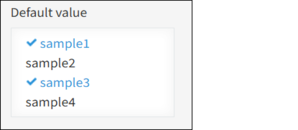
Default value
Sets the default values for the input field.
Items you check here appear checked by default on the "Add record" screen.
Field code
This is the code used for specifying the field in formulas or APIs.
Usage examples
Use Check box fields when you want to make it possible to select one or more options from a list.
For example, you can use a Check box field in a survey app to let users select one or more reasons for visiting your store.

You can also create a Check box field with only a single option so that users can select whether or not a certain option applies.
For example, you can add a Check box field in a sales order management app and use it for selecting whether or not payment has been received.