
Using the desktop view on mobile devices
Web browsers on mobile devices display kintone in a mobile-optimized view.
However, some app and space settings and other features are not available with the mobile-optimized view.
For details on the features that are not available, refer to the following page.
Actions you cannot perform in the mobile view
To use a mobile device to perform the same actions as those on a PC, you can switch to the desktop view.
Three ways to use kintone on mobile devices
You can use kintone on mobile devices in the following three ways:
- Use the mobile-optimized view on a web browser.
- Use the desktop view on a web browser.
- Use the mobile app.
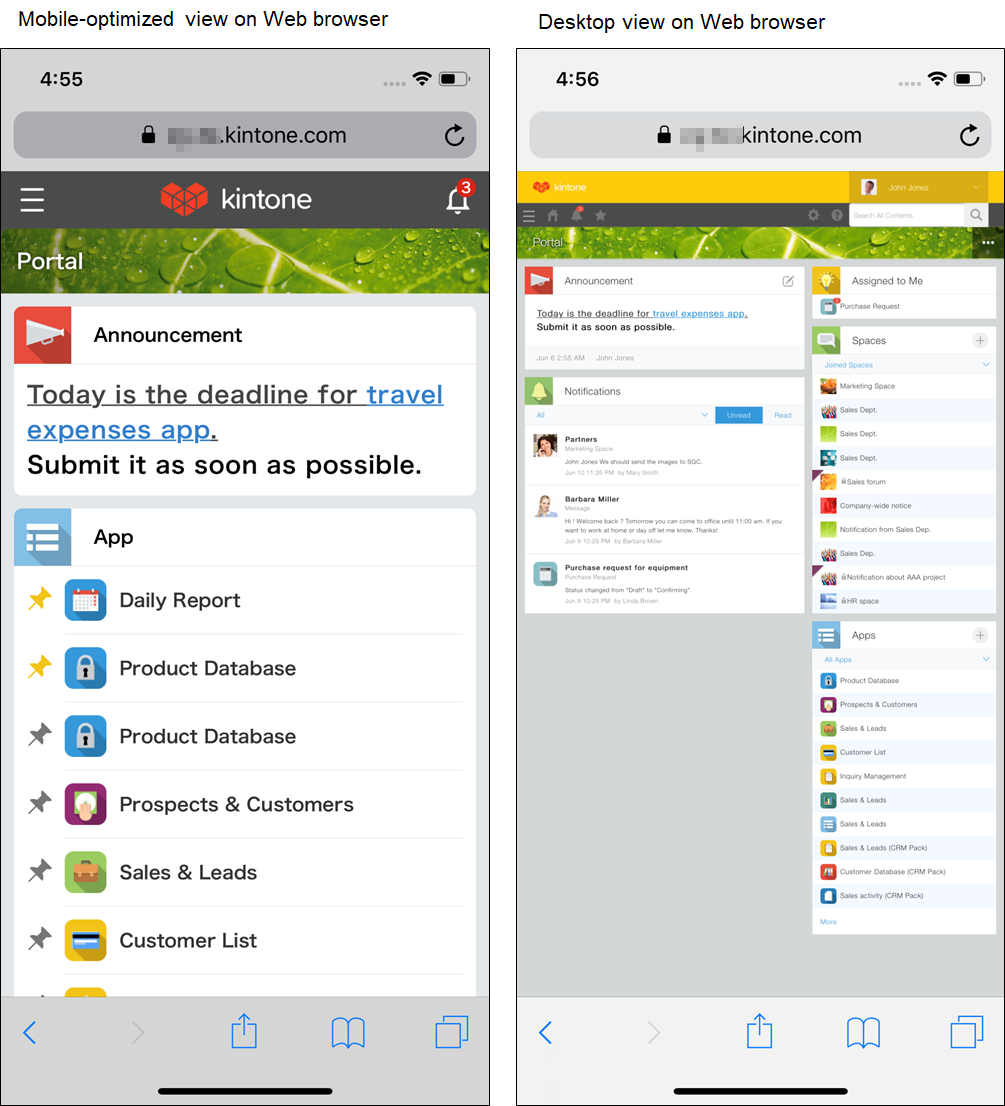
The differences between how the mobile-optimized view and desktop view of kintone are displayed on the web browser of a mobile device are as follows.
The mobile-optimized view is displayed by default.
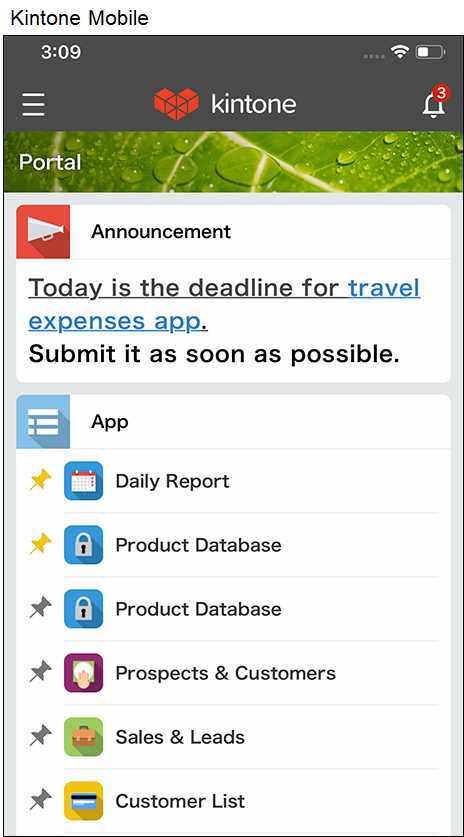
The mobile app always displays the mobile-optimized view.
Switching to the desktop view
You can switch the view used on mobile devices for each user.
-
Access kintone from a web browser on your mobile device.
-
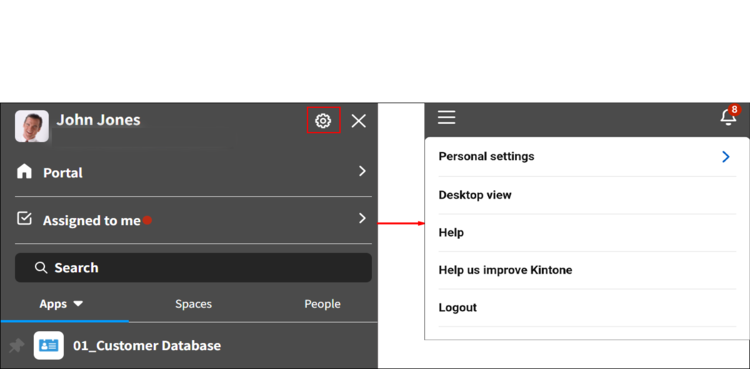
Tap the Open navigation menu button at the top left of the Portal screen.
-
In the Navigation menu, tap the Open settings screen icon (the gear icon) at the top right of the screen, and then tap Desktop view.
For kintone administrators: Switching to the desktop view for all users
A kintone administrator can also configure the settings to display the desktop view to all users.
-
Click the Settings button (the gear icon) at the top of the kintone screen, and then click kintone administration.

-
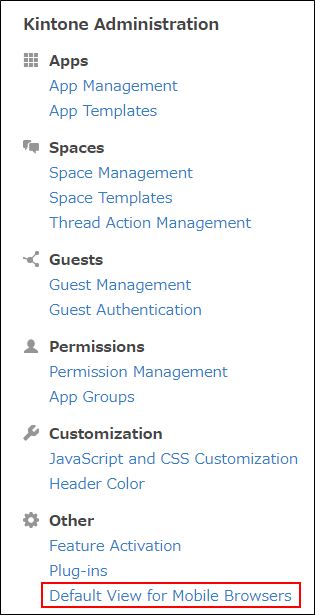
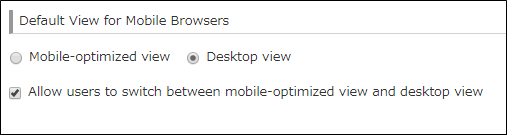
On the kintone administration screen, click Default view for mobile browsers under Other.
-
On the Default view for mobile browsers screen, select Desktop view.
To force the desktop view on all users, clear Allow users to switch between mobile-optimized view and desktop view.
Switching back to the mobile-optimized view
You can switch back to the mobile-optimized view from the desktop view by following the steps below.
-
Access kintone from a web browser on your mobile device.
-
Tap the Settings button (the gear icon) at the top of the kintone screen and select Mobile-optimized view.
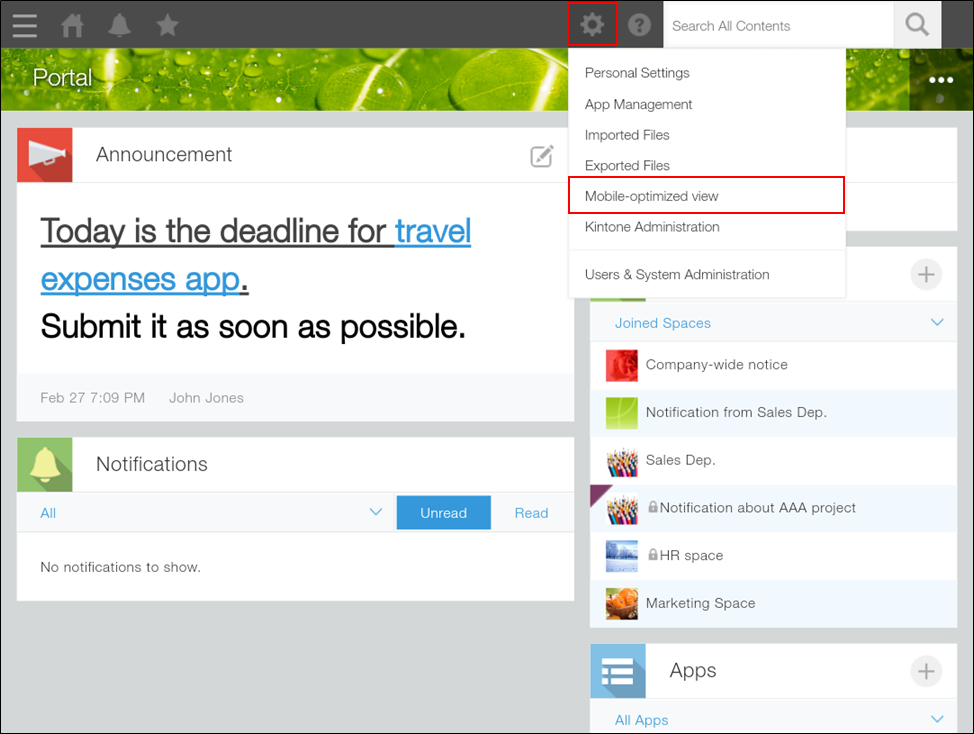
If you want to switch all users' views back to the mobile view, a kintone administrator must select Mobile-optimized view on the Default view for mobile browsers screen in kintone administration.