
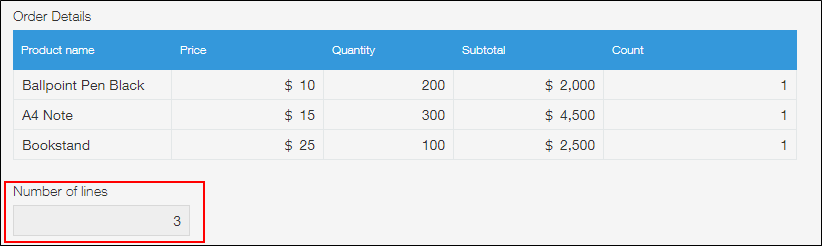
Counting the number of table rows
You can count the number of table rows by placing a number field in a table and summing up the number using the SUM function in the Calculated field.
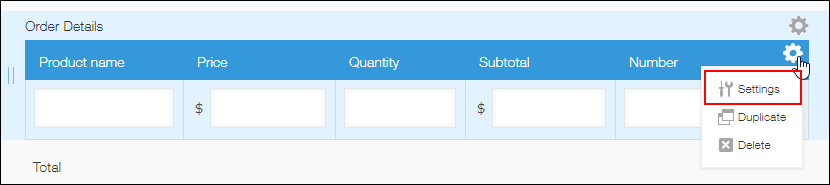
Place a "Number" field in a table, then click Settings from the gear-shaped Field settings icon at the top right of the field.
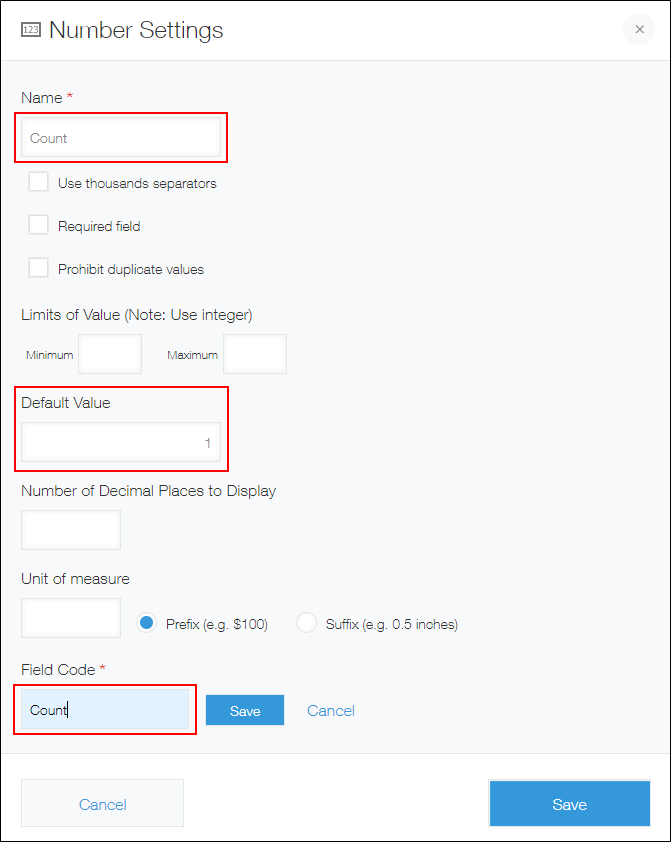
Enter a string of your choice for the field name and the field code, and specify '1' as the default value.
In this example, enter "Count" for the filed name and the field code.
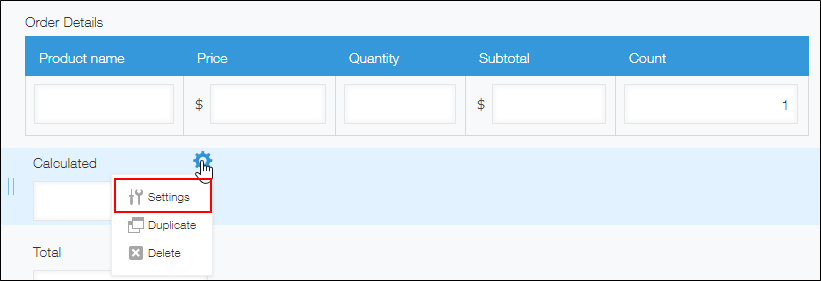
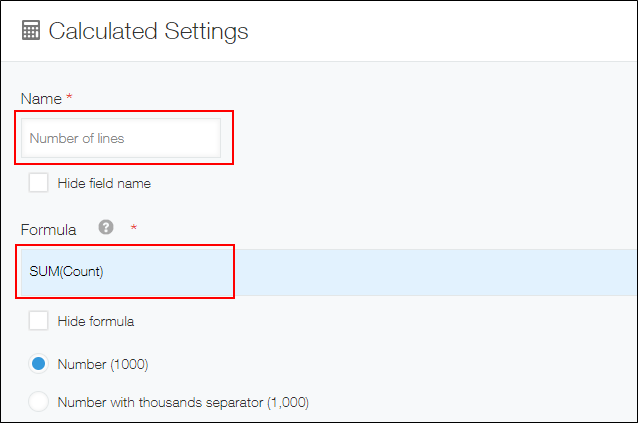
Place a Calculated field outside of the table, then click Settings from the gear-shaped Field settings icon at the top right of the field.
Enter a string of your choice for the field name, specify "SUM(Count)" as the formula, and save the settings.
Now, the number of table rows is calculated.