
Searching for data
You can use the search box at the top right of kintone to enter keywords and search for records in apps, comments in spaces or on People pages, and other data.
This article covers the following topics.
- How to start a search
- Search result suggestions displayed when entering a keyword
- Overview of the "Search results" screen
- Search scope when searching all of kintone
- Title searches
- Searching for data by combining keywords
- Keyword entry guidelines
How to start a search
Enter a keyword in the search box at the top right of kintone and press the Enter key or click the Search icon (the magnifying glass icon). You'll then be taken to the Search results screen.

Search result suggestions displayed when entering a keyword
When you enter a keyword in the search box at the top right of kintone, search suggestions for apps, records, spaces, threads, and People appear below the search box.
Note that data you do not have permission to view will not be displayed. Also, up to three suggestions are displayed for each category.
If you click
Search results, you will be brought to the Search results screen.
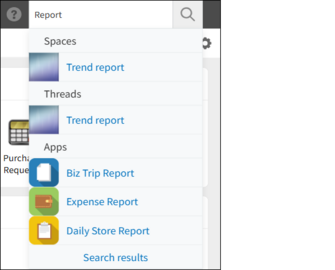
Data included in search result suggestions
A search result suggestion will be displayed if any of the following data matches the keyword you enter.
- Apps
- App code
If your keyword exactly matches an app code, the app with that app code will appear as a suggestion. - App name
If an app name matches your keyword, it will appear as a suggestion. Also, if there are apps with the Localization settings configured, localized app names will also be searched.
- App code
- Records
- Record numbers
Only records from apps that have an app code set will be included in the search.
- Record numbers
- Spaces
- Space names
- Threads
- Thread titles
Only threads in spaces that had the Enable multiple threads checkbox selected when they were created will be searched.
- Thread titles
- People pages
- Login names
- Display names
- Localized names
- Phonetic surnames
- Phonetic given names
Overview of the "Search results" screen
This section describes the different parts of the Search results screen.
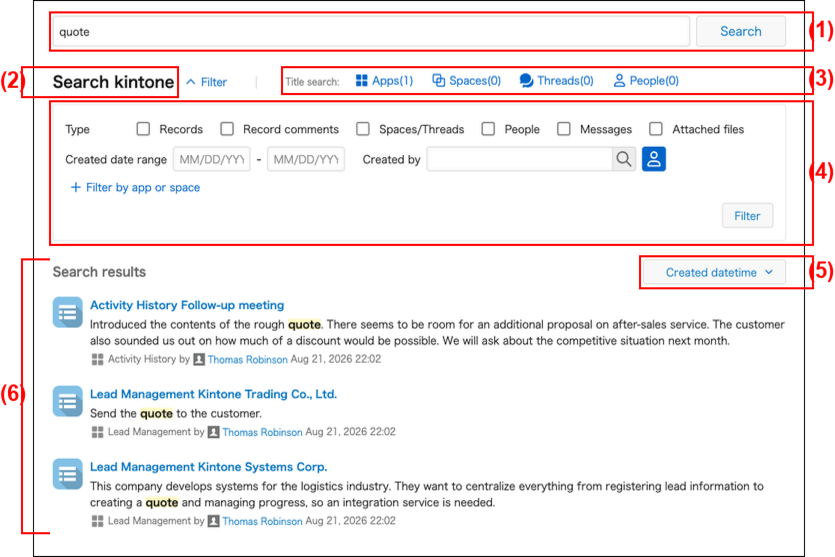
(1) Search box
(2) Search range
(3) Title search
(4) Filter options
(5) Sort by
(6) Search results
(1) Search box
Search for a keyword by entering it in the search box.
(2) Search range
Shows the range of the displayed search results. The following search ranges are available.
- Search kintone
- Search in app
- Search in space
Note that if you open an app and search for a keyword in the search box at the top right of the screen, the search range will be limited to that app.
In the same way, if you search for a keyword in the search box at the top right of a space, only data inside that space will be searched.
(3) Title search
Displays apps, spaces, threads, or People pages that include your keyword in their title.
For details on title searches, refer to the following section.
Title searches
(4) Filter options
You can narrow down search results by specifying conditions and clicking the Filter button.

-
Type
You can filter search results by specifying the data type. You can select from the following types for each search target.- Search kintone
- Records
- Record comments
- Spaces/Threads
- People
- Messages
- Attachments
- Search in app
- Records
- Record comments
- Attachments
- Search in space
- Records
- Record comments
- Spaces/Threads
- Attachments
- Search kintone
-
Created date range
You can filter records by specifying a date range. To set Created date as a filter condition, you need view permission for the Created date field. -
Created by
You can filter records by specifying the creator. To set Created by as a filter condition, you need view permission for the Created by field. -
Filter by app or space / Filter by app
You can include or exclude specific apps or spaces from search results.
For details, see the following section.
Filter settings to specify apps or spaces
Filter setting to specify apps or spaces
When searching all contents in kintone, you can filter search results by specifying apps or spaces. When searching within a space, you can only specify an app. When searching within an app, you cannot use this feature.
-
When searching all contents in kintone, click Filter by app or space.
When searching within a space, click Filter by app.

-
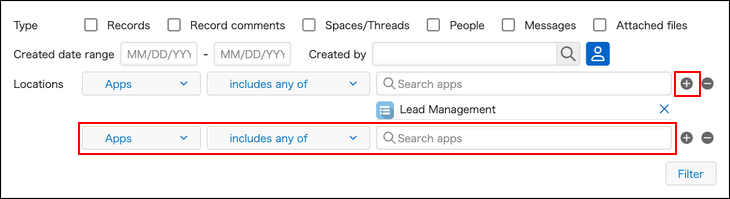
Set the following filter conditions:
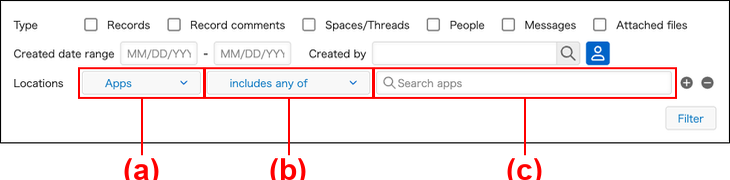
-
(a): This option appears when you click Filter by app or space while searching all contents in kintone. You can select whether to filter by apps or spaces.
If you specify a space, the search covers the entire space, including its apps and threads. -
(b): Select a condition type.
- includes any of
Searches only the selected apps and spaces. - does not include any of
Excludes the selected apps and spaces from search.
- includes any of
-
(c): Search for and select apps or spaces by name. You can select multiple items.
When you enter part of a name, a list of candidates appears. Click an item in the list to select it.
To select multiple items, repeat entering a name and selecting it.
The selected apps and spaces appear below the search box.
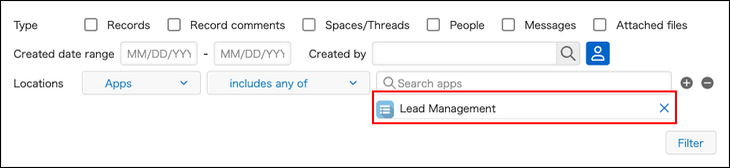
-
-
To add more filter conditions, click the Add a condition button (+) and repeat Step 2.
-
After you set all conditions, click the Filter button.
The search results are filtered based on the set conditions.
(5) Sort by
You can change the order of search results.
- Created datetime
Search results are displayed from newest to oldest based on the data's creation date and time. - Relevance
By default, Created datetime is selected.
(6) Search results
Search results are displayed based on your search keyword and filter settings.
Search scope when searching all of kintone
When you search all of kintone, the following data is included in your search. Note that data you do not have permission to view is excluded from the search scope.
- Records
The following fields can be searched.- Text fields
- Text area fields
- Rich text fields
- Link fields
- Lookup fields
You can search these fields if you specify a Text or Link field as the key field.
- Record comments
- Spaces
- Space names
- Space body text
- Threads
- Thread titles
- Thread body text
- Thread comments
- People pages
- Comments posted on People pages
- Messages
- Private messages
- Attached files
- File names
- File contents
Title searches
Doing a title search displays apps, spaces, threads, or People pages that contain the search keyword in their title.
Note that title search results are not narrowed down using the specified search range or filter settings.
Steps
-
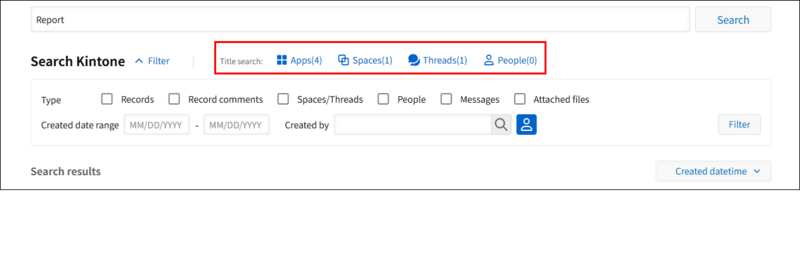
Enter a keyword in the search box at the top right of kintone, then press the Enter key or click the Search icon (the magnifying glass icon).
Or, if you're already on the search results screen, enter a keyword in the search box, then press the Enter key or click Search. -
In the Title search section, click the category you want to search.
-
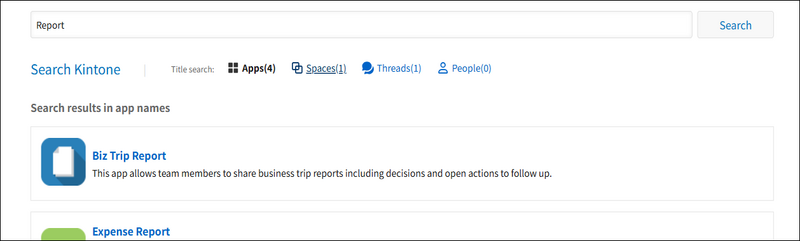
Apps with titles that include the keyword, spaces, threads, or People appear.
Search scope of title searches
When you search a category in the Title search section, the following data is searched.
- Apps
- App name
If an app has localized names set in its Localization settings, you can search for it using its default name or its name in a different display language that you have set.
- App name
- Spaces
- Space names
- Threads
- Thread titles
- People pages
- Display names
- Login names
- Phonetic surnames
- Phonetic given names
- Localized names
Searching for data by combining keywords
To search for data, you can combine multiple keywords using AND, NOT, and OR searches.
Searching for data containing all the specified keywords (AND search)
You can search for data containing all the specified keywords by separating them with half-width or full-width spaces.
- Example of searching for records containing all of the keywords "ABC", "DEF", and "GHI":
Enter "ABC DEF GHI" in the search box.

Searching for data by excluding data containing the specified keywords (NOT search)
If you prefix a keyword with a hyphen (-), data that does not contain the specified keyword is searched. Separate the keywords you want to include and the ones you want to exclude with a half-width or full-width space.
- Example of searching for records containing the keywords "ABC" and "DEF" but not containing "GHI":
Enter "ABC DEF -GHI" in the search box.

Searching for data containing any of the keywords (OR search)
If you connect two or more keywords with "OR", the search finds data containing any of the keywords. Separate keywords and "OR" with a half-width or full-width space.
- Example of searching for records containing "ABC" or "DEF":
Enter "ABC OR DEF".

- Example of searching for records containing "ABC", "DEF", or "GHI":
Enter "ABC OR DEF OR GHI".

Combining OR searches with AND or NOT searches
- Example of searching for records that contain "ABC" or "DEF" and also contain "GHI" or "JKL":
Specify "ABC OR DEF GHI OR JKL". - Example of searching for records that contain "ABC" or "DEF" but do not contain "GHI":
Enter "ABC OR DEF -GHI".
Keyword entry guidelines
- You can enter up to 100 characters in the search box (both full-width and half-width). Spaces for AND searches, hyphens (-) for NOT searches, and OR for OR searches also count toward this limit.
- You can specify up to 10 keywords. If you enter more, you can only search using the first 10.
- To search for a keyword that contains spaces, enclose the keyword in double quotation marks ("").
Example of searching for the keyword "ABC DEF GHI":
Enter "ABC DEF GHI" with double quotation marks in the search box to search for it as a single keyword.

Also note the following when using Japanese or Chinese characters, alphanumeric characters, or special characters for search keywords.
When searching with Japanese or Chinese characters
- Full-width and half-width katakana characters are not distinguished.
- To search for a word that consists of two or more characters, you must specify a keyword that consists of two or more characters. A word that consists of a single character can be searched for with a keyword that consists of a single character.
Example: When searching for fields whose value contains the string "日本語"- Searchable keywords: "日本", "本語", or "日本語"
- Non-searchable keywords: "日," "本," or "語"
When searching with alphanumeric characters
- Keywords are not case-sensitive, and full-width and half-width alphabetical characters are not distinguished.
- Searches are performed on a word-by-word basis.
Example of searching for a field with the value "cybozu kintone2":- Enter "cybozu" or "kintone2" as a keyword. Partial matches (e.g., "cy" or "kintone") will not be searched for.
- The words "cybozu" and "kintone2" each count as one word. A search for "cybozu kintone2" will result in a two-word search.
- Underscores (_), number signs (#), and plus signs (+) (both full-width and half-width) are considered as part of a word.
Example of searching for fields that contain the string value "cybozu_kintone":- Specify "cybozu_kintone" as a keyword. If only "cybozu" or "kintone" is entered as the keyword, kintone will not search for the keyword "cybozu_kintone".
When searching with special characters
-
Full-width and half-width special characters are not distinguished.
-
The following special characters are excluded from keywords.
- Punctuation marks in Japanese and Chinese
- The following full and half-width symbols:
- & | / ! ( ) { } [ ] ^ " ~ * ? : ; \ $ % @ ' ` = < > , .
Special characters other than those described above may also be excluded from keywords.