
Selecting which AI features to enable
On the Feature activation screen, you can disable and re-enable certain features.
You can also configure email notifications.
Opening the "Feature activation" screen
Only kintone administrators and Users & system administrators can open the Feature activation screen.
For details, refer to the following page.
The steps are as follows.
-
Click the Settings icon (gear-shaped) at the top of the kintone screen, and then click kintone administration.
Reference: Opening the "kintone administration" screen -
On the kintone administration screen, click Feature activation under Other.
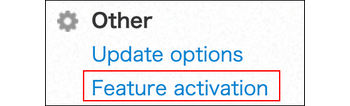
The Feature activation screen opens.
For an overview of the settings on this screen, see below.
"Email notifications"
The Email Notifications feature lets you send out kintone notifications via email. This makes it possible for users to check their notifications in their inboxes as well as on kintone.
By default, the feature is enabled and "To me" notifications are sent out via email in HTML format.
For details on these settings, refer to the following page.
Settings to activate email notifications
"Spaces and People"
You can configure whether to enable the following features. By default, all features are enabled. All users can use Spaces, Guest Spaces, People, and Messages.
-
Activate spaces
You can configure whether to activate Spaces.
For details, refer to the following page.
Spaces
If this checkbox is selected, you can configure whether to select the Allow users to create apps that do not belong to any space checkbox.
For details, refer to the following section.
Allow users to create apps that do not belong to any space -
Activate guest spaces
If the Activate spaces checkbox is selected, you can configure whether to activate guest spaces.
For details, refer to the following page.
Guest spaces -
Activate People and Private messages
You can configure whether to activate People and Private messages.
For details, see the following page.
Allow users to create apps that do not belong to any space
You can configure whether to allow users to create apps that do not belong to a space.
Apps are placed either on Portal (top page) or in a space. "Apps that do not belong to any space" refer to the apps that are placed on Portal.
- When the checkbox is selected:
You can create both apps that belong to a space (in-space apps) and apps that do not. - When the checkbox is cleared:
You can only create apps that belong to a space (in-space apps). Clearing the checkbox does not affect existing apps.
Note: App groups when the "Allow users to create apps that do not belong to any space" checkbox is cleared
Every app belongs to an app group. When you create an app, the app group configured in Default app group is selected. You can change it to another app group. However, apps that belong to a space (in-space apps) are always assigned to the Public app group, and you cannot change this.
If you clear the Allow users to create apps that do not belong to any space checkbox, you can only create apps that belong to a space (in-space apps). As a result, all apps you create are assigned to the Public app group, and you cannot change this. In other words, clearing theAllow users to create apps that do not belong to any space checkbox means you cannot create apps in app groups other than Public (including the Private app group).
If you use app groups other than Public, consider this behavior when configuring the setting.