If creating an app from an Excel or CSV file fails
The permanent link has been copied.
Article number:040626
This article describes the actions you should take when you fail to create an app from an Excel or CSV file. The actions differ depending on the timing at which an error occurs.
If an error appears when you select a file for import
The permanent link has been copied.
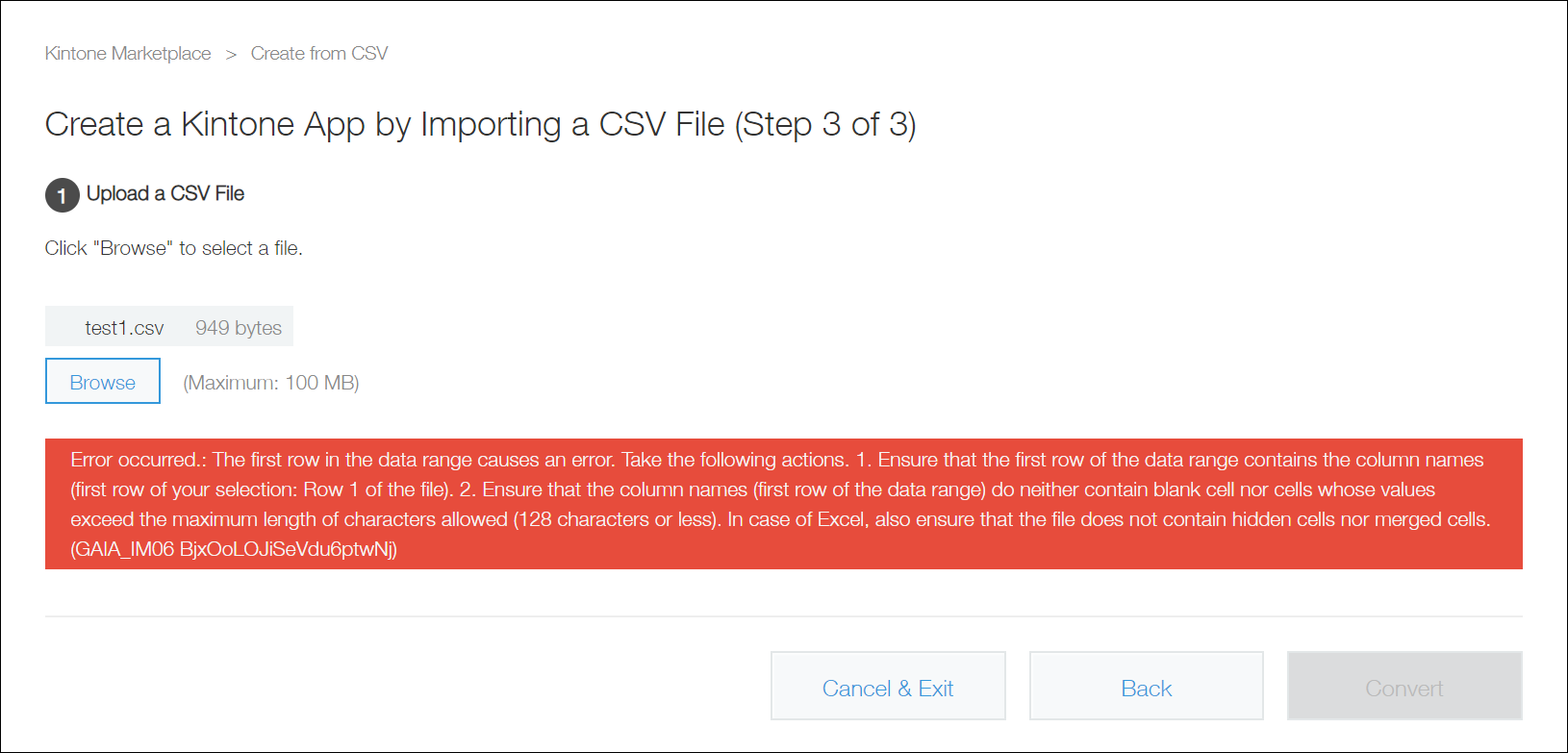
Error example:
Error situation
Solution
The following error message is displayed: When you have selected Create from Excel: Cannot recognize the contents of the uploaded file as .xlsx format. Please confirm the contents of the file. If the Excel file is password protected, unlock the file and save it before uploading. (GAIA_TD01)
When you have selected Create from CSV: Cannot recognize the contents of the uploaded file as CSV format. Please confirm the contents of the file. (GAIA_TD01)
When you have selected Create from Excel:
The file content may not be recognized as .xlsx. Confirm the content of the file.
Check whether the Excel file is protected with a password, and if so, disable the protection.
When you have selected Create from CSV: Ensure that the file contains comma-separated values. Note that you can import a file even if the file format is text or TSV.
The following error message is displayed: The file size of "***" exceeds the limit.
The following error message is displayed: When you have selected Create from Excel: Cannot upload "***". Please upload the file with .xlsx extension. In case you would like to create an app from a CSV file, click "Exit" to go back to the kintone marketplace screen, then click "Create from CSV" to upload the file.
When you have selected Create from CSV: Cannot upload "***". Please upload a file with a .csv extension. If you want to create an app from an Excel file, click "Exit" to return to the kintone marketplace screen, then select "Create from Excel" to upload your file.
When you have selected Create from Excel: You cannot import Excel workbook files created using Excel 2003. Import a workbook file created using Excel 2007 or later versions (the file with an extension of ".xlsx").
When you have selected Create from CSV: Import a file whose extension is ".csv", ".tsv", or ".txt".
The following error message is displayed: The first row in the data range causes an error. Take the following actions. 1. Ensure that the first row of the data range contains the column names (first row of your selection: Row *** of the file). 2. Ensure that the column names (first row of the data range) do neither contain blank cell nor cells whose values exceed the maximum length of characters allowed (128 characters or less). In case of Excel, also ensure that the file does not contain hidden cells nor merged cells.
Make sure that none of the cells in the first row of the table in the file have a value longer than 128 characters.
If an error appears when you select the data range to import (Only when importing an Excel file)
The permanent link has been copied.
Error example:
Error situation
Solution
The following error message is displayed: The first row in the data range causes an error. Take the following actions. 1. Ensure that the first row of the data range contains the column names (first row of your selection: Row *** of the file). 2. Ensure that the column names (first row of the data range) do neither contain blank cell nor cells whose values exceed the maximum length of characters allowed (128 characters or less). In case of Excel, also ensure that the file does not contain hidden cells nor merged cells.
Make sure that none of the cells in the first row of the designated range have a value longer than 128 characters.
A value of a hidden cell may be causing the error. Unhide any hidden cells and check the values.
Check that the first row of the imported range is not empty. Also, check that there are no empty cells in the upper right of the imported range.
The following error message is displayed: Invalid range. "Top left cell" and "Bottom right cell" may be inverted.
Check whether the top left cell and the bottom right cell have been specified inversely.
The following error message is displayed: Invalid value entered. To identify a cell, specify the column letter first, followed by the row number (e.g. A1).
All cell identifiers must be written in half-width alphanumeric characters.
The following error message is displayed: The number of columns exceeds the limit of 500 that can be imported at a time. Reduce the number of columns.
Ensure that the imported data range contains 500 columns or less.
The following error message is displayed: The number of rows exceeds the limit (1,000) that can be imported at a time. Reduce the number of rows. For details on how to import Excel files which exceed 1,000 rows, please refer to the help.
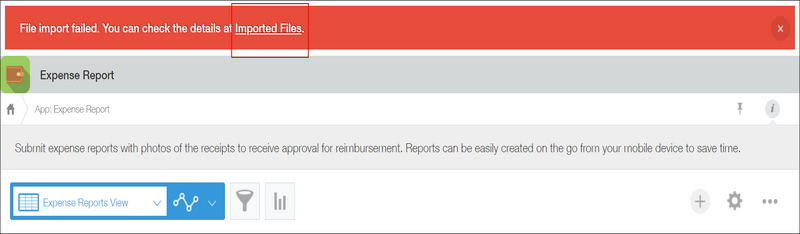
When data import fails after an app is created, the error message "File import failed." is displayed.
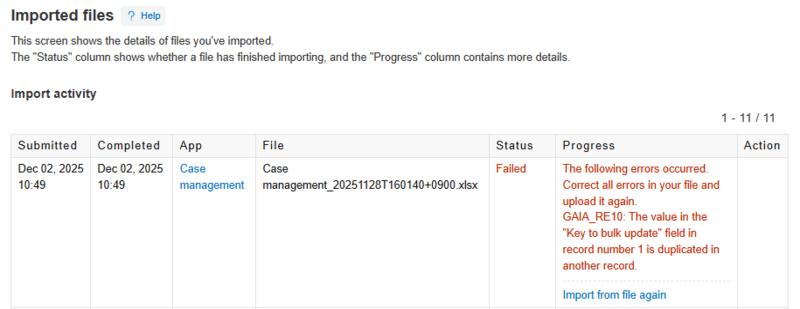
Click Imported files to view the details of the error on the Imported files screen.
Error example:
The following table describes symptoms and solutions when data fails to be loaded from a file.
Error situation
Solution
The following error message is displayed: GAIA_IL17: Invalid formatting is found in the "***" field mapped column at row *** of the file. The supported formatting for each column differs depending on the field type to which the column is mapped. Check that the value specified in the "***" field mapped column at row *** of the file is formatted correctly.
This error occurs when the data format of a value in row 100 or a subsequent row differs from that in the preceding rows of the file. Check and correct row 100 and subsequent rows for a value that is in a different format. For example, a row containing a text value in a field although other preceding rows contain numeric values in the field. Refer to the following page: Supported Formats for Adding/Updating Records
However, the data has been imported to the app from the first row to just before the row number R.
The following error message is displayed: GAIA_IL16: The value of field "***" at row *** of the file is invalid. The field may have the "Required field" or "Prohibit duplicate values" options turned on. If the field type is a Drop-down or a Radio Button, the value may not match the options included in the field settings.
This error occurs when the data type of a value in row 100 or a subsequent row differs from that in the preceding rows of the file. Check and correct row 100 and subsequent rows for a value of a different type. For example, a row contains a text value in a field although other preceding rows contain email addresses in the field. Refer to the following page: Supported Formats for Adding/Updating Records
The following error message is displayed: GAIA_II05:Failed to import the file. Please reduce the data size in row ***.
This error can occur only for CSV files. Reduce the length of a row or the number of columns.
However, the data has been imported to the app from the first row to just before the row number R.
The app name is truncated.
The file name cannot be longer than 64 characters. Rename the Excel file. Or change the name of the created app on kintone. Changing the Name and Icon of an App