
Enabling and Accessing the Usage Dashboard
To use the Usage Dashboard, you need to enable the feature.
This page describes how to enable the feature and how to access the Usage Dashboard screen.
Enabling the Usage Dashboard feature
First, enable the Usage Dashboard feature.
-
Click the Settings icon (the gear-shaped icon) at the top of kintone, then click kintone administration.
-
Click "Feature activation" under "Other" on the "kintone administration" screen.
-
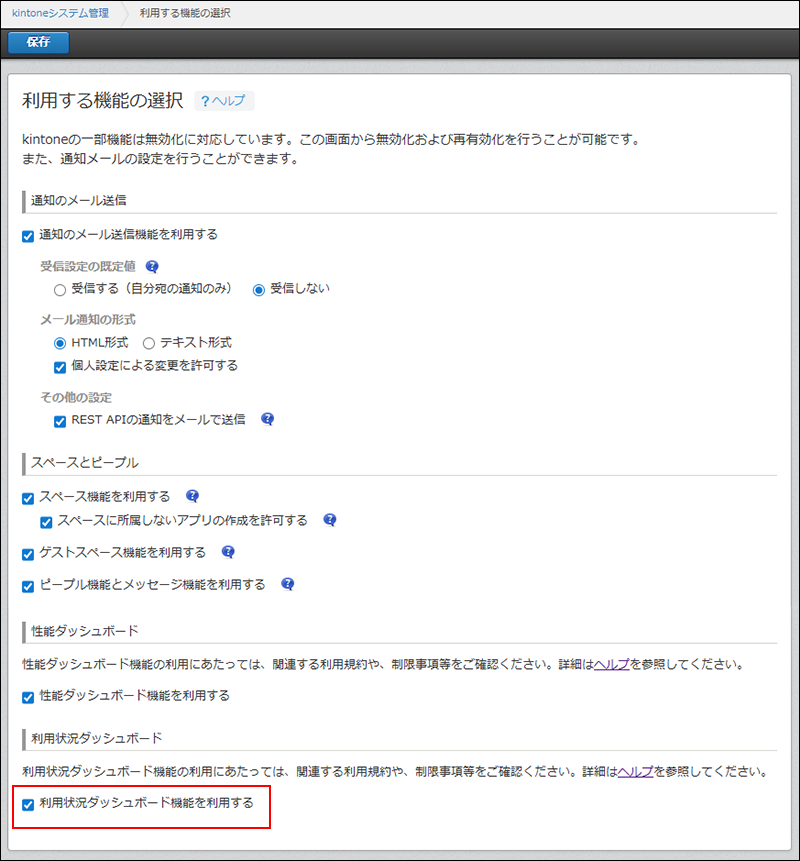
On the Feature activation screen, select Activate Usage Dashboard Feature in the Usage Dashboard section.
-
Clicking "Save" at the upper left of the screen.
How to Access the Usage Dashboard
When the Usage Dashboard feature is activated, a menu item for accessing the Usage Dashboard appears on the kintone administration screen.
-
Click the Settings icon (the gear-shaped icon) at the top of kintone, then click kintone administration.
-
Click "Usage Dashboard" in "Other" on the "kintone administration" screen.
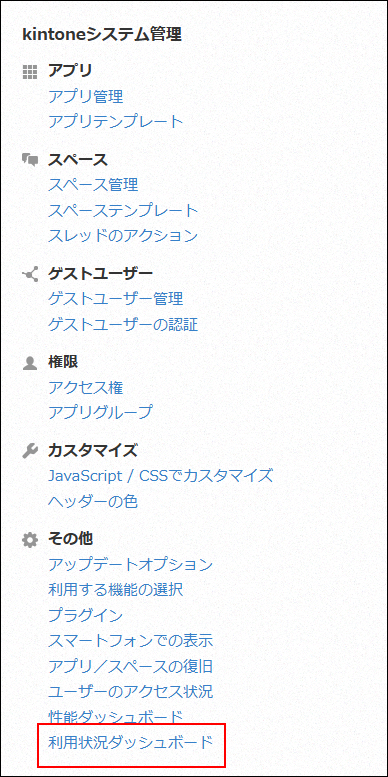
The Usage Dashboard screen appears.
Metrics Displayed on the Usage Dashboard
For details on the metrics displayed, refer to the Dashboard screen.