
When permissions are set for a field, "No permission to view this field" is displayed on the "Record details" screen or the field does not appear
The way a field is displayed on the Record details screen depends on how its permissions were set on the Permissions for fields screen.
-
If you have added one or more fields from Add a field for selection in a field's permission settings:
Users who do not have permission to view the field will see the following message.
No permission to view this field. -
If you only set users, departments, or groups in a field's permission settings:
The field will not be visible to users who do not have the "View" permission for the field.
Example: In the permission settings of a field named "Interview content", you added a "Person in charge" field using the "Add a field for selection" button and also added the "General Affairs and Human Resources" department
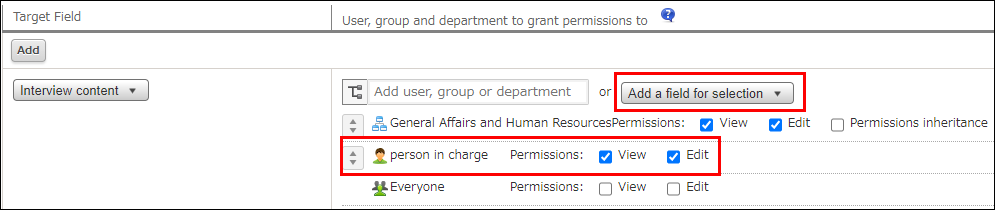
Only users who are set in the "Person in charge" field and users who belong to the "General Affairs and Human Resources" department have permission to view the "Interview content" field.
For users who do not have permission to view the "Interview content" field, the following error will be displayed.
No permission to view this field
Example: In the permission settings of a field named "Interview content", you added only the "General Affairs and Human Resources" department

Only users who belong to the "General Affairs and Human Resources" department have permission to view the "Interview content" field.
For users who do not have permission to view it, the "Interview content" field will not be displayed.