
Checking the status of file import
Data can be imported to an app from an Excel or CSV file.
On the Imported files screen, you can check the status of the files you've imported.
The Imported files screen lets you check the following:
- The progress of each of your imported files
- Errors in your file for import (if your file import failed)
Accessing the "Imported files" screen
To open the Imported files screen, perform one of the following actions.
- Click a link in the message that is displayed at the top of the View screen while your file is being imported or when your file import action has failed.
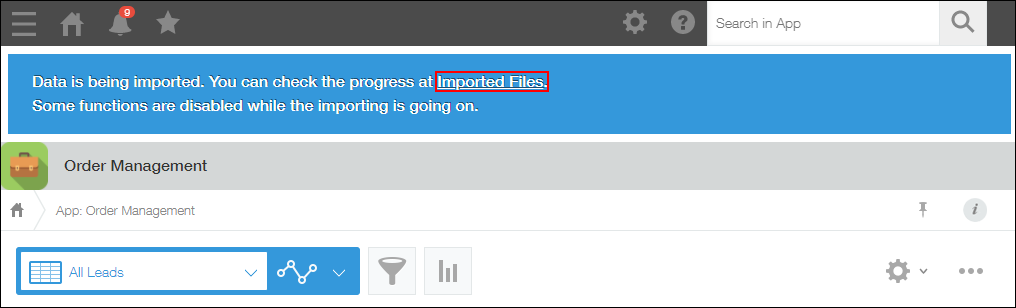
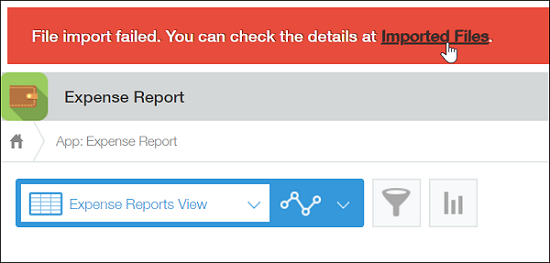
- Click the Settings icon (the gear-shaped icon) at the top of kintone, then select Imported files.

Checking the status of an imported file on the "Imported files" screen
The Imported files screen shows the progress and results of the import actions you've performed, sorted by the Submitted date and time in descending order, with 20 items per page.
The screen refreshes automatically.
Imported files disappear from the Imported files screen three days after the date and time specified in the Submitted column. Also, when an app is deleted, files that were imported into the deleted app will no longer be displayed.
Overview of the "Imported files" screen
This section describes the information displayed on the Imported files screen.
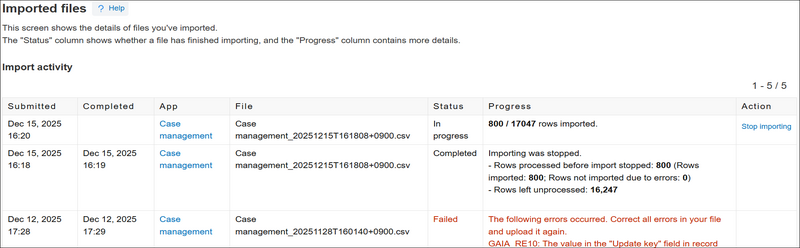
Submitted
Shows the date and time when the import file was registered.
Completed
Shows the date and time when the file import process was completed.
When the current status is still Waiting or In progress, no data is displayed in this column.
App
Shows the name of the app to which you imported data from a file.
When you click the link of the app name, the View screen of the app is displayed.
However, if you do not have permission to view or add records for the app, (No permission) is displayed instead.
File
Shows the name of the file used to import data into the app.
Status
Indicates the status of the file import process. The following status types are possible:
- [待機中]
- In progress
- Failed
- Completed
- Canceled
Details
Shows a message based on the current status.
If the status is "Waiting"
A message indicates that your file import has been queued and is waiting to start.
To stop importing a file, click Stop importing in the Action column. The Status will then change to Canceled.
If the status is "In progress"
A message displays how many rows have been imported out of the total number of rows in the file.
To stop importing a file, click Stop importing in the Action column. The Status will then change to Completed.
If the status is "Failed"
A message displays the error code and error message of the error that occurred.
If multiple errors occur during a single file import, only one error message will be displayed.
For details on how to resolve errors, refer to the following page:
What to do if adding/updating records in bulk fails
If the status is "Completed"
A message displays the number of rows that were imported.
The number of rows that failed to be imported due to errors or cancellation is also displayed.
You can also download the failed rows and their causes in CSV format.
If the status is "Canceled"
A message indicates that the file import process was canceled.
Action
When there are action links such as Stop importing, they are displayed in this column.
Re-importing a corrected file
If an error occurs during the file import process, you can re-import a corrected file while retaining the settings configured in the previous import.
Click the Import from file again button in the Details column to open the Import from file screen.
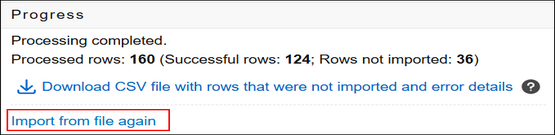
On the Import from file screen, import the corrected file.
Conditions for import settings to be carried over
If all of the following conditions are met, the settings from your previous import will be carried over.
- You click Import from file again on the Imported files screen to open the Import from file screen.
- You selected the First row in the file contains column headers checkbox when you imported the file previously.
- The column names and order of columns in the file to be re-imported are the same as those in the file that was previously imported.
Import settings that are carried over
The following import settings are carried over when you re-upload a file. For details, click on the links.