How can I check the usage status of kintone?
This article describes how to check the usage status of apps and spaces in kintone, as well as plug-ins and external service integration.
Checking the usage status of each feature can help you decide which plan to choose.
For information on the maximum limits for each plan, refer to the product website below.
Pricing (Only available in Japanese)
Checking the number of possible/existing apps, API usage status, and whether app customization is applied
Click App management in kintone administration.
Opening the kintone administration screen

The Current usage section shows the number of apps that can be created, the number of apps that currently exist, the number of API requests possible per app in one day, the number of API requests executed in an app on the day, and the number of customizable/customized apps.
The limits differ depending on which subscription plan you have, and the displayed values are reset every day at 9 a.m.
The Apps section shows the number of API requests for each app on that day, as well as whether or not each app is customized using JavaScript/CSS.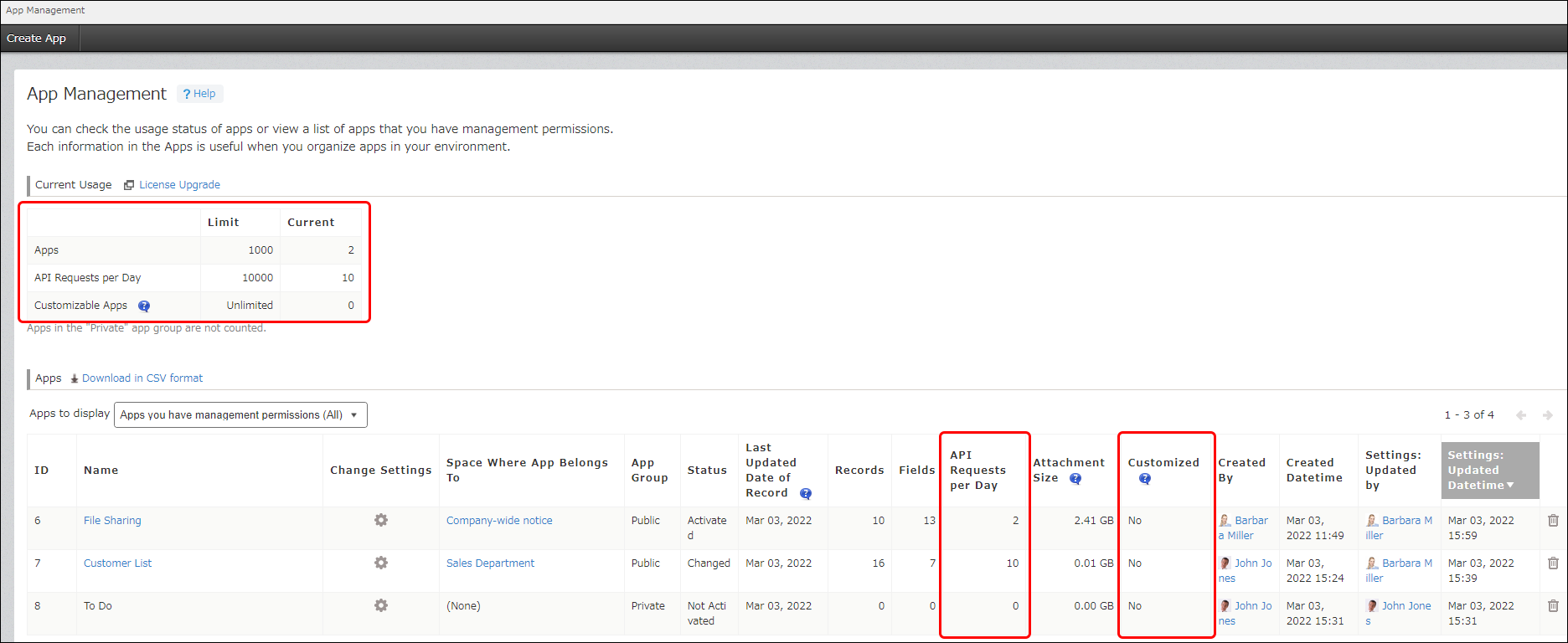
Note that if you change your subscription to a Lite license plan when you have customized apps, the customization for those apps will be disabled.
Checking the number of possible/existing spaces and guest spaces
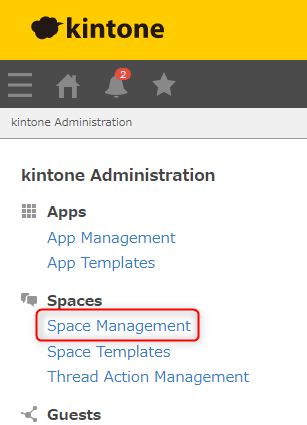
Click Space management in kintone administration.
The Current usage section shows the limit for how many spaces and guest spaces can be created, as well as the number of existing spaces and guest spaces.
The limits differ depending on which subscription plan you have.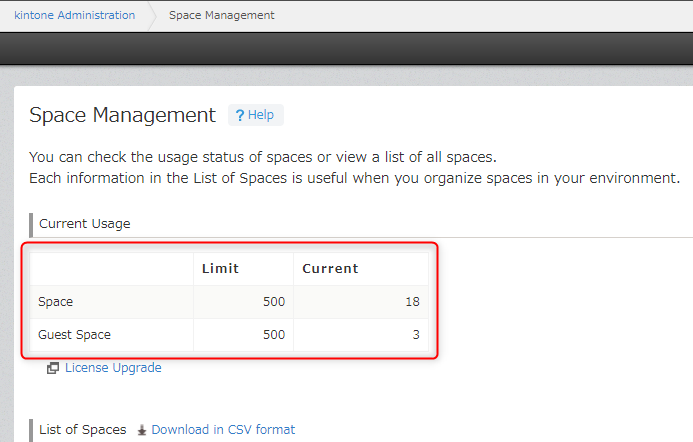
Checking whether JavaScript/CSS customization is applied to all of kintone
Click JavaScript and CSS customization in kintone administration.
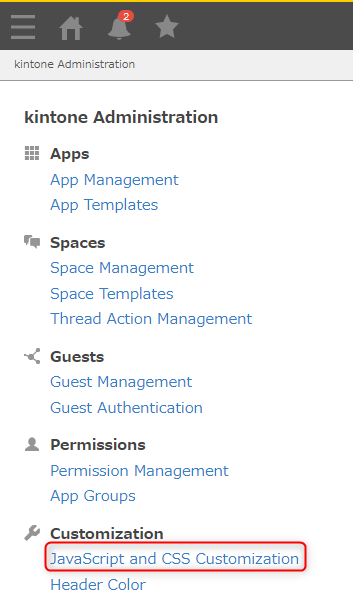
This allows you to check whether JavaScript/CSS customization is applied to kintone. If you see an uploaded URL or file on the screen, it means that the system is customized.
Note that if you change your subscription to a Lite license plan when you have customized apps, the customization for those apps will be disabled.
Checking the usage status of plug-ins
Click Plug-ins in kintone administration.
Note that if you are currently subscribed to the Lite license plan, you cannot use plug-ins.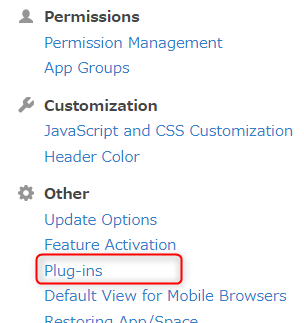
The Apps that have this plug-in added column shows which apps are using the relevant plug-ins.
Clicking an app name opens the settings screen of the app.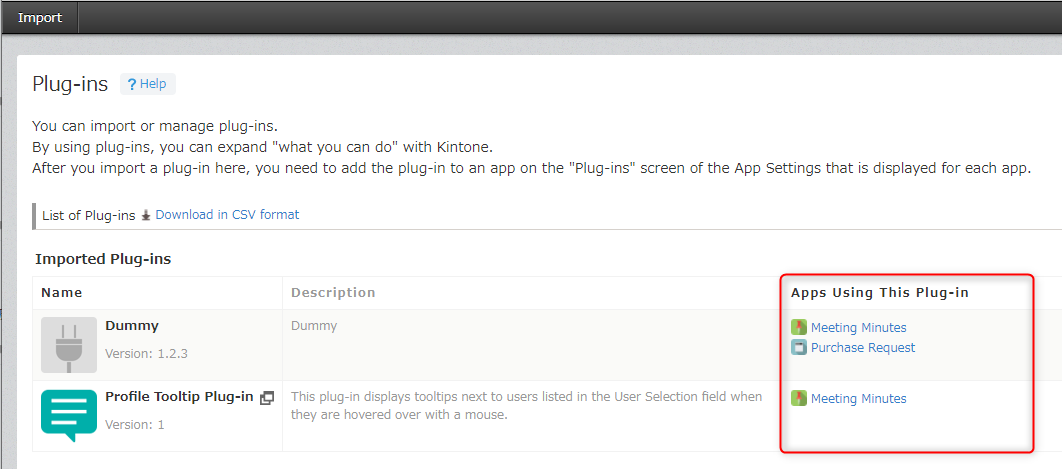
Checking whether external service integration is enabled
Open cybozu.com administration and click OAuth under Integrations.
Opening the "cybozu.com administration" screen
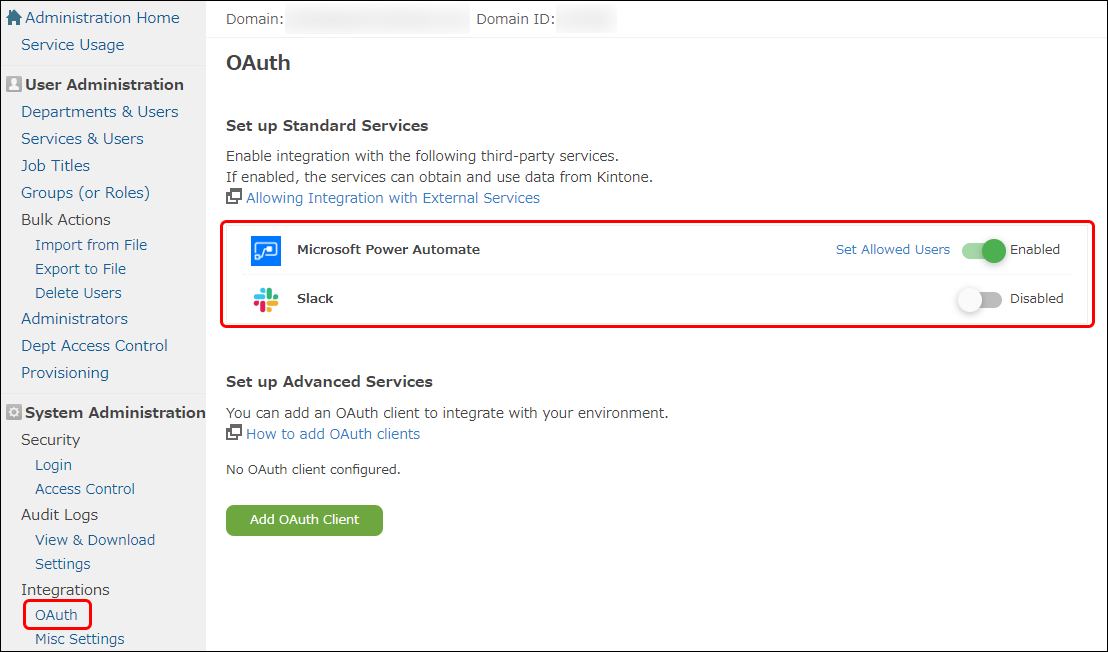 You can check the current settings of external service integration here.
Checking the usage status of webhooks
The usage status of webhooks can be checked in individual apps.
Click the App settings icon (the gear-shaped icon) at the upper right of the View screen.
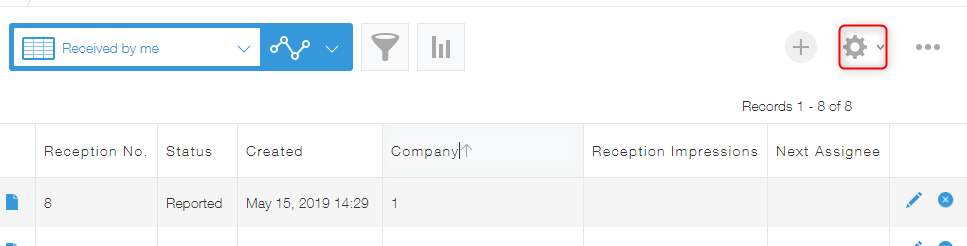
On the
App settings screen, select the App settings tab, and then click Webhooks under Customization and integration.
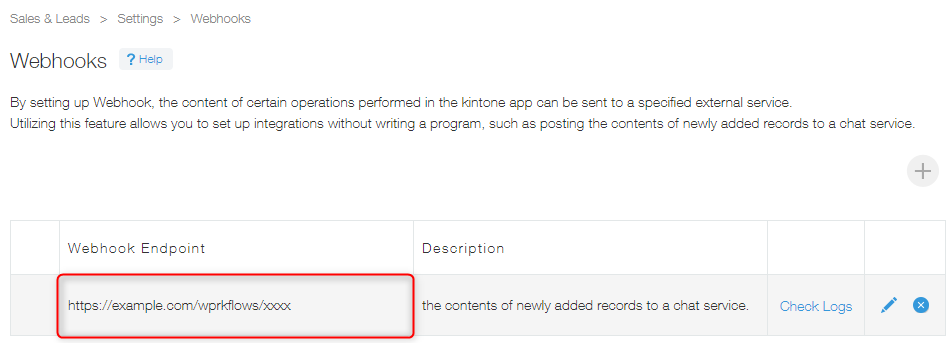
The Webhooks settings screen shows the current settings for webhooks.
If any webhooks are configured, their URLs are displayed.