
Using client certificate authentication on mobile devices (for Android)
If cybozu.com Administrators have allowed users to use client certificate authentication, those users can access kintone using client certificate authentication on mobile devices.
This article explains how to configure settings for the Chrome Web browser on Android and the mobile app.
Using client certificate authentication with Android Chrome
When using client certificate authentication with Android Chrome, users need to install the client certificate by themselves. For details, refer to the following page:
Android Chrome
Using client certificate authentication with the mobile app
To use client certificate authentication with the mobile app, you need to configure settings in the following way.
Preparations
Downloading kintone on your Android device.

For details on which devices are supported by the mobile app, refer to the following page.
System requirements (Only available in Japanese)
Steps to set up the mobile app
-
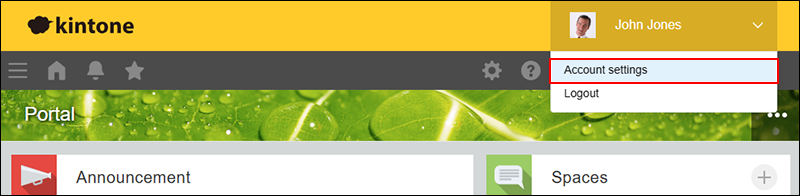
Access kintone from a PC, click the Account menu icon (the down arrow) at the top right of kintone, then click Account settings.
-
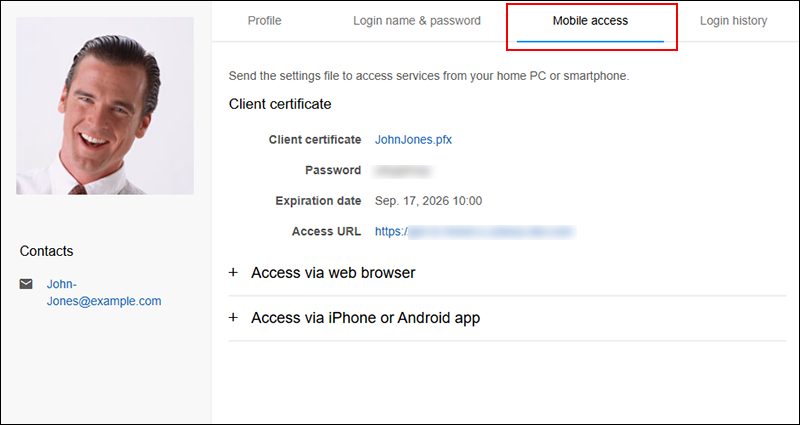
Click Mobile access.
-
Write down the password displayed in the Client certificate section. You will use it in a later step.
-
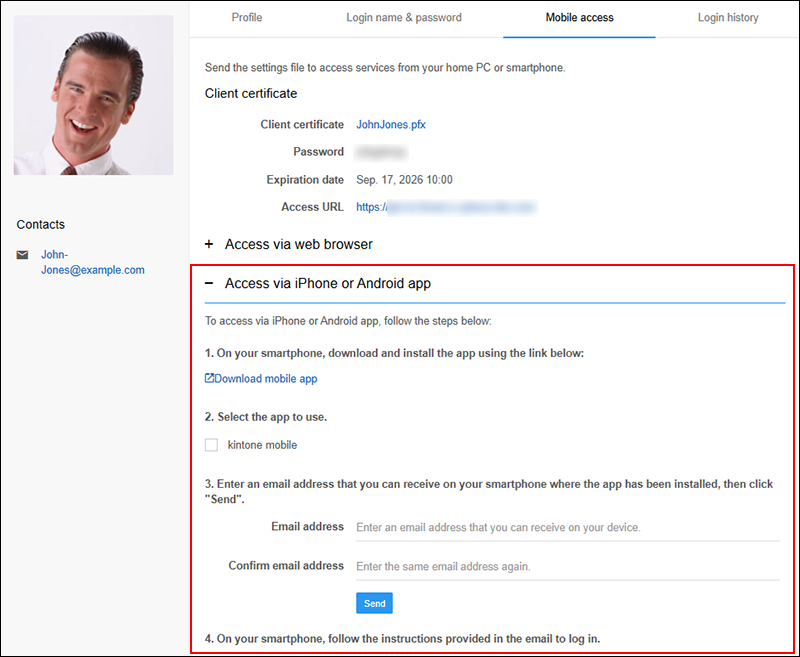
Click Access via iPhone or Android app.
-
In the 2. Select the app to use section, select the kintone mobile checkbox.
-
Enter an email address that you can access on the Android device you want to use the mobile app on, re-enter the email address for confirmation, and click Send.
The settings file will be sent to the email address you entered. -
On your Android device, open the email that you have received.
-
Tap the attached settings file.
The kintone mobile app will launch. -
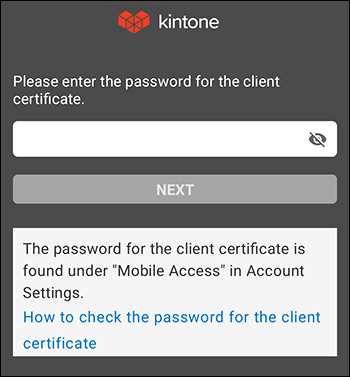
Enter the client certificate password that you wrote down in Step 3, then tap Next.
-
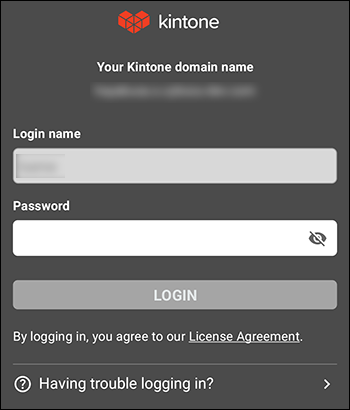
Enter your kintone login name and password, and then tap Login.
-
If you are prompted to allow the app to send notifications, choose to allow or disallow notifications.
You have now completed the configuration for using client certificate authentication in the mobile app. The mobile app screen will appear.