Logging in after signing up for a free trial
kintone offers a 30-day free trial that you can sign up for via the kintone product website.
kintone product website
When you sign up for a free trial, you will receive an email with the URL for your trial environment.
Once you receive the email, log in to kintone by following the steps below.
Steps
-
Open the email (Subject: "Welcome to kintone") that was sent to the email address you specified when signing up, then access the URL in the email.
-
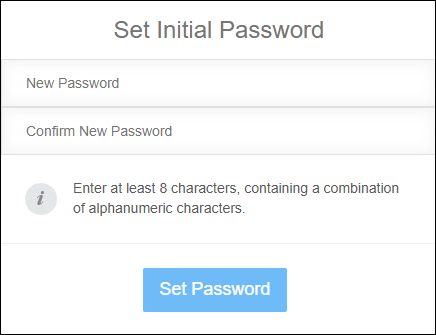
Set an initial password for the service.
-
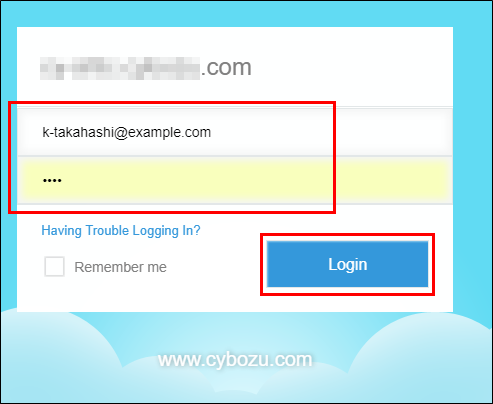
Enter the login name provided in the email and the initial password you set in Step 2, then click Login.
-
When the available services are displayed, click kintone.
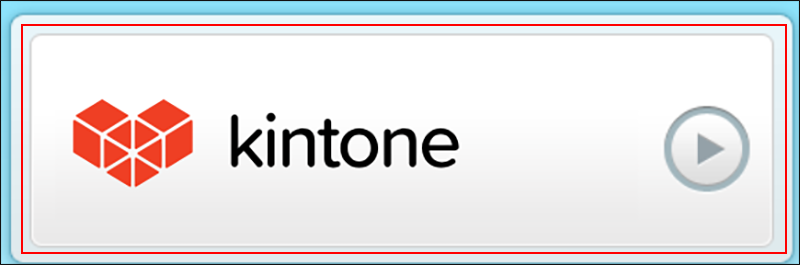
You are now logged in to kintone.
Performing initial setup
If you applied for a trial of kintone as a cybozu.com administrator, complete the initial setup, such as URLs and security settings, before inviting team members. For details, refer to the following page:
Steps to get started (for administrators)
If you change the URL, update your favorites and bookmarks accordingly.
Inviting team members
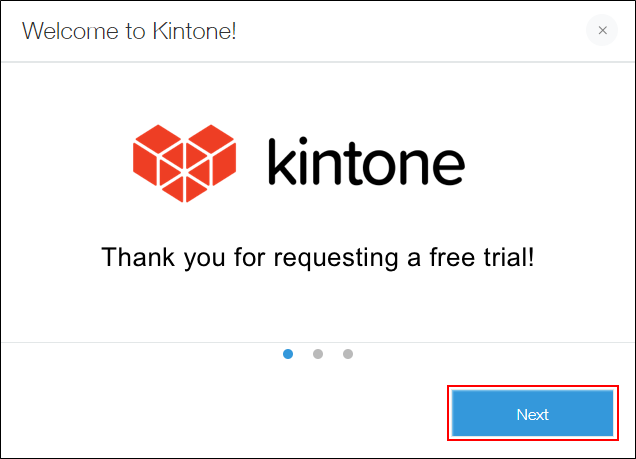
When you log in to kintone for the first time, the Welcome to kintone! dialog appears. Clicking Next takes you to a screen where you can invite team members. Refer to the following page to invite team members:
Inviting team members