
Checking apps on the "App management" screen
In the Apps section on the App management screen, you can check the details of the apps for which you have management permission.
You can also filter apps by specifying conditions such as the app name or the last updated date of record, or display only the apps you created.
Steps
-
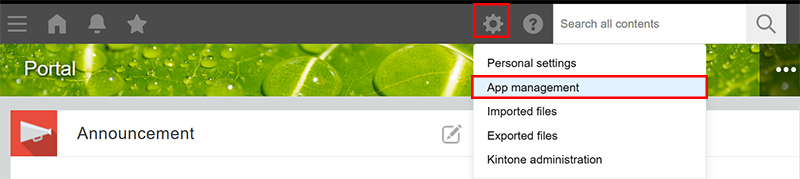
Click the Settings icon (the gear-shaped icon) at the top of kintone, then click App management.
-
On the App management screen, check the information under Apps.
Overview of the "Apps" section
The details of the items displayed in the Apps section are described below.
Items displayed in the
Apps section vary depending on your environment and your license plan.

ID
Displays the app ID, which is automatically assigned to individual apps.
Name
Displays the app name.
When you click the app name, the app opens. If an app is currently under development and not yet activated, the app name is not clickable.
Settings
Click the Settings icon (the gear icon) to open the App settings screen.
Space where app belongs to
Displays the space to which the app belongs.
When you click the space name, the portal screen of the space opens.
If
(None) is displayed for an app, it means that the app does not belong to any space.
App group
Displays which app group the app belongs to. For details, refer to the following page.
What are app groups?
Status
Displays the status of the app.
- Not activated: The app is under development and has not yet been activated.
- Activated: The app has been activated.
- Changed: The app has been activated but changes to the setting have not yet been applied to the actual environment.
Last updated date of record
Displays the date when a record was last added or edited in the app.
If a record has never been added/edited after an app is created, the date on which the app was created is shown in the column.
If an app was created before the update in January 2021 and no record in the app has been added or edited since then, (No data) is displayed for the app.
The date displayed in the Last updated date of record column is updated when any of the following actions is carried out:
- Adding or editing a record on the Add new record or Edit record screen
- Adding or editing one or more records by importing a file (Excel/CSV)
- Adding or editing one or more records using an API
The date displayed in the Last updated date of record column is not updated by the following actions:
- Changing the process management status or assignees
- Posting comments
- Deleting a record
- Performing actions in the test environment
Records
Displays the number of records created in the app.
If the app is still under development and has not yet been activated, 0 is displayed.
Fields
Displays the number of fields placed in the app.
The following fields are not counted in the number of fields:
- Created by
- Updated by
- Created datetime
- Updated datetime
- Record number
- Label
- Space
- Border
- Categories
- Status (for process management)
- Assignee (for process management)
Field group fields and tables are also counted in the number of fields. For example, if a table contains a Checkbox field and a Text field, the total number of fields is three.
If the app is still under development and has not yet been activated, 0 is displayed.
API requests per day
Displays the number of requests via API on the day.
API requests are not counted for apps that are still under development and have not yet been activated, or for apps in the "Private" app group.
API tokens
Displays the number of API tokens generated for the app.
If no API tokens have been generated, 0 is displayed.
Webhooks
Displays the number of webhooks configured for the app.
If no webhooks have been configured, 0 is displayed.
Apps referencing this app
Displays the number of other apps referencing the app from a Lookup or Related records field.
This also includes references from apps in private spaces, guest spaces, and the "Private" app group.
Even if multiple fields in a single app reference the app, it counts as only one.
Total attachment size
Displays the total size of the following attachments in the app.
- Files added to the Attachment field of records in the app
- Files included in the change history of records in the app
The size of these files in the app's test environment is also counted toward the total attachment size.
The total file size appears in GB rounded to two decimal places. However, if the total size is between 0 and 0.01 GB, it appears as 0.01 GB.
To check the exact size in bytes, download the app list in CSV format.
For details, refer to the following page.
Downloading a list of your apps in CSV format
Customized
Displays Yes when any of the following is configured:
- JavaScript and CSS customization
- Views in the Custom view format
- Plug-ins
If none of the customization mentioned above is configured, No is displayed.
Regular users with access
This displays the number of regular users who have access to the app.
cybozu.com administrators can check the number of regular users who can access each app by clicking the Retrieve manual update data button.
For more details, please refer to the next page.
Checking the number of users with access

Guest users with access
This displays the number of guest users who can access the app.
cybozu.com administrators can check the number of guest users who can access each application by clicking the Retrieve manual update data button.
For more details, please refer to the next page.
Checking the number of users with access
App administrators
This displays the number of users who have been granted permission to change the app's settings.
cybozu.com administrators can check the number of app administrators for each app by clicking the Retrieve manual update data button.
For more details, please refer to the next page.
Checking the number of app administrators
Created by
Displays the creator of the app.
Created datetime
Displays the date and time when the app was created.
The date and time is displayed regardless of the app status ("Not activated" or "Activated").
Settings: Updated by
Displays the user who last updated the settings of the app.
Settings: Updated datetime
Displays the date and time when the settings of the app were last updated.
Filtering the list of apps
You can filter apps by specifying conditions for items in the Apps section. You can also combine multiple conditions.
For example, filtering for apps with a Last updated date of record older than two years helps you efficiently find inactive apps to review.
-
In Filter conditions in the Apps section, click Add condition.
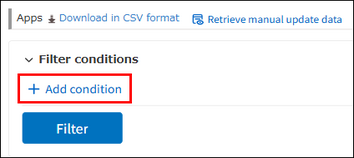
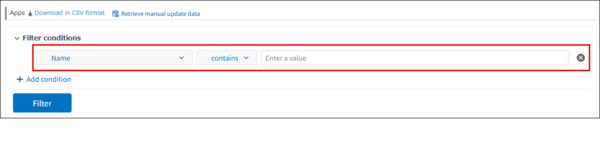
A new row for filter conditions appears.
-
Select items to filter by and specify conditions.
The available items and conditions are as follows.- ID
- Select = (equal to), ≧ (greater than or equal to), or ≦ (less than or equal to), and enter an integer.
- Name
- Select contains and enter text.
You can enter up to 64 full-width or half-width characters.
Filtering is not case-sensitive and does not distinguish between full-width and half-width characters. - Space where app belongs to
- Select contains or does not contain, and enter text.
If you select does not contain, apps that do not belong to any space also appear in the results.
You can enter up to 128 full-width or half-width characters.
Filtering is not case-sensitive and does not distinguish between full-width and half-width characters. - App group
- Select includes any of or does not include any of, and select one or more app groups.
You cannot select the "Private" app group. - Status
- Select includes any of or does not include any of, and select one or more of Not activated, Activated, and Changed.
- Last updated date of record
- Select ≦ (on or before) or ≧ (on or after), and select a date from the calendar or enter it directly.
Apps displaying (No data) do not appear in the results. - Records
- Select = (equal to), ≧ (greater than or equal to), or ≦ (less than or equal to), and enter an integer.
- Fields
- Select ≧ (greater than or equal to) or ≦ (less than or equal to), and enter an integer.
- API requests per day
- Select ≧ (greater than or equal to) or ≦ (less than or equal to), and enter an integer.
- API tokens
- Select ≧ (greater than or equal to) or ≦ (less than or equal to), and enter an integer.
- Webhooks
- Select ≧ (greater than or equal to) or ≦ (less than or equal to), and enter an integer.
- Apps referencing this app
- Select = (equal to), ≧ (greater than or equal to), or ≦ (less than or equal to), and enter an integer.
Apps displaying (No data) do not appear in the results. - Total attachment size (GB)
- Select ≧ (greater than or equal to) or ≦ (less than or equal to), and enter a numeric value in GB. You can specify up to two decimal places.
The values displayed in the Total attachment size column are used for filtering. For details on the displayed file size values, refer to the following section:
Total attachment size
- Customized
- Select includes any of or does not include any of, and select one or more of Yes and No.
- Regular users with access
- Select = (equal to), ≧ (greater than or equal to), or ≦ (less than or equal to), and enter an integer.
If Not retrieved is displayed in the Apps section, you can filter apps after retrieving data by clicking the Retrieve manual update data button. For details, refer to the following section:
Regular users with access - Guest users with access
- Select ≧ (greater than or equal to) or ≦ (less than or equal to), and enter an integer.
If Not retrieved is displayed in the Apps section, you can filter apps after retrieving data by clicking the Retrieve manual update data button. For details, refer to the following section:
Guest users with access - App administrators
- Select = (equal to), ≧ (greater than or equal to), or ≦ (less than or equal to), and enter an integer.
If Not retrieved is displayed in the Apps section, you can filter apps after retrieving data by clicking the Retrieve manual update data button. For details, refer to the following section:
App administrators - Created by
- Select includes any of, and select one or more users.
-
- You can select up to 100 users.
- You cannot select inactive or deleted users.
- If the Limit access across departments checkbox is selected on the Department access control screen in cybozu.com administration, only cybozu.com administrators and kintone administrators can select users in a different top-level department. Non-administrator users cannot select them.
- Created datetime
- Select ≦ (on or before) or ≧ (on or after), and select a date from the calendar or enter it directly.
You cannot specify a time. - Settings: Updated by
- Select includes any of, and select one or more users.
-
- You can select up to 100 users.
- You cannot select inactive or deleted users.
- If the Limit access across departments checkbox is selected on the Department access control screen in cybozu.com administration, only cybozu.com administrators and kintone administrators can select users in a different top-level department. Non-administrator users cannot select them.
- Settings: Updated datetime
- Select ≦ (on or before) or ≧ (on or after), and select a date from the calendar or enter it directly.
You cannot specify a time.
-
To filter by multiple conditions, repeat Steps 1 and 2.
-
Click Filter.
Apps that meet the conditions appear.
Displaying only the apps created by you in the "Apps" section
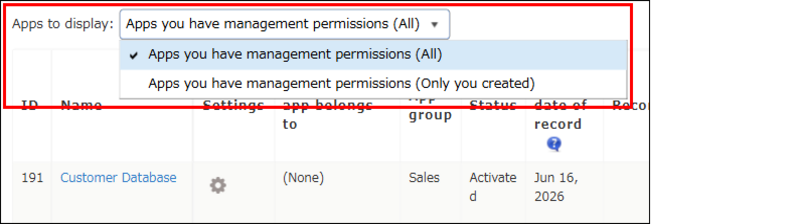
Under Apps to display, select Apps you have management permissions (Only you created) to display only the apps you created.
Use this option to find an app you were working on and resume its setup, or to organize or delete apps you created.
Changing the order in which apps are displayed in the "Apps" section
In the app list, you can click a field name to sort apps in ascending or descending order.
You can sort by the following fields.
- ID
- Name
- Space where app belongs to
- App group
- Status
- Last updated date of record
- Records
- Fields
- API requests per day
- API tokens
- Webhooks
- Apps referencing this app
- Total attachment size
- Regular users with access
- Guest users with access
- App administrators
- Created by
- Created datetime
- Settings: Updated by
- Settings: Updated datetime