
ノンデスクワーカー向けiPadアプリ用のフォームを設定する
ノンデスクワーカー向けiPadアプリ用のフォームの設定方法を説明します。このページでは、次の操作について説明します。
フォームを設定する前に、次の注意点を確認してください。
iPadアプリ用のフォームを設定できるユーザー
iPadアプリ用のフォームを設定できるのは、本体のkintoneアプリの管理権限を持つユーザーです。
アプリの管理権限を持つユーザーとは、次の条件をすべて満たすユーザーです。
- [kintoneシステム管理]の[アクセス権]画面で、[アプリの管理]の[許可]にチェックが入っている
- 本体のkintoneアプリの[アプリのアクセス権]画面で、[アプリ管理]にチェックが入っている
iPadアプリ用のフォームを設定する際の注意点
次の注意点を確認してください。
配置できるフィールドを確認する
ノンデスクワーカー向けiPadアプリ用のフォームに配置できるフィールドは、次のとおりです。
- [文字列(1行)]
- [文字列(複数行)]
- [数値]
- [ラジオボタン]
- [チェックボックス]
- [複数選択]
- [ドロップダウン]
- [日付]
- [時刻]
- [日時]
- [添付ファイル]
- [ルックアップ]
- [リンク]
- [テーブル]
必須項目が設定されているフィールドを確認する
本体のkintoneアプリで必須項目が設定されているフィールドをiPadアプリ用のフォームに配置していない場合、次のことが起こります。
- 新規にレコードを登録しようとしたとき:
レコードを登録できません。ただし、必須項目のフィールドに初期値を設定しておくと、登録できます。 - 登録済みのレコードを編集しようとしたとき:
必須項目のフィールドの値が空のレコードは編集できません。
なお、iPadアプリ用のフォームに配置した[テーブル]内で、iPadアプリに対応していない種類のフィールドが必須項目に設定されている場合、そのフィールドに初期値を設定していないと、レコードを編集できません。
必須項目のフィールドをiPadアプリ用のフォームに配置してください。配置できない場合は、本体の[アプリの設定]画面で、必須項目の設定を見直してください。
なお、[テーブル]自体をiPadアプリ用のフォームに配置していない場合、新規のレコードは登録できます。ただし、[テーブル]の中の必須項目に値が空の行がある既存のレコードは編集できません。
iPadアプリ用のフォームを追加する
次の手順で、iPadアプリ用のフォームを設定します。
ここまでの手順でフォームへの要素の配置が完了します。このまま公開する場合は[保存]をタップします。レイアウトをさらに調整する場合は、次の手順に進んでください。
iPadアプリ用のフォームの設定画面にアクセスする
iPadアプリ用の[フォーム管理]画面から、フォームの設定画面にアクセスします。
-
iPadで、[kintone Touch]のアイコンをタップします。
-
[フォーム]画面の右上にある[フォーム管理]をタップします。
![スクリーンショット:画面右上の[フォーム管理]が枠線で強調されている](/k/kintone/img-ja/custom_form_setup_01.png)
-
[フォーム管理]画面で、フォームを設定するアプリの[+]ボタンをタップします。
![スクリーンショット:[+]ボタンが枠線で強調されている画面](/k/kintone/img-ja/custom_form_setup_02.png)
これで、iPadアプリ用のフォームを設定できる画面が表示されます。
フォーム名を変更する
フォームには、初期設定で「名称未設定」という名前が付いています。目的がわかる名前に変更します。
-
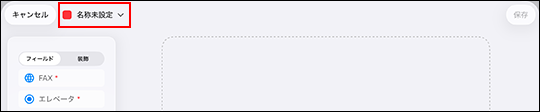
iPadアプリ用のフォームの設定画面で、画面左上にあるフォーム名をタップします。
-
[名称変更]をタップします。
![スクリーンショット:[名称変更]が表示されているメニュー](/k/kintone/img-ja/custom_form_setup_04.png)
-
フォーム名を入力します。
-
フォームに反映する場合は、[保存]をタップします。
フィールドを配置する
フォームに表示したいフィールドを選んで配置します。
-
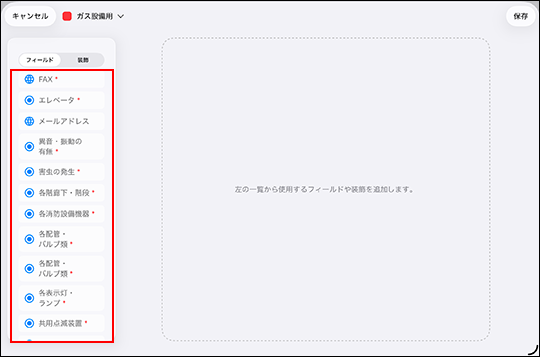
iPadアプリ用のフォームの設定画面の左側にあるフィールド一覧で、[フィールド]ボタンをタップします。
-
フォームに表示したいフィールドをタップします。
-
[インターフェースの選択]画面で、フィールドに設定したいインターフェースをタップします。
フィールドの種類に応じて、選択できるインターフェースが表示されます。 -
[追加]をタップします。
![スクリーンショット:インターフェースを選択した状態で、[追加]が枠線で強調されている](/k/kintone/img-ja/custom_form_setup_06.png)
-
フォームに反映する場合は、[保存]をタップします。
配置したフィールドの設定を変更する
必要に応じて、配置したフィールドの設定を変更します。
-
iPadアプリ用のフォームの設定画面で、設定を変更するフィールドをタップします。
-
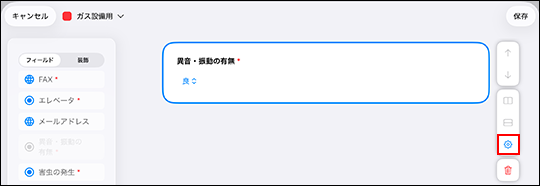
画面右側にある設定するボタン(歯車の形)をタップします。
-
フィールドの設定画面で、必要な項目を設定します。
-
[適用]をタップします。
-
フォームに反映する場合は、[保存]をタップします。
フィールドの順番を入れ替える
フォーム上の表示順を並べ替えます。
-
順番を入れ替えるフィールドをタップします。
-
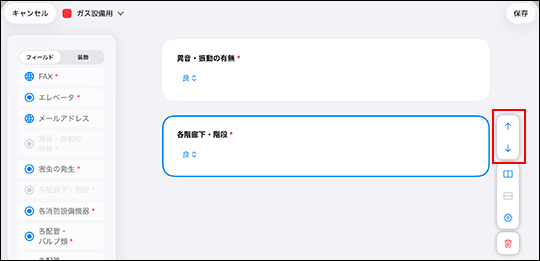
画面右側にある、上に移動するボタン(上向きの矢印の形)、または下に移動するボタン(下向きの矢印の形)をタップします。
-
フォームに反映する場合は、[保存]をタップします。
フィールドを結合する
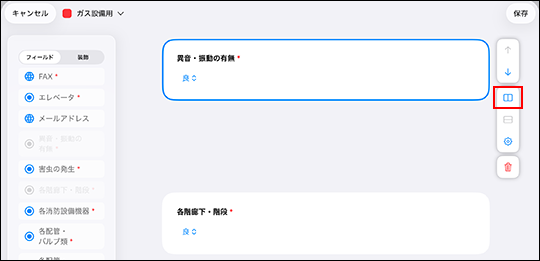
前後のフィールドを横に並べて1行で表示できます。結合できるフィールド数は2つです。
-
結合するフィールドをタップします。
-
画面右側にある結合するボタン(左右に長方形が2つ並んだ形)をタップします。
選択したフィールドのひとつ下にあるフィールドと結合されます。
-
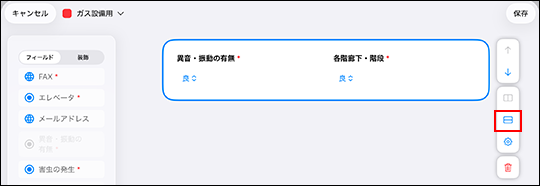
結合を元に戻す場合は、画面右側にある結合を解除するボタン(上下に長方形が2つ並んだ形)をタップします。
-
フォームに反映する場合は、[保存]をタップします。
配置したフィールドを削除する
必要に応じて、フィールドをフォームから取り除きます。
-
iPadアプリ用のフォームの設定画面で、フォームから削除するフィールドをタップします。
-
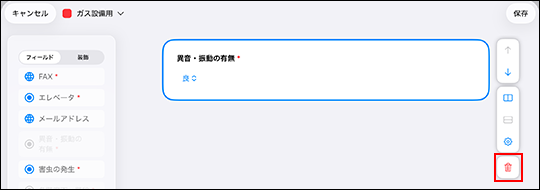
画面右側にある削除するボタン(ごみ箱の形)をタップします。
-
フォームに反映する場合は、[保存]をタップします。
フォームを見分けるための色を変更する
複数のフォームを作成している場合、色を設定しておくと一覧で見分けやすくなります。
-
iPadアプリ用のフォームの設定画面で、画面左上にあるフォーム名をタップします。
-
[色を選択]をタップします。
![スクリーンショット:[色を選択]が表示されているメニュー](/k/kintone/img-ja/custom_form_setup_12.png)
-
カラーパレットから、フォームの目印として設定する色をタップします。
-
フォームに反映する場合は、[保存]をタップします。
iPadアプリ用のフォームの設定を変更する
作成済みのフォームの設定を変更します。
-
iPadで、[kintone Touch]のアイコンをタップします。
-
[フォーム]画面の右上にある[フォーム管理]をタップします。
iPadアプリ用のフォームを設定できるアプリが一覧で表示されます。 -
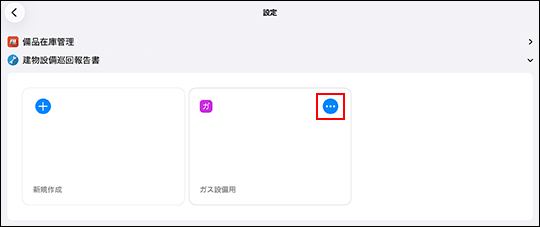
設定を変更するフォームで、メニューを表示するボタン(3つの点の形)をタップします。
-
[編集]をタップします。
![スクリーンショット:[編集]が強調されている](/k/kintone/img-ja/custom_form_setup_14.png)
-
必要に応じて、各フィールドの設定を変更したり、レイアウトを調整したりします。
-
フォームの編集が完了したら、[保存]をタップします。
iPadアプリ用のフォームを削除する
-
iPadで、[kintone Touch]のアイコンをタップします。
-
[フォーム]画面の右上にある[フォーム管理]をタップします。
iPadアプリ用のフォームを設定できるアプリが一覧で表示されます。 -
削除するフォームで、メニューを表示するボタン(3つの点の形)をタップします。
-
[削除]をタップします。