Installing and Logging in to the iPad App for Non-desk Workers

Article number:0401081

This guide explains the steps from installing the iPad app for non-desk workers to logging in.

Install an iPad app for non-desk workers.

This section describes how to install the Non-Desk Worker iPad app on your device.
Steps 1 and 2 are performed on the kintone administration screen. Steps 3 to 5 are performed on the iPad where you want to use the app.

Enabling Features with Update Options

Enable the iPad app features for non-desk workers from the kintone administration screen.

  1. Click the Settings icon (the gear-shaped icon) at the top of kintone, then click kintone administration.Screenshot: The "Settings" icon and "kintone administration" are outlined

  2. On the kintone administration screen, click Update options.

  3. In New features under consideration, select "Enable iPad app for non-desk workers".

  4. Click Save.

This will add the settings for the iPad app for non-desk workers on the kintone administration screen.

iPad App Permission Settings and Installation URL

On the "kintone administration" screen, enable the iPad app for non-desk workers and check the installation URL.

  1. On the kintone administration screen, clickノンデスクワーカー向けiPadアプリの利用設定.

  2. On theノンデスクワーカー向けiPadアプリの利用設定screen, check the box forノンデスクワーカー向けiPadアプリの利用を許可するunder [Basic settings].

  3. Find the URL (TestFlight public link) for installing the iPad app.
    You need to access this URL on the device using the iPad app. Share the URL with the device user as needed.
    Screenshot: A QR code and a URL are displayed

  4. Click "Save".
    "利用を許可するアプリ" can be configured even after logging in.
    For details, refer to the following page.
    iPad App Settings for Non-desk Workers

Checking the Version of iPadOS

The following instructions are for iPad.

The iPad app for non-desk workers supports iPadOS 16 and later. Check the OS version on your device, and if it is earlier than iPadOS 16, update it to iPadOS 16 or later.
For details on how to check the version and update the OS, refer to the iPad User Guide provided by Apple Inc.

Installing TestFlight

TestFlight is a test distribution service provided by Apple Inc. for distributing apps before their official release.
The trial version of the iPad app for Non-Desk Workers is distributed via TestFlight, so you need to install TestFlight in advance.

  1. On the iPad that you want to install the Non-Desk Worker iPad app on, access the URL (TestFlight public link) that you obtained in the step "Setting Permission to Use the iPad App and Obtaining the Installation URL".

  2. On the screen where the link opens, tap "View in App Store" in the "Get TestFlight" section of Step 1.
    Screenshot: The screen displayed when accessing a TestFlight public link

  3. If the TestFlight screen on the App Store appears, tap "Get" to install TestFlight.
    Screenshot: The screen for installing TestFlight

  4. Tap "Open" to launch TestFlight.

  5. If a screen for requesting permission to send notifications appears, tap either "Allow" or "Don't Allow".
    Either option can be selected without affecting the trial of the iPad app for non-desk workers.

  6. In the "Welcome to TestFlight" dialog, tap "Continue".
    Screenshot: The "Welcome to TestFlight" dialog

  7. If the TestFlight terms and conditions are displayed, read them and then tap "Agree".
    This screen does not appear if you have already agreed to the terms and conditions.

This completes the installation of TestFlight.

Install an iPad app for non-desk workers.

Install the iPad app for Non-Desk Workers by using TestFlight.

  1. Go back to the browser that was used to access the TestFlight public link.

  2. In Step 2, tap "View on TestFlight" in the "Displaying the kintone Touch Beta" section.Screenshot: The screen displayed when accessing a TestFlight public link

  3. If you are installing the iPad app for Non-Desk Workers for the first time, tap "Agree" when the TestFlight app launches and the screen for the iPad app for Non-Desk Workers appears.
    This screen does not appear if you have already agreed to the terms.

  4. On the TestFlight screen of the iPad app for Non-Desk Workers, tap "Install".Screenshot: The screen for installing the iPad app

  5. After launching the iPad app for non-desk workers, if the "From Developer" dialog box appears, review its contents and tap "Continue."

  6. If the "Share Feedback" dialog appears, review the contents and tap "Continue".
    If you want to check the details, tap "More Info".

  7. Tap "Start!".
    The login screen for the iPad app for non-desk workers will appear.

You have successfully installed the iPad app for non-desk workers.

Logging in to the iPad app for Non-desk Workers

Use one of the following methods to log in to the iPad app for non-desk workers.

Directly Enter Required Information to Log In

Before you start, prepare the kintone subdomain and login information.

  1. On your device, tap the "kintone Touch" icon.

  2. On the Terms of Use screen, confirm the details and select I agree to the License Agreement.

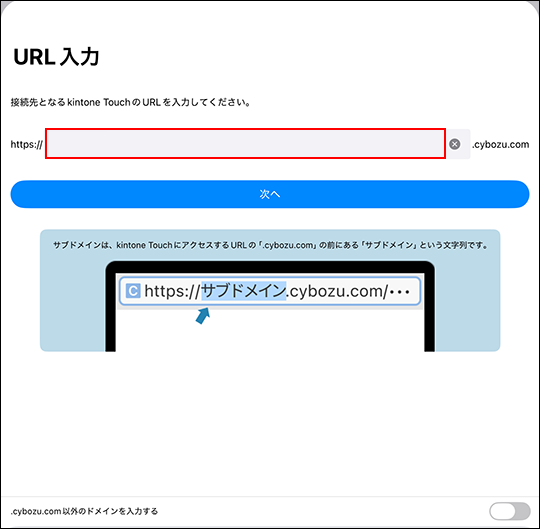
  3. On the "Enter URL" screen, enter the subdomain of the kintone you want to access, and then tap "Next".
    Screenshot: The field to enter a subdomain is highlighted

Proceed with the steps described in the section for your login method.

If your environment requires basic authentication

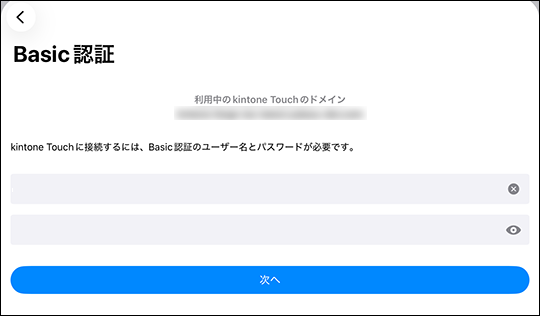
  1. Enter your basic authentication username and password, then tap Next.
    Screenshot: The screen for entering the user name and password for Basic Authentication

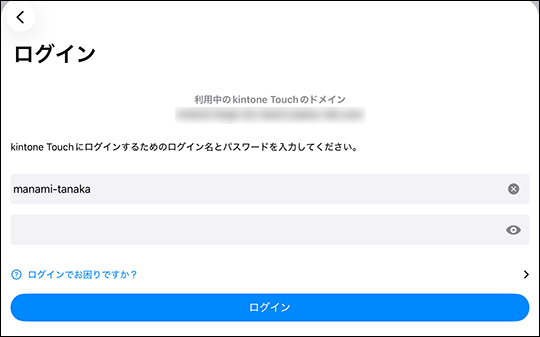
  2. Enter your kintone login name and password, then tap Log In.
    Screenshot: The screen for entering a login name and password

  3. If two-factor authentication is enabled, you will be prompted to enter a verification code after tapping "Login".
    Launch an authentication app such as Google Authenticator and enter the displayed 6-digit code.
    How to Obtain the Two-Factor Authentication Verification Code

If you are logging in with single sign-on (SSO)

Enter the login name and password for the service that is being used with SSO, then log in.

If you are logging in with your kintone login name and password

  1. Enter your kintone login name and password, then tap Log In.Screenshot: The screen for entering a login name and password

  2. If two-factor authentication is enabled, you will be prompted to enter a verification code after tapping "Login".
    Launch an authentication app such as Google Authenticator and enter the displayed 6-digit code.
    How to Obtain the Two-Factor Authentication Verification Code

Logging in using the settings information that was sent by e-mail

This procedure is designed for you to start on your PC and then switch to your iPad.

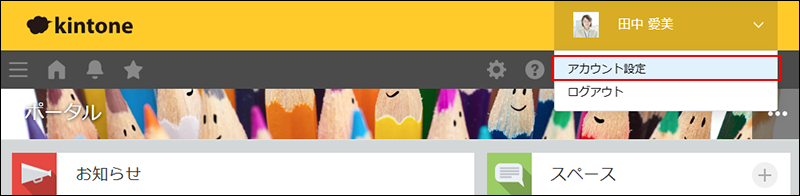
  1. Access kintone from a PC, click the Account menu icon (the down arrow) at the top right of kintone, then click Account settings.
    Screenshot: The steps to open "Account settings" are displayed

  2. On the Account settings screen, click the Mobile access tab.
    Screenshot: "Mobile access" is highlighted

  3. Note down the password listed in the [Client Certificate Information] section.
    This information is required when using the iPad app. Please handle your password with care.

  4. Click Access via iPhone or Android app.
    Screenshot: The contents of the "Access via iPhone or Android app" section are highlighted

  5. In the "2. Select the app to use" section, select "kintone Mobile".

  6. Enter twice the e-mail address that can be used to receive e-mail on the iPad app for non-desk workers, including the address for confirmation, and then click "Send".
    The setting file will be sent to the entered e-mail address.

  7. On your device, open the e-mail you have received.

  8. Tap the attached settings file.

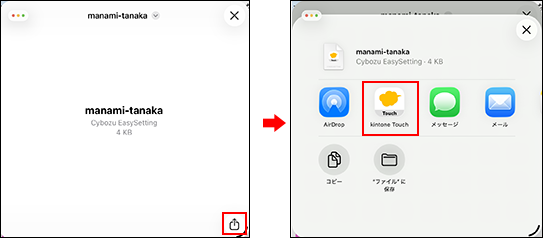
  9. Tap the share icon at the bottom of the screen (a square with an arrow pointing out of it), and then select "kintone Touch" as the app to open the file.
    Screenshot: The icon of the iPad app is outlined

  10. On the Terms of Use screen, confirm the details and select I agree to the License Agreement.

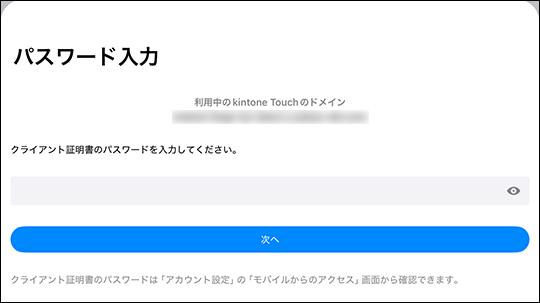
  11. On the client certificate password entry screen, enter the password that you wrote down in Step 3, then tap Next.
    Screenshot: The screen for entering a client certificate password is displayed

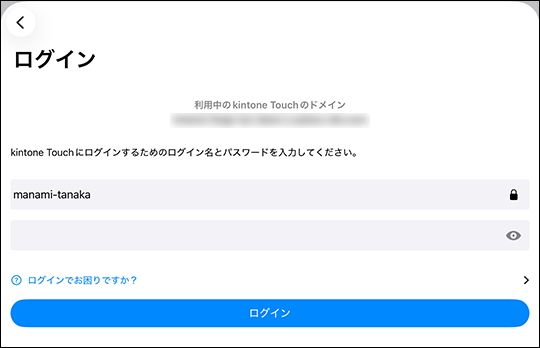
  12. On the login screen, enter the password for logging in to kintone and then click "Login".
    Screenshot: Entering the password for logging in to kintone

What to do if you forgot your password

If you forgot your password and can't log in, you can reset your password from the Log In screen.

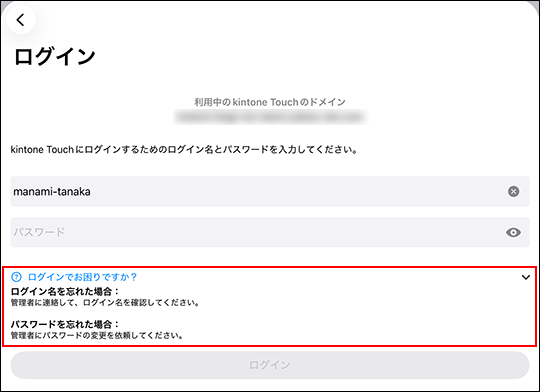
  1. On the Log In screen, tap Having trouble logging in?
    Screenshot: The "Having trouble logging in?" link is highlighted

  2. Follow the instructions below for your situation.

    • If a cybozu.com administrator has enabled the Allow users to reset password setting:
      The page for resetting your password will be displayed. For details on how to do so, refer to the following page.
      Resetting password
    • If a cybozu.com administrator has not enabled the Allow users to reset password setting:
      You cannot reset your password yourself. To resolve your issue, try one of the other methods shown after clicking Having trouble logging in?
      Screenshot: Methods for dealing with being unable to log in are highlighted

Updating the iPad App for Non-desk Workers

The iPad app for non-desk workers is distributed via TestFlight, so you need to update the app from the TestFlight app.

If you have enabled TestFlight's automatic update feature, the app will be updated automatically when a new version is released.
If you have not enabled the automatic update, launch the TestFlight app and update the app manually.