
Key updates for September 2026
Here's what's included in the update released on September 13.
| New features under consideration |
|---|
| Changes to update options |
|---|
本アップデート内容は情報公開時点のものであり、今後変更される場合があります。
その他の変更点は、定期メンテナンス情報をご覧ください。
メンテナンスにおける変更点はこちら(日本語のみ)
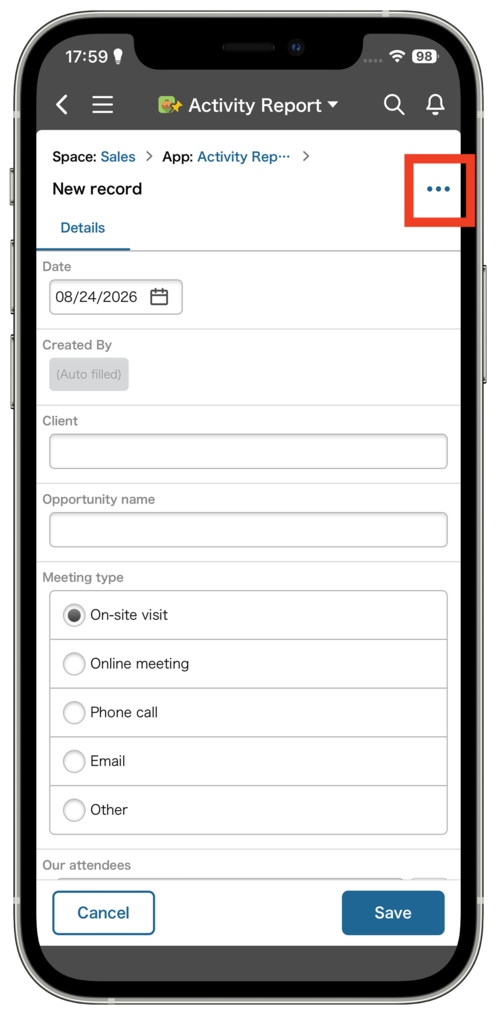
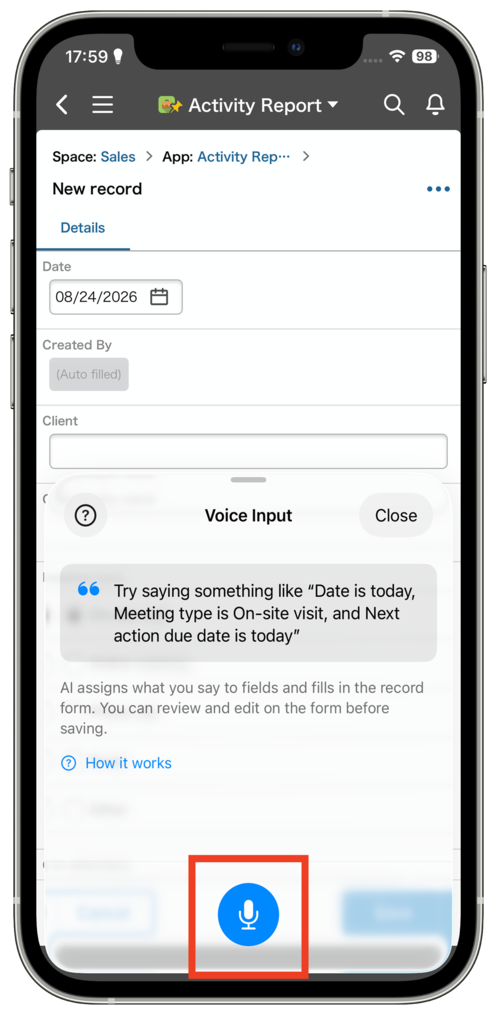
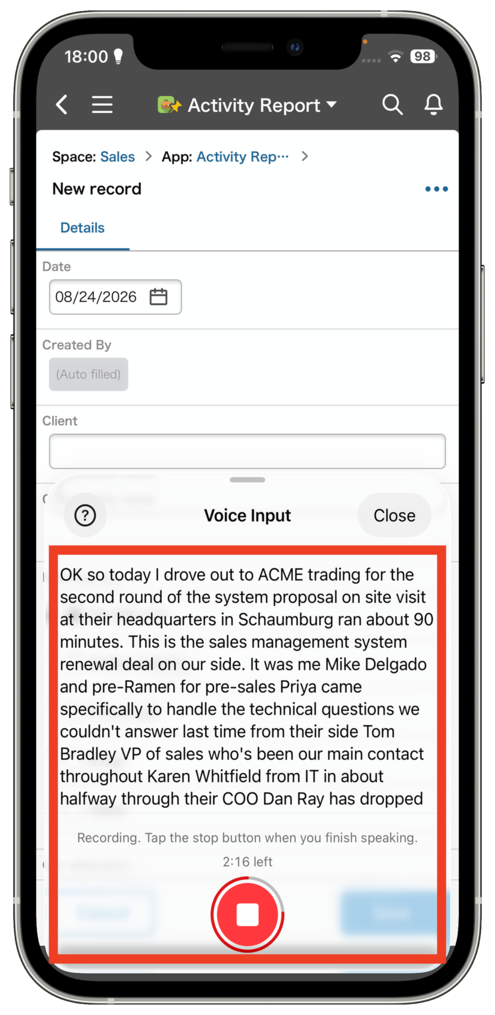
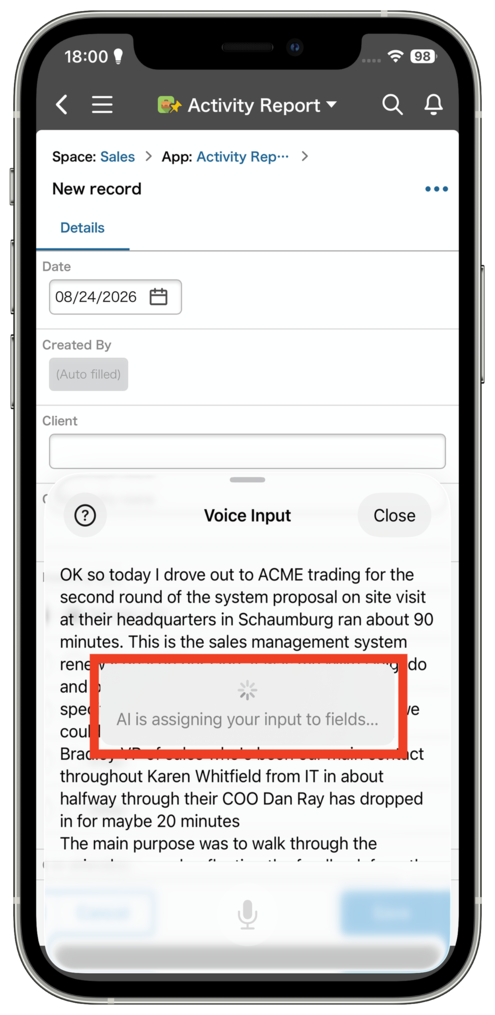
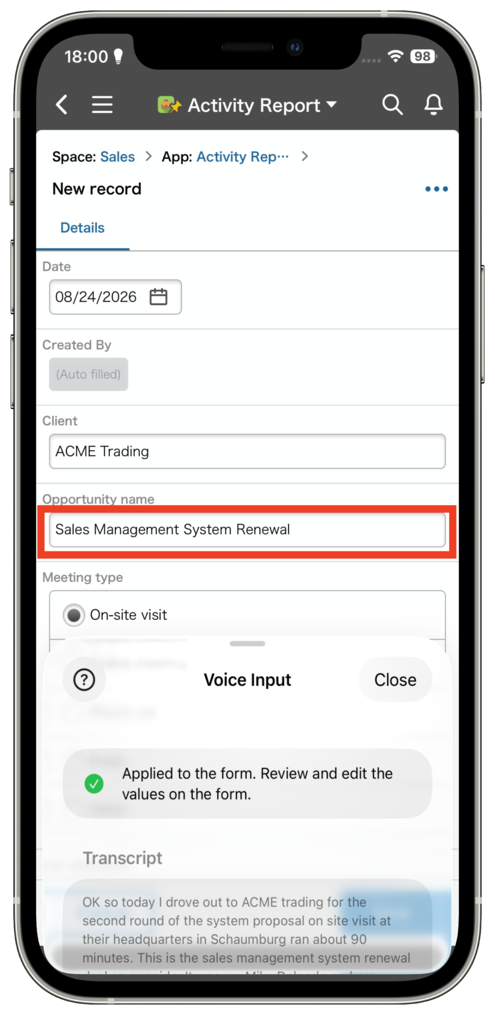
AI featuresAI Voice Data Entry: Record your voice in the mobile app (iOS), and AI will transcribe it and automatically fill in the relevant fields of a record.
AI Voice Data Entry is now available in the kintone mobile app for iOS. Record yourself saying what you want to enter in a record, and AI works out which fields the information belongs in and reshapes it to fit the format of each one. Fill out records just by speaking naturally, without having to select and fill in fields one by one.
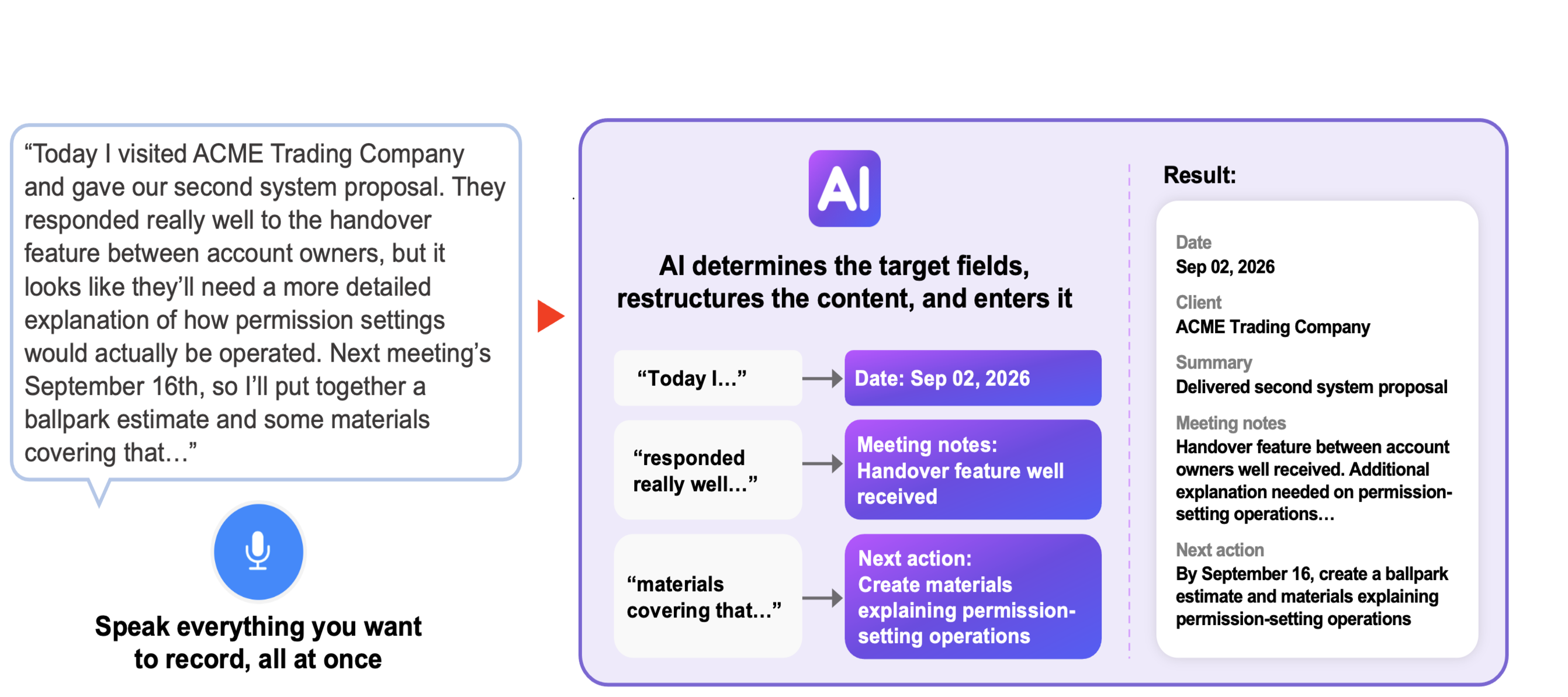
You can use this feature to record a sales meeting report while out of the office, or log inspection results in the field — no need to select and fill in fields one by one.
Now it's easier to quickly record information, whether you're working on-site or on the go.

SearchAll-contents search can now include or exclude specific apps and spaces
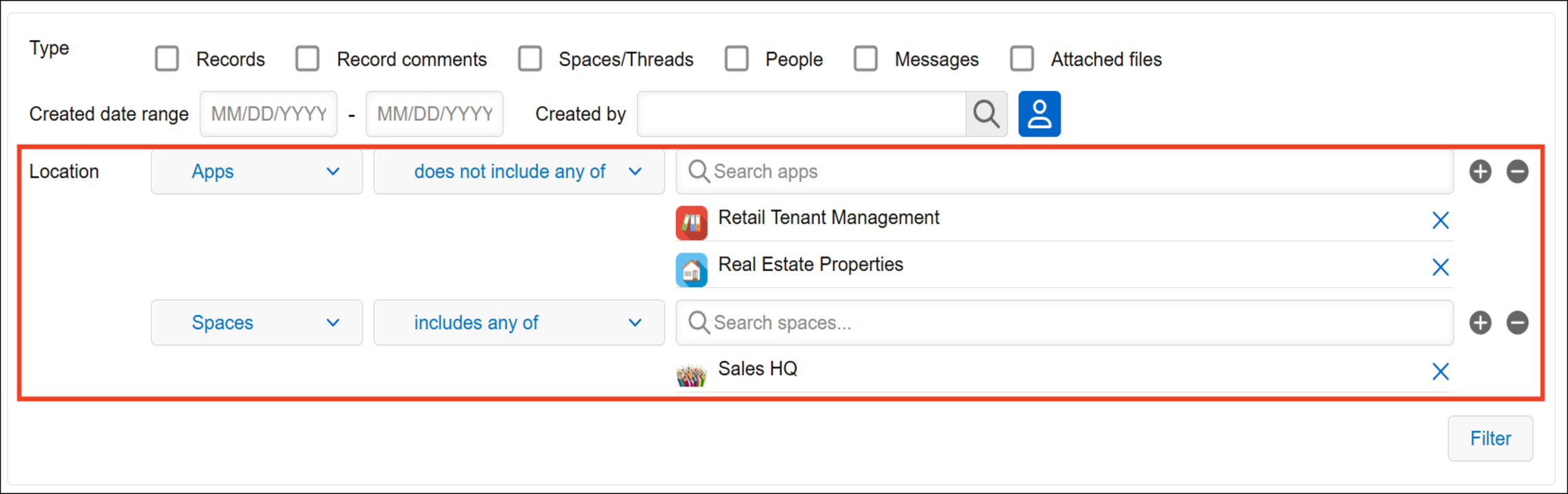
In the filter section for all-contents search, you can now include or exclude specific apps and spaces from your search. For example, you can search only the apps and spaces you use for work to find all the information you need about a project. If one app is returning too many results and you know the information you’re looking for isn’t there, you can simply exclude it from your search.
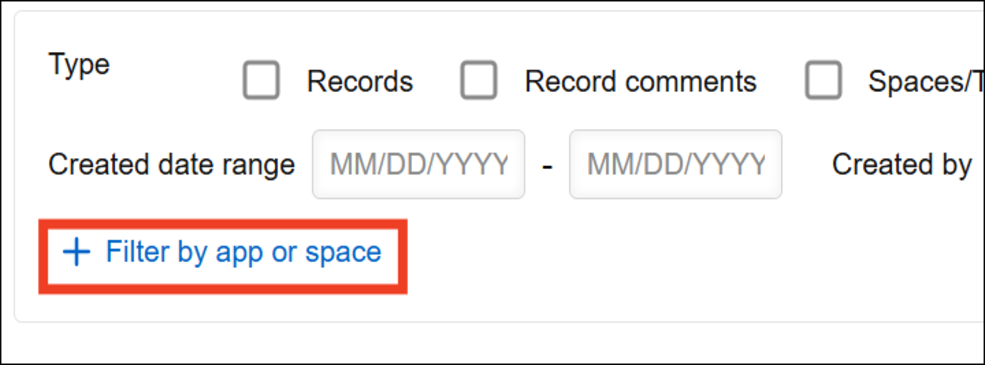
To add conditions, click "Filter by app or space" in the "Filter" section of the all-contents search screen.
You can add multiple apps and spaces and choose whether to include or exclude them from your search.
App managementMore filter conditions are now available for the app list on the "App management" screen
We've added 11 new filter conditions to the app list on the "App management" screen. You can now filter apps by "API tokens", "Webhooks", "App group", "Created by", and more. For example, you can filter for apps with API tokens or webhooks configured to check their external integrations, or filter by a specific app group or creator to find apps that need to be reviewed.
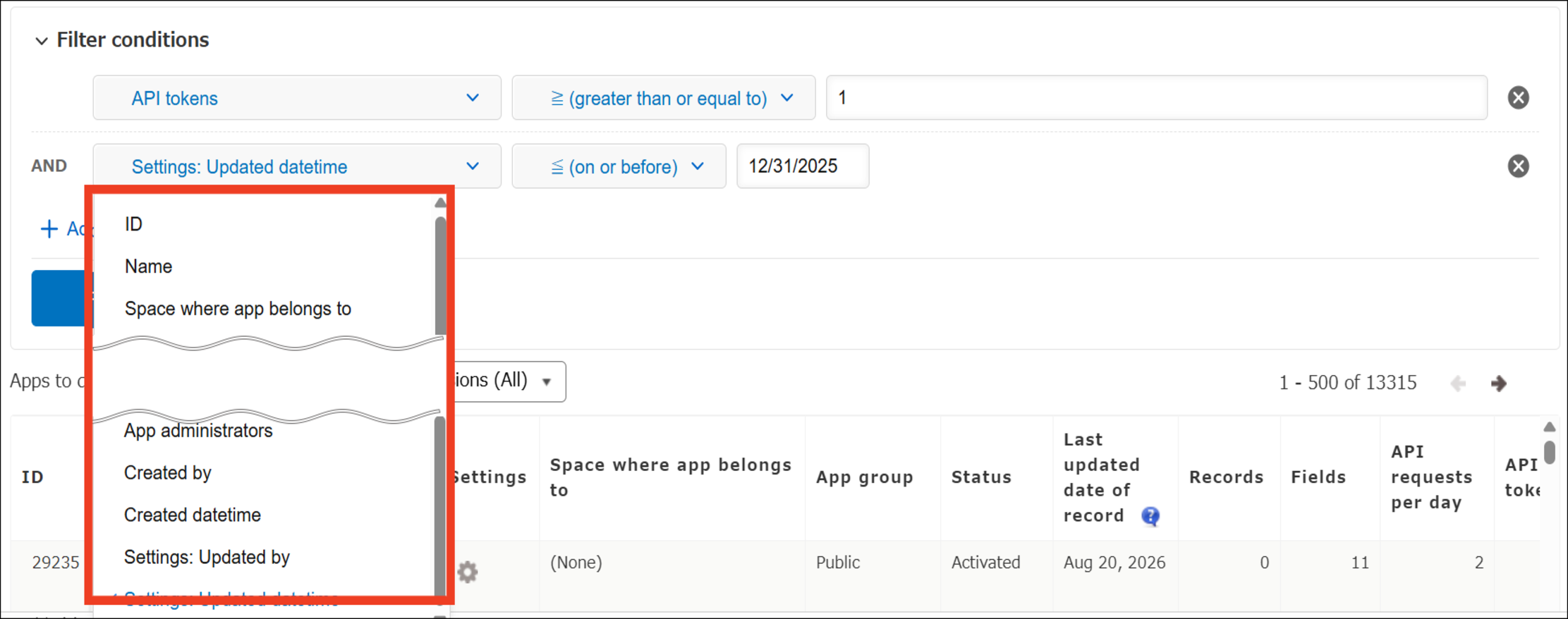
11 new columns from the app list can now be used as filter conditions.
The following filter conditions were added in the September 2026 update:
ID / App group / Fields / API requests per day / API tokens / Webhooks / Attachments / Guest users with access / Creator / Created date and time / Last updated by
PlatformFront-end infrastructure renewed for the "App settings" screen
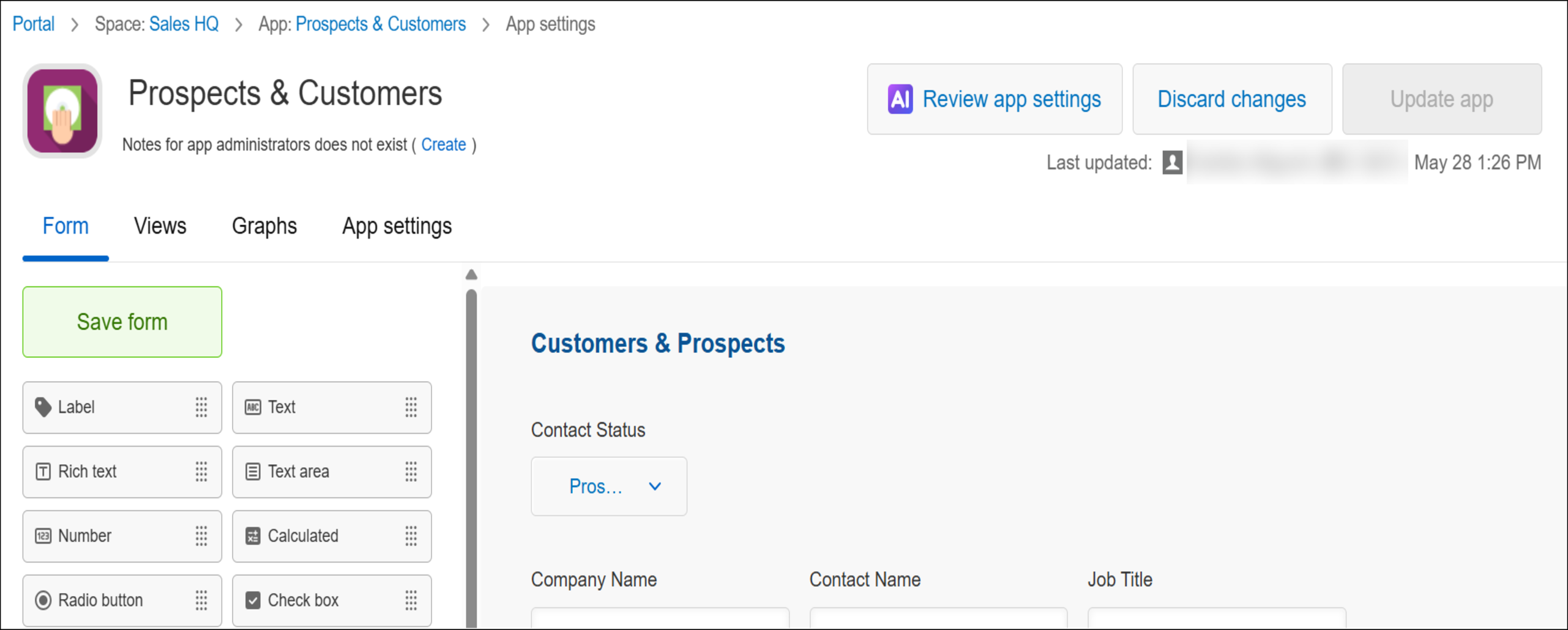
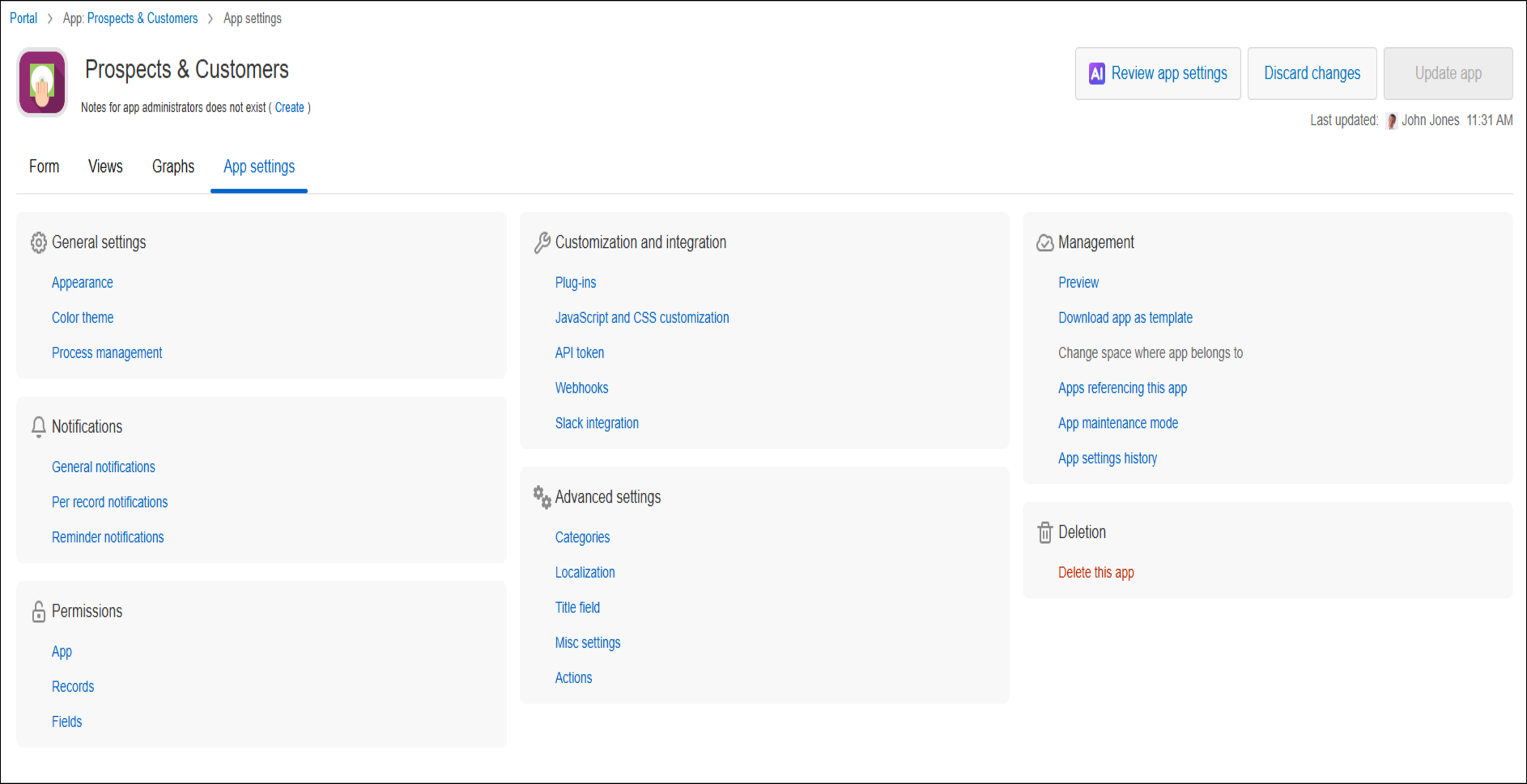
To speed up product improvements going forward, the kintone development team is progressively renewing the front-end technology infrastructure that's been in use since kintone first launched, screen by screen. This time, the front-end infrastructure has been renewed for the main "App settings" screen. Its layout and components have been updated, including the "Form", "Views", "Graphs", and "App settings" tabs.
■ The "App settings" screen with the "Form" tab selected
Before
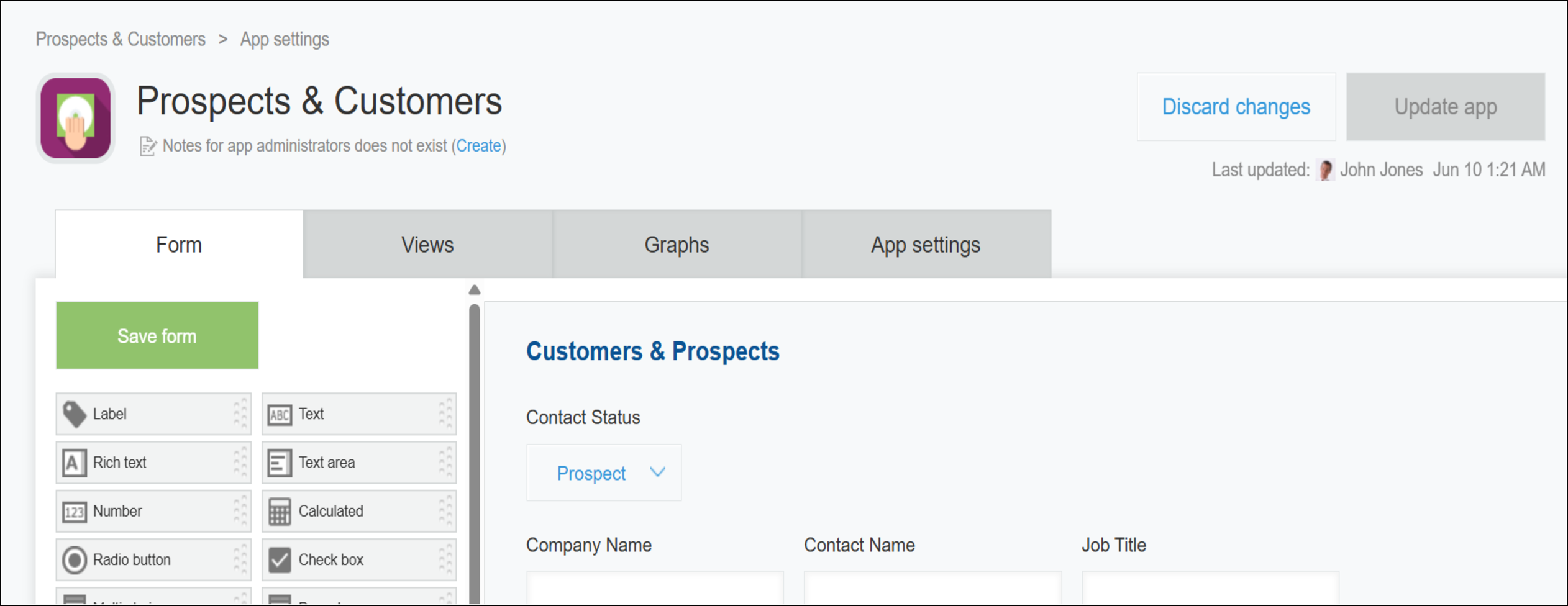
After
■ The "App settings" screen with the "App settings" tab selected
Before
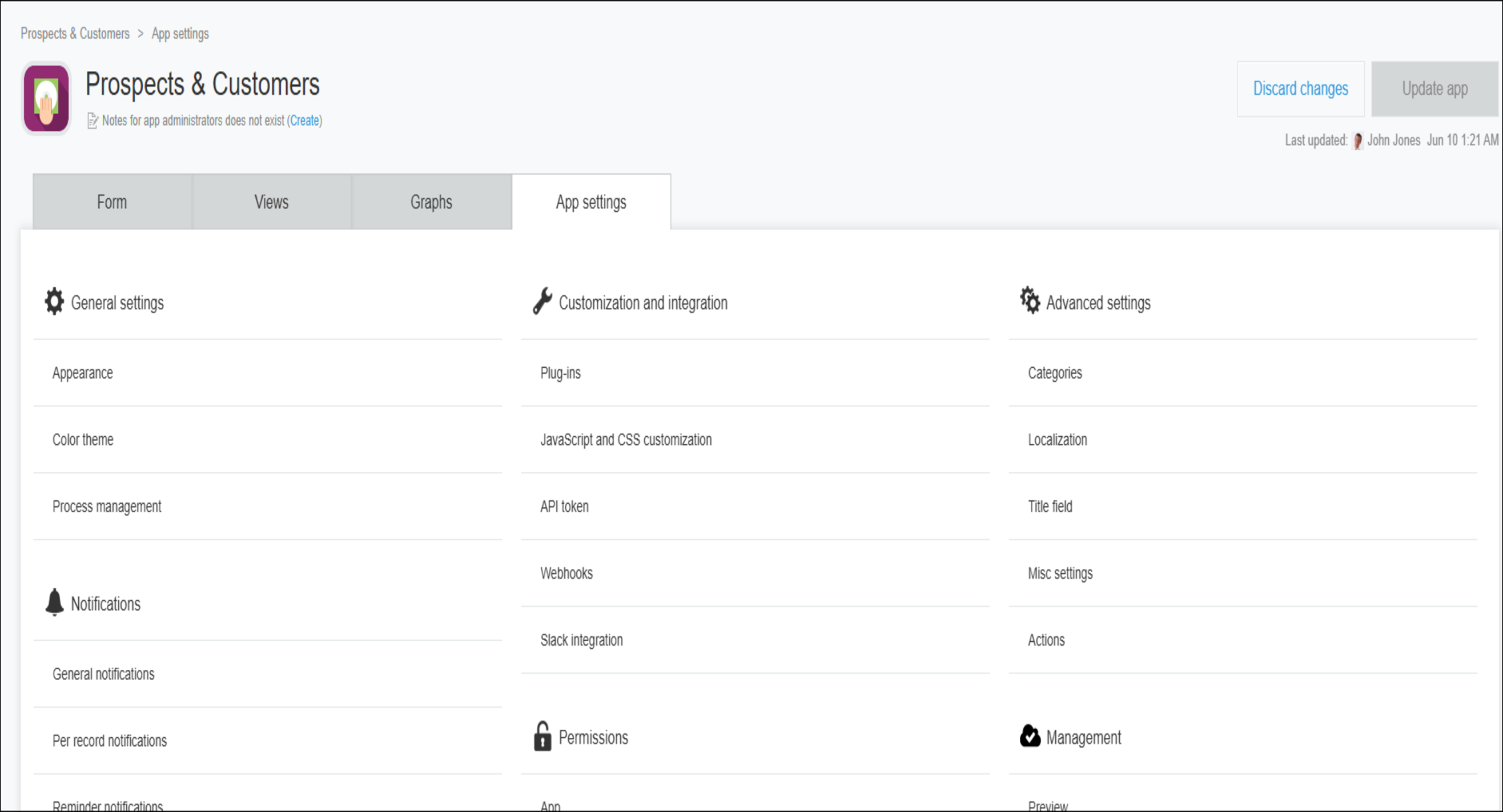
After
OtherOther updates, improvements, and fixes
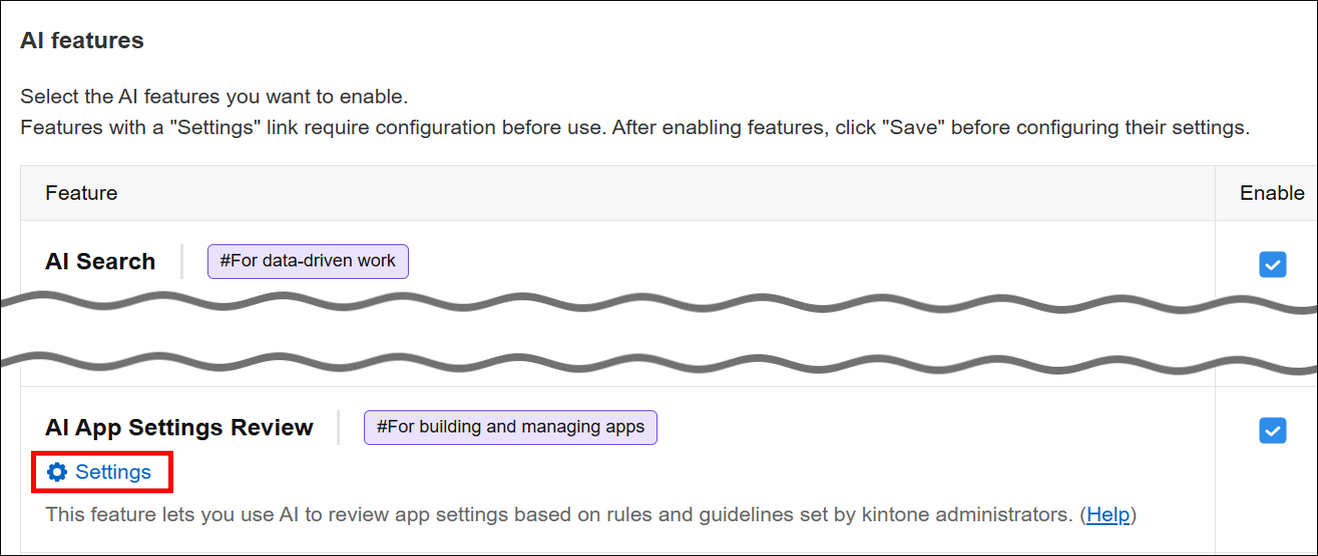
■ Open the AI App Settings Review settings from the "kintone AI management" screen
You can now open the settings for AI App Settings Review (the "App settings review" screen accessible from the "kintone administration" screen) directly from the "kintone AI management" screen.
■ Redesigned side menus for the Performance dashboard and the Usage dashboard
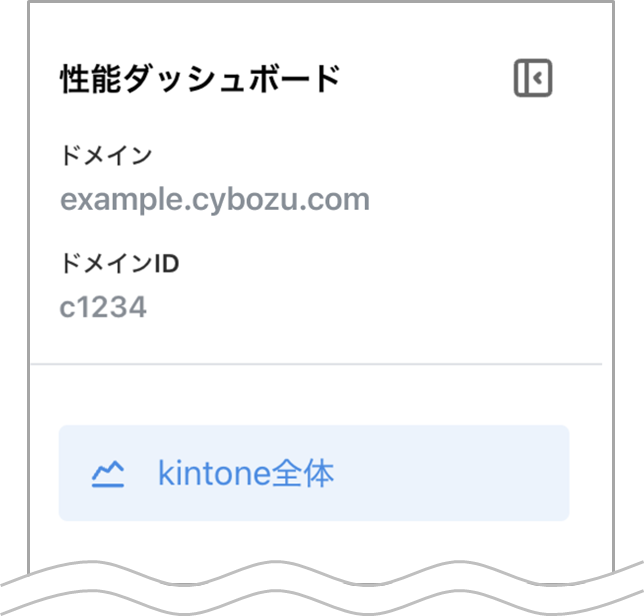
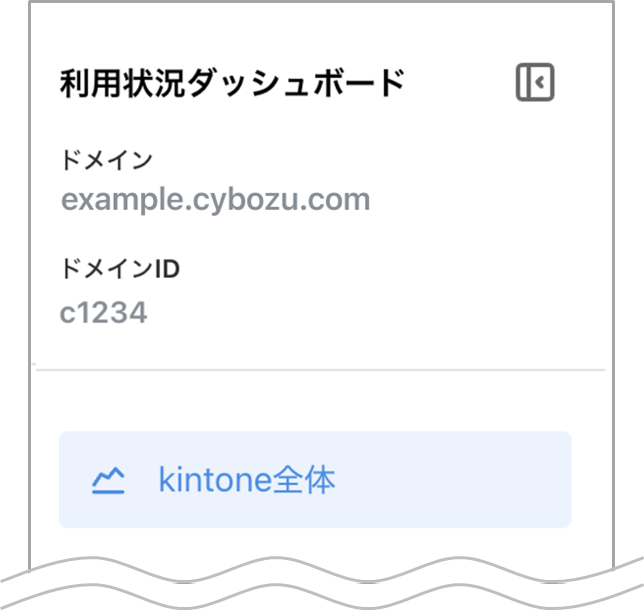
The side menus for the Performance dashboard and the Usage dashboard have a new design.
Performance dashboard
Usage dashboard
New features under consideration
These are features currently under consideration for official release.
You can try them out by enabling them on the "Update options" screen in "kintone administration".
We'd love to hear what you think about these features.
Please send us any feedback through the Help us improve kintone form.
| Process analysis | Use your process history to visualize how long records stay in each status |
|---|---|
| Platform | Front-end infrastructure renewed for the "Export to file" screen |
* Note that features under consideration may have their specifications changed, or be added to or removed from the "Update options" screen, at any time — not only during regular maintenance.
Process analysisUse your process history to visualize how long records stay in each status
Process analysis is an in-development feature that lets you see how long it took for each status to change in apps that have process management enabled. This helps you identify and understand bottlenecks in your app workflows.
You can specify the fields to use for grouping and which records to include in the analysis, allowing you to view your workflows from different perspectives. You can also specify the analysis period, so you can focus on a specific time frame, such as the period immediately after implementing a process improvement. We plan to continue adding features to help you analyze your workflows in greater depth.
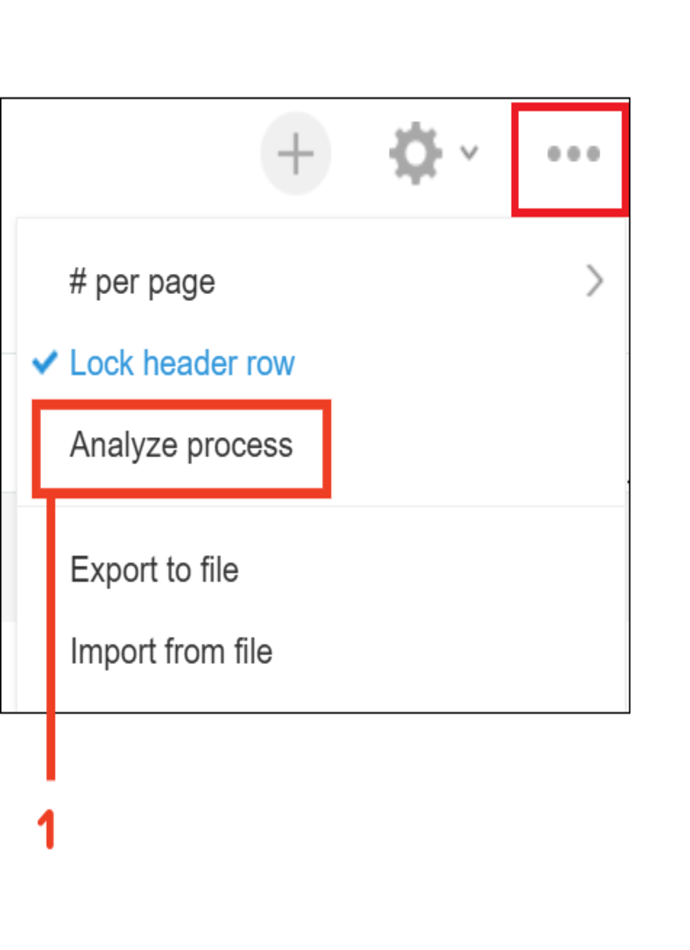

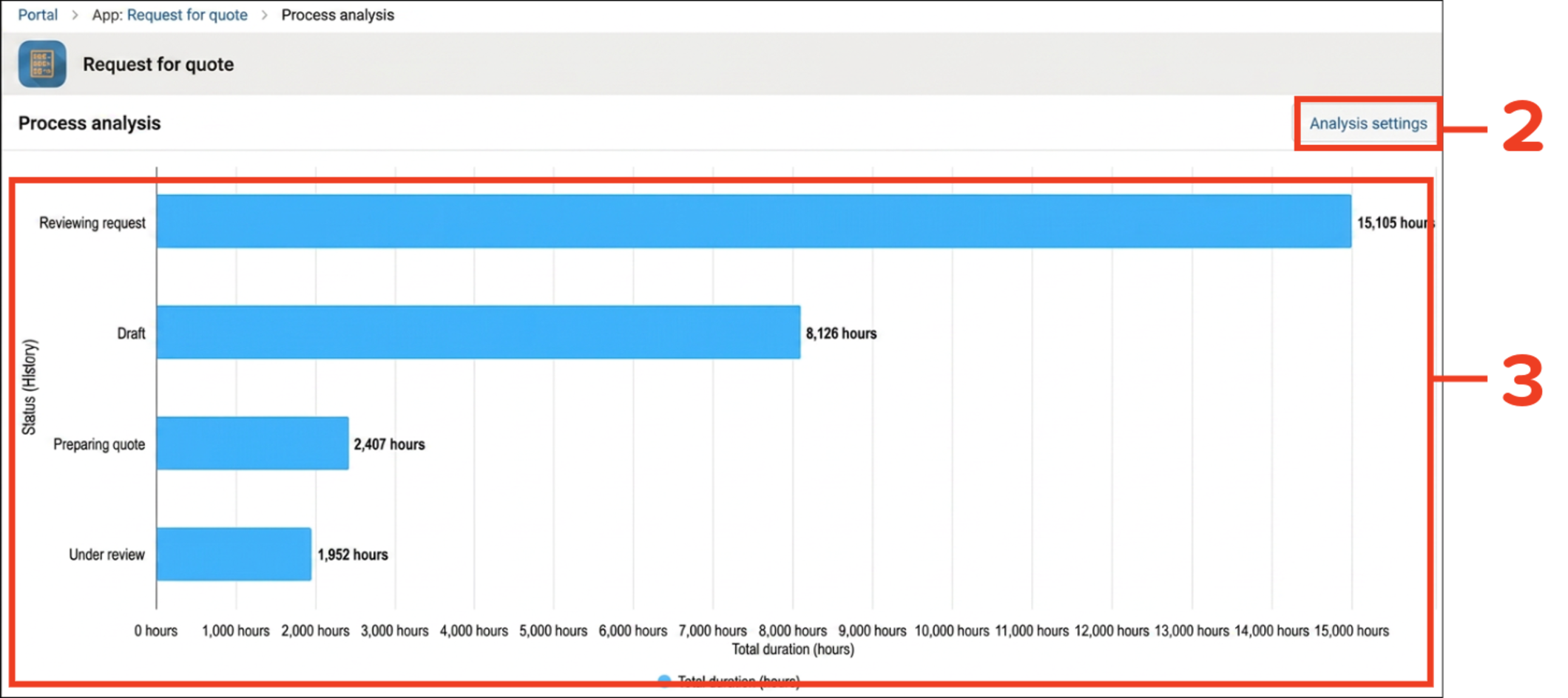
- You can open the "Process analysis" screen by clicking "Analyze process" in the "Options" menu on the "View" screen.
- Click "Analysis settings" and specify the fields to group by, the record filtering conditions, and the period to analyze.
- Check how much time your records spent in each status.
PlatformFront-end infrastructure renewed for the "Export to file" screen
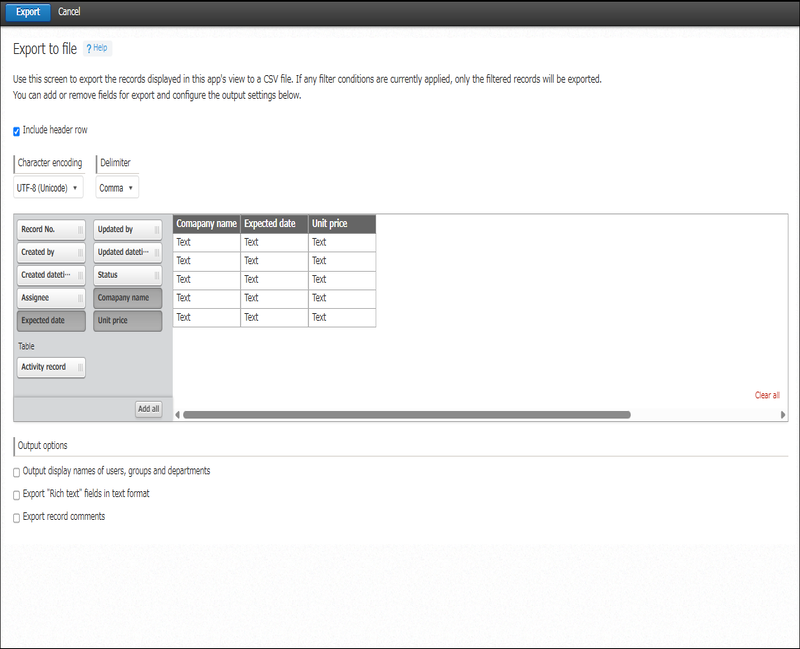
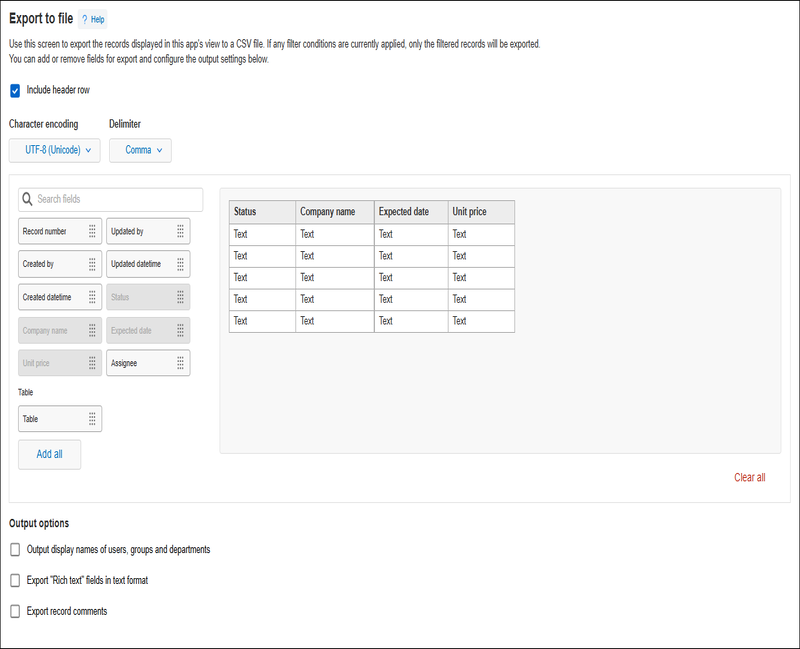
To speed up product improvements going forward, the kintone development team is progressively renewing the front-end technology infrastructure that's been in use since kintone first launched, screen by screen. This time, the front-end infrastructure has been renewed for the "Export to file" screen, with some accompanying changes to its layout and components.
Before
After
Changes to update options
| Disable new features | ||
|---|---|---|
No change Always display AI icon (only for kintone administrators and Users & system administrators) | Can be disabled until the November 2026 scheduled update. | |
No change Banner notifying kintone administrators and Users & system administrators of kintone AI credit usage approaching or reaching the limit | ||
No change Ability to use OR search | ||
No change Enhanced JavaScript API support (June 2026 version) | ||
No change Front-end update for the header and global navigation bar in the mobile-optimized view | ||
No change Ability to use AI View Analysis with the mobile app for iOS/Android (Available in kintone AI) | ||
No change AI feature usage audit logging (Available in kintone AI) | ||
No change AI App Creator chat window design changes and ability to launch from the form settings screen | ||
No change Notifications for updates to records being viewed or edited | ||
No change Sort search results by relevance | ||
No change Add filter conditions on the "App management" screen | ||
No change Switch between the classic and new "Notifications" screens | ||
No change Use AI Thread Summary in the Android app (Available in kintone AI) | ||
No change Expansion of the maximum number of additional portals | ||
No change JavaScript API field change event for lookup fields | ||
No change Front-end update for "Assigned to me" and settings screens (mobile view) | ||
No change Front-end update for the search screen (mobile view) | ||
New Use AI in the mobile app to organize spoken input into the appropriate fields (Available in kintone AI) | Can be disabled until the February 2027 scheduled update. | |
New Specify apps and spaces to include in or exclude from searches | ||
New Additional options for filter conditions on the "App management" screen | ||
New Front-end update for the top page of the "App settings" screen | ||
New Open the "App settings review" screen from the "kintone AI management" screen | ||
| Preview upcoming new features | ||
None | ||
| New features under consideration | No change Improved kintone Administration Design ("Header Color" Screen Design and Layout Change) | |
No change Front-end updates to "Create from Excel" app creation screens and changed import error handling | ||
No change Ability to find apps with AI (Available in kintone AI) | ||
No change Front-end update for the "Portal" screen (desktop and mobile views) | ||
No change Front-end update for space and thread screens (desktop and mobile views) | ||
No change Front-end updates to "Create from CSV" app creation screens and changed import error handling | ||
No change REST API for searching across kintone | ||
No longer available Front-end update for the "App settings" screen | ||
No change Front-end update for People pages and the "Messages" screen (desktop and mobile views) | ||
No change Front-end updates to the "Exported files" screen | ||
No change Front-end updates to the "Export aggregation result to file" screen | ||
New Visualize the duration of each status based on process history | ||
New Front-end updates to the "Export to file" screen | ||
Note that these features may be modified outside of scheduled updates. Check the "Update options" screen for the latest status. | ||
For details on how update options work and on each of the features currently available, refer to the following Help pages.
| Disable new features | |
|---|---|
No change Use the new method for external servers in email server settings | Can be disabled until the December 2026 scheduled update. |
For details on how update options work and on each of the features currently available, refer to the following Help pages.