Setting assignee instructions
You can set assignee instructions for each status. With this setting, assignees can check the instructions, which helps work proceed smoothly.
What you can do with assignee instructions
You can use assignee instructions to tell assignees the steps and points to note for their work. For example, by writing the points to check and the actions to take in the "Approver reviewing" status, you can help approvers proceed with their work smoothly.
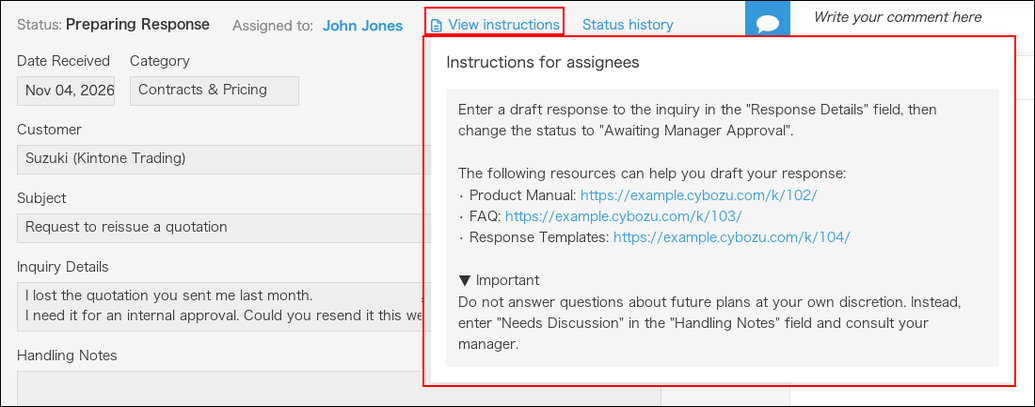
Users specified as assignees can check the instructions on the Record details screen.
For details, refer to the following section:
Displaying assignee instructions
Steps
This section describes how to set assignee instructions for process management statuses.
-
Open the Process management screen in the target app.
-
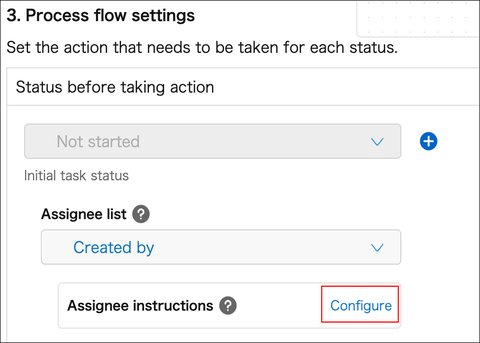
In 3. Process flow settings, click Settings in Assignee instructions for the status you want to add instructions to.
-
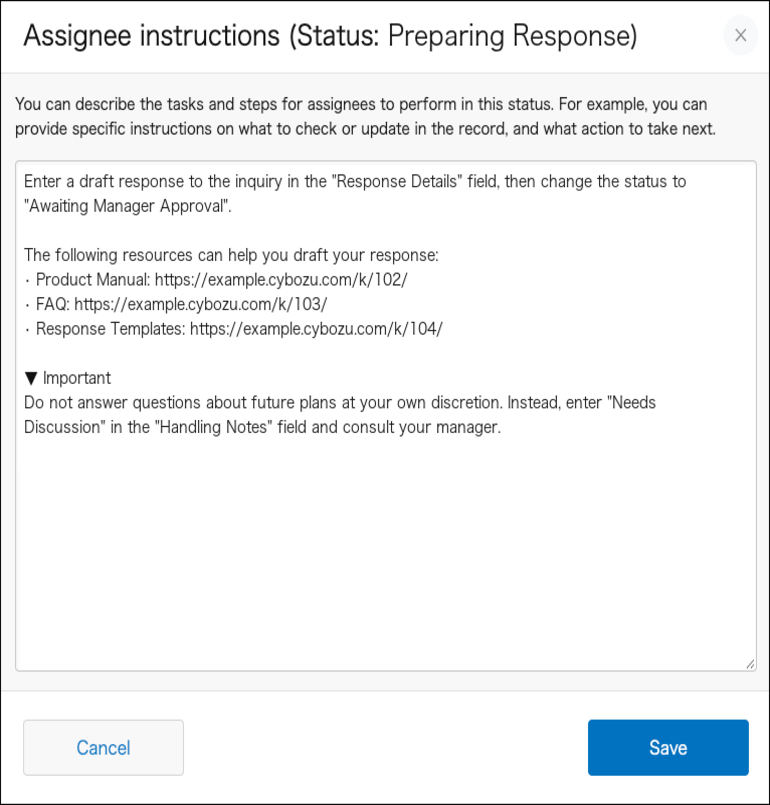
In the Assignee instructions dialog, enter the instructions.
For examples of what to enter, refer to the following section:
Example settings
-
Click Save.
The beginning of the instructions appears in Assignee instructions for the status you set.
Example settings
Write specific details so that assignees can read the instructions and start working right away, such as which fields to work on and what to do, which action to run afterward, and points to note while working.
Including URLs for kintone apps or records to refer to, or for related materials, also lets assignees check the information they need right away.
This section uses an inquiry app and a request app as examples to show how to write instructions for each status.
Example of the "Drafting answer" status in an inquiry app:
Enter a draft answer to the inquiry in the "Answer" field, and then move the status to "Waiting for manager approval".
The following information may be helpful when drafting an answer:
・Product manual: https://example.cybozu.com/k/102/
・Frequently asked questions: https://example.cybozu.com/k/103/
・Answer templates: https://example.cybozu.com/k/104/
▼Notes
Do not answer questions about future plans on your own. Enter "Needs discussion" in the "Action notes" field and consult your manager.
Example of the "Approver reviewing" status in a request app:
In this step, you review the request details and approve, send back, or reject the request.
■1. Review the request details
Review the request details from the following perspectives:
・Whether the purpose of the purchase is clear and the item is necessary for work
・Whether the "Amount" is within the department budget
Reference: Department budget app: https://example.cybozu.com/k/201/
・Whether a quotation is attached if the amount is 100,000 yen or more
■2. Move the status forward
Perform one of the following three actions depending on the result of your review:
・If there are no problems:
Click the "Accounting review" button.
・If there are deficiencies:
Enter the "Reason for sending back" and click the "Send back" button.
・If you do not approve the purchase itself:
Enter the "Reason for rejection" and click the "Reject" button.
*If you reject a request, it cannot be resubmitted. If the issue can be fixed with changes, send the request back instead.
Displaying assignee instructions
Users specified as assignees in that status can check the assignee instructions you set on the Record details screen.
On the Record details screen, click View instructions next to the status to display the Instructions for assignees pop-up.
Click outside the
Instructions for assignees pop-up to close it.