
Process AI Agent
Process AI Agent is a feature that allows you to embed AI as a member of your team and create a system in which AI and people share roles and responsibilities.
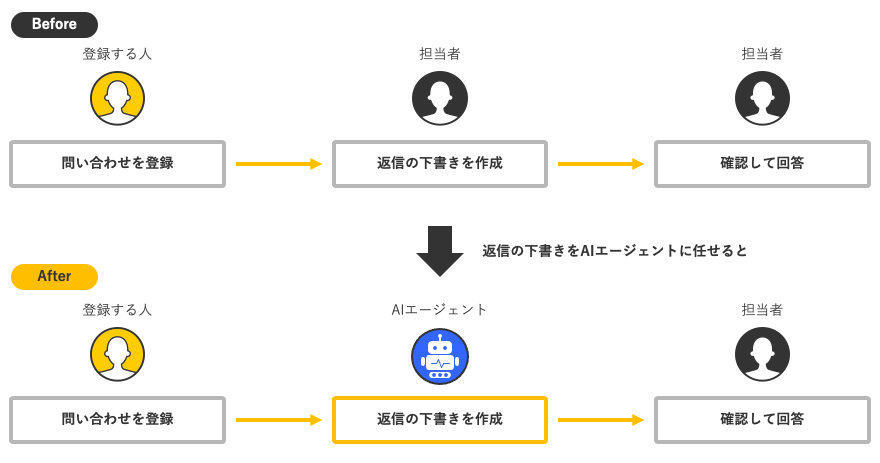
If you assign AI Agent as a assignee in process management, you can assign tasks to AI Agent just like you do to other members.
AI Agent that receives a task will make decisions and take actions on its own to accomplish the task.
As an example, you can divide responsibilities as follows:
- In an inquiry app, an AI agent creates a draft reply, and then the person in charge checks it and sends the reply.
- In an app for expense or purchase requests, the AI agent checks the request details against the company's policies, and then the approver makes a decision based on the results.
Getting Started
The following steps outline the process for getting started with Process AI Agent.
Applying to use Process AI Agent
If you have a Standard or Wide plan subscription, you can apply to use the Process AI Agent.
The application is handled by cybozu.com administrators, following these steps:
-
Click the "Settings" button (gear icon) at the top of the kintone screen and then click "kintone administration".
-
On the kintone administration screen, click kintone AI management under the AI section.
-
On the kintone AI management screen, click Request Process AI Agent at the bottom of the AI features section.
The request form will open in a new tab. -
Complete the application process by following the instructions on the application form.
After you apply, we will contact you if you can use Process AI agents. Please wait for our contact.
Add AI agent users to make them available
When you receive a notification from us that the service is available for your use, configure the settings in the following order.
- cybozu.com administrators adds the AI agent user in Users & system administration.
Please refer to the next page for instructions.
Add an AI agent user - kintone System Administrator enables Process AI Agent.
For the steps, refer to the following page:
Enabling Process AI Agent - kintone System Administrators decide which apps and users can configure AI Agents and which AI Agents are available.
For the setup procedure, refer to the following page:
Configuring Apps and Users for Process AI Agents
Setting AI Agents in Process Management
The app administrator prepares the status in which the AI agent will work. At the same time, the administrator configures the instructions for the AI agent's work, the information that the AI agent can refer to, and the place where the AI agent can write.
Only users who are allowed to configure AI agents in the Process AI Agent settings can configure AI agents for the app. For details, see the following page:
Configuring AI Agents in Process Management
Checking if the AI Agent is Working
The app administrator advances the status to test the AI agent's actions. The actions taken by the AI agent are recorded in the execution log. For details, refer to the following page:
Checking the Actions of AI Agents in the Execution Log
Getting Started with Apps
Team members start using the app.
Team members can make the AI agent perform tasks just by moving the status, as they would when passing work to other members.
Limitations
The following limitations apply to Process AI agents.
- You cannot use Process AI Agents in apps inside guest spaces.
- In the test environment accessed from "Preview in the App settings screen, the AI agent will not begin working.
- The settings of AI agents are not supported by the REST API and app templates.