
Set the status for the AI agent to work on
Prepare a status for the AI agent to perform the task, and then assign the AI agent to the task for that status.
Prepare a status for the AI agent to work in
For process management, we will create a status for the AI agent to perform the task. The status will be as follows:
- Make it the second or subsequent status.
You cannot assign an AI agent to the worker in the initial status. - Set the action to take next
The AI agent selects from the actions available for the status and then proceeds to change the status. - Give different names to the actions to move forward
AI agents specify the name of an action to move a status. If there are multiple actions with the same name in a status, the agent cannot identify which action to take and fails to move the status. When you use Conditions to take this action to specify different actions to move forward, give different names to the actions.
For the steps to configure Process Management, refer to the following page:
Basic Process Management Configuration
You can combine the statuses for AI agents and those for users as needed for your work. For example, in an inquiry app, if you want an AI agent to draft a reply but a user to check and send the reply, you can use the following statuses.
- Unresolved: The user who registered the inquiry moves the status to "In Progress"
- Processing: The AI agent is entering a draft reply into the field and proceeding to "Draft Complete".
- Draft completed: The assignee has checked the draft, responded, and proceeded to "Resolved"
- Resolved: The issue has been resolved.
Assigning AI Agents to Assignees
Specify the AI agent as the assignee on the status where the AI agent will work.
-
On the Process management screen, in 3. Process flow settings, specify the AI agent directly as the Assignee status where the AI agent will work.
If you specify a department, group, or field, the AI agent will not work.
If a kintone system administrator has specified which AI agents can be used in the app, select one of those AI agents. If you specify an AI agent that is not included in the list, the AI agent will not work. For details on which AI agents can be used, contact the kintone system administrator. -
Check if Assignee instructions and AI agent settings are displayed in the process.
If they are not displayed, check if the AI agent is assigned to the assignee directly.
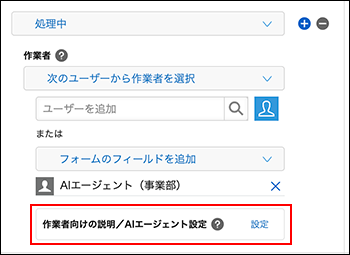
If you specify an AI agent as the assignee, write the details of the AI agent's task in Assignee instructions. For details, refer to the following page.
Writing Instructions for AI Agents in Assignee Instructions