
Write the instructions for the AI agent as a description for users
AI Agent refers to the Assignee instructions of a status as the instructions for work when you become an assignee. If no instructions are entered for a status, AI Agent does not start the work.
If Assignee instructions and AI agent settings is not displayed on the Process management screen, assign an AI agent to the worker in the status. For details, please refer to the next page.
Set the status for when the AI agent will be working.
Tips for Writing Instructions for Assignees
This section outlines key points for writing Assignee instructions, divided into those that should be included for any task and those that should be tailored to the specific task.
What to Communicate for Any Task
As when you ask someone to do a task, you need to communicate why the task is needed, what should be done, and when it should be completed.
- Purpose of the task
Describe why the task is being performed. - Details and Steps of the Task
Describe which fields to check and what to enter in which fields.
If the task consists of multiple steps, describe each step separately.
If you have already described the steps in Label fields, you do not need to write the same steps in the description.
AI Agents can write only in the locations where writing permission is granted. If the description instructs AI Agents to write in certain locations, those locations should be included in Allowed write destinations. For details, refer to the following page.
Configuring Locations Where AI Agents Can Write or Refer to - How to complete a task
Describe the conditions that must be met to complete a task.
Describe the actions to be taken after a task is completed. If the actions vary depending on the conditions, describe the actions for each condition. If the assignee of the destination status is set to User chooses one assignee from the list to take action, also describe who should be assigned as the assignee.
What to Communicate Based on Your Work
For some tasks, we also provide the following information:
- Information to refer to
Specify the kintone URL of the app, record, or thread you want to reference, or the conditions for the records you want to target.
When requesting an attachment to be read, specify which field the attachment belongs to.
Please refer to the following page for information that the AI agent can access and the types of files it can read.
List of operations that an AI agent can perform
The AI agent can only access locations that it has been authorized to access. If you instruct it to access a location in the description, it will access that location. Allowed read scope Set it to this. For details, please refer to the next page.
Set the locations where references are allowed. - Notes
Describe the desired format and wording of the input text, what should not be done, and what to do if a decision cannot be made.
Steps
-
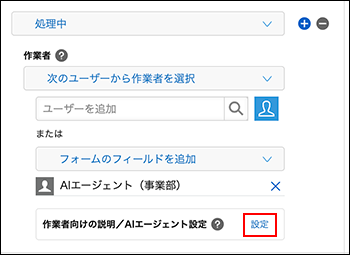
On the Process management screen, go to 3. Process flow settings and click "Settings" in the "Assignee instructions and AI agent settings" section for the status where the AI agent will work.
-
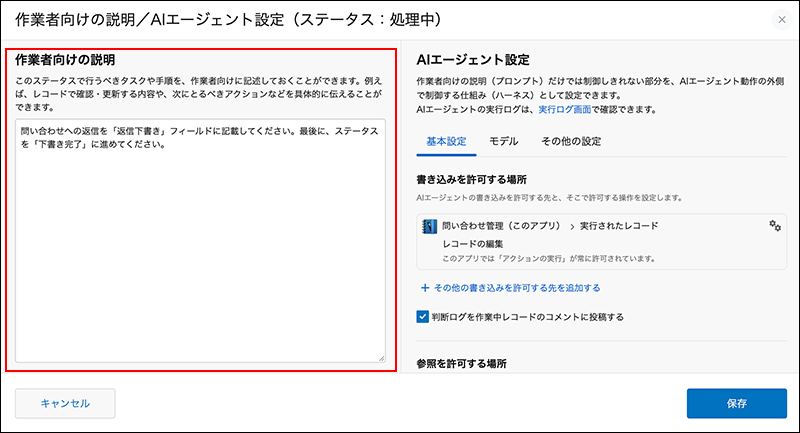
In the Assignee instructions and AI agent settings dialog box, enter the details of the AI agent's tasks in Assignee instructions field.
-
Click "Save" on the dialog.
-
On the "Process management" screen, click "Save" at the bottom right of the screen.
-
On the App settings screen, click Update app.
-
On the Update app dialog, click Update app.