
Setting a Limit on AI Credit Consumption
You can set a limit on the number of AI credits that a Process AI agent can use in a month. This allows you to decide in advance how many AI credits an AI agent can use.
You can configure limits for kintone as a whole and for each app.
By default, no limits are set.
Only {{kintone}} System Administrators can set a limit.
AI credits used by Process AI agents
Process AI Agent uses AI credits for each task.
You can check the amount of AI credits used in the current month for all of kintone as well as for each app. For details, see the following page:
Checking the AI Credit Usage of Process AI Agent
For details on AI Credits, refer to the following page:
About AI Credits
If the AI Credit Usage Limit is Reached
If the AI credit usage of Process AI Agent reaches the limit for the entire kintone or for each app, the AI Agent will not start a task even if it becomes the assignee. If the limit is exceeded during a task, the task will continue until completion.
If you do not start the work on a record, the status of the record remains as "AI Agent to work on" and the assignee remains as "AI Agent". In the execution log, "Execution status" shows "Not executed" and the "Decision log" column shows that the limit has been reached.
To allow AI agents to work without waiting for the next month, you can either increase the limit or remove the limit setting. If you do neither, AI agents will be able to work again in the next month.
Setting Limits for kintone as a Whole
-
Click the "Settings" button (gear icon) at the top of the kintone screen and then click "kintone administration".
-
On the kintone administration screen, click kintone AI management under the AI section.
-
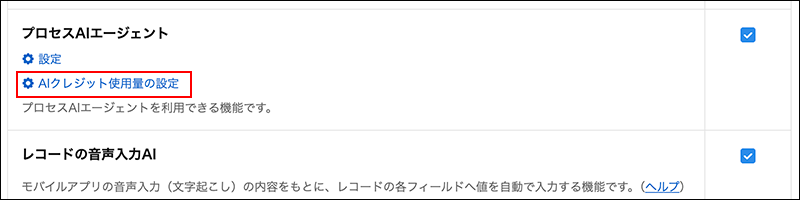
On the kintone AI management screen, in the AI features section, click Set AI Credit Usage in the Process AI Agent row.
-
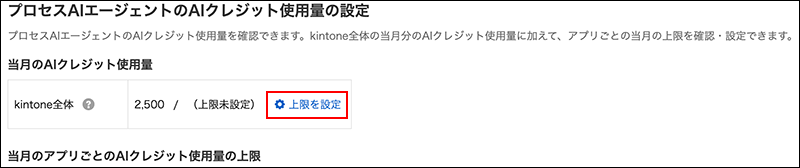
On the [Process AI Agent AI Credit Usage Settings] screen, under [Current Month's AI Credit Usage], click Set limit in the row for kintone total.
-
In the displayed input field, enter the limit per month as an integer greater than or equal to 0.
Do not enter a comma (,) as in "1,000". If a limit is already set, the current limit is displayed in the input field. -
Click "Save".
"AI Credit Usage for Current Month" displays the current usage and limit in the format "Usage / Limit".
Set Limits for Each App
Setting a limit for each app prevents a single app from using up the entire kintone limit of AI credits, which would make it impossible for AI Agents to work in other apps.
The per-app limit is set in the "Monthly per-app AI credit usage limit" list on the "Process AI Agent AI Credit Usage Settings" screen.
The list will only show apps that can use the Process AI Agent.
-
Click the "Settings" button (gear icon) at the top of the kintone screen and then click "kintone administration".
-
On the kintone administration screen, click kintone AI management under the AI section.
-
On the kintone AI management screen, in the AI features section, click Set AI Credit Usage in the Process AI Agent row.
-
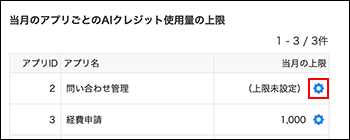
On the "Process AI Agent AI Credit Usage Settings" screen, click the "Set limit" button (gear icon) in the row of the app for which you want to set a limit in the "Monthly AI Credit Usage Limit per App" section.
-
In the displayed input field, enter the limit per month as an integer greater than or equal to 0.
Do not use commas like in "1,000". -
Click "Save".
The limit is saved for each app. If you want to set limits for other apps as well, repeat steps 4 to 6.