
Configure Automatic Access Control
Auto Access Control is a feature that automatically limits the range of data that AI Agents can refer to. This prevents information from being delivered to users who should not have access to it through AI Agents.
You can enable or disable this feature for each app.
What Automatic Access Control Can Do
AI agents sometimes write the information they refer to in records, threads, or other places.
For example, suppose there is a record that only User A and an AI agent can view. If the AI agent writes the information in that record in a place where User B can view it, User B will be able to see the information that he or she normally would not be able to view.
If you enable Automatic Access Control, it automatically prevents information from being delivered to users like B.
This feature restricts access at the time AI agents try to refer to the information, without relying on AI agents' judgment.
Information that AI Agents can Refer to
Places where AI agents can post are called destinations for posting (posting destinations).
AI agents identify in advance the users who can view the posting destinations and work only with the information that can be shared with all those users. If there is even one user who cannot view certain information, the AI agents will not refer to that information even if the AI agent users have the viewing permission for it.
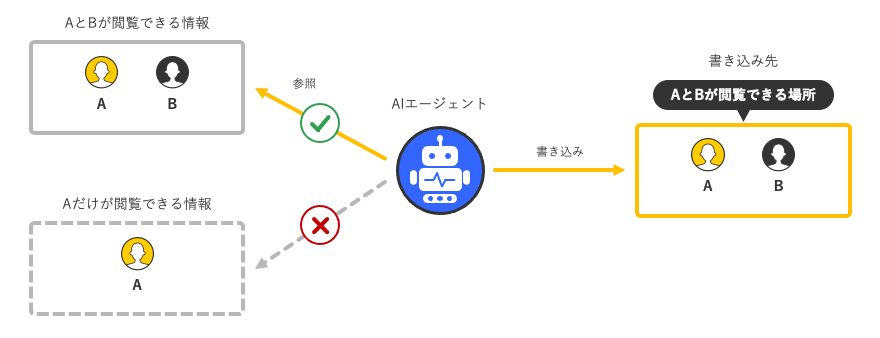
For example, if you want to let only the members of the Human Resources Department view certain information, set both the app in which the AI agent works and the app to which it posts to apps that only the members of the Human Resources Department can view.
The destination for posting is determined by the settings of the Process Management AI Agent. Based on the posting destination, Automatic Access Control restricts the information that the AI Agent can reference. For details on how to configure the posting destination, refer to the following page:
Configuring Where AI Agents Can Post and Reference
Steps to Enable Automatic Access Control
Automatic Access Control is configured for each app record on the "Process AI Agent settings" screen.
We recommend that you enable Automatic Access Control.
-
Click the "Settings" button (gear icon) at the top of the kintone screen and then click "kintone administration".
-
On the kintone administration screen, click kintone AI management under the AI section.
-
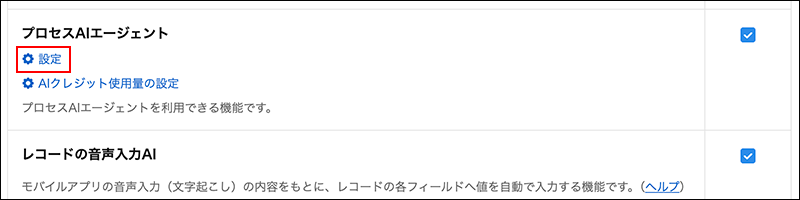
On the kintone AI management screen, in the AI features section, click Settings under the feature name Process AI Agent.
-
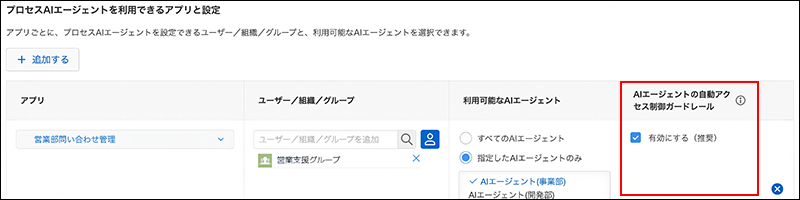
In the row of the app for which you want to enable automatic access control, select "Automatic access guardrail for AI agents" and then select "Enable (recommended)".
Clear the check box to disable the feature.
-
Click Save at the bottom right of the screen.
The Relationship between Automatic Access Control and Other Restrictions
Whether an AI agent can view or post information depends on the following three conditions. If any of these conditions is not met, the AI agent cannot perform the action.
- The range that the app administrator has allowed in the AI Agent settings for Process Management
For details, refer to the following page:
Settings for Locations Where AI Agents Can Post and Refer - Permissions granted to AI agent users
- Automatic Access Control (if enabled)
The following table summarizes the relationship with other limitations.
- An AI agent can refer to a field for which field permissions are set only when all users who can write to the field can also view it.
- You can use Auto Access Control even if Inter-Departmental Permissions is enabled.
- Regardless of the setting for Automatic Access Control, the AI agent cannot view or operate apps or threads in guest spaces.