
Checking the Actions of AI Agents in the Execution Log
The execution log is recorded for each task performed by an AI agent. You can use the execution log to check the details of the AI agent's decision and the actions it took.
Use this log to verify if the AI agent worked as intended.
Only app administrators can view the execution logs.
Opening the screen for execution logs
You can view the execution logs on the "Process AI Agent execution logs" screen.
-
On the [Record List] screen, click the App settings link (shaped like a gear) in the upper right corner of the screen.
-
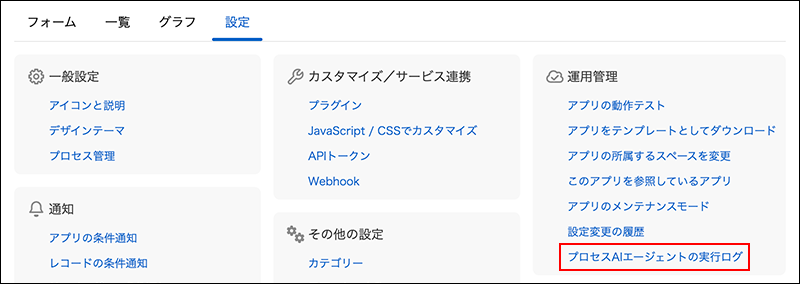
On the App settings screen, click Process AI Agent execution logs in Management on the Settings tab.
If the app is not yet deployed, the Process AI Agent execution logs option will be grayed out and unavailable.
Items Displayed in the List of Execution Logs
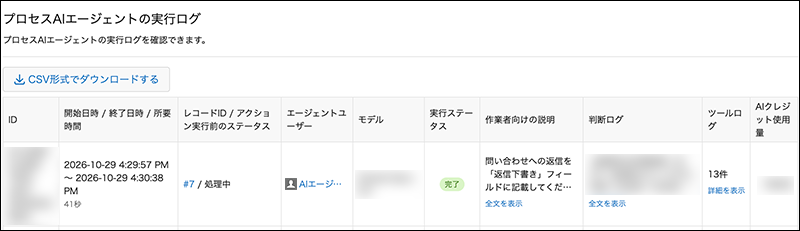
The following fields are displayed in the list view:
- ID
- This ID is assigned to each execution log.
- [Start Date and Time / End Date and Time / Duration]
- The date and time when the AI agent accepted the task, the date and time when the task was completed, and the time taken for the entire process.
Duration includes the time waiting for other tasks to be processed. - ["Record ID" / "Status before action execution"]
- These columns display the ID of the record that the AI agent worked on and the status of the record when the AI agent started working on it.
Clicking on a record ID opens the record's detail screen. - Agent user
- These AI agents performed actions.
- Model
- The model that was used for the operation.
- [Execution status]
- Indicates the status of the task. "Active", "Completed", "Failed", or "Not started" is displayed.
"Not started" means that the AI agent did not start the task because the conditions to start the task were not met. - Assignee instructions
- This is the description for the assignee that is passed to the AI agent as an instruction to perform a task. It shows the description that was entered in the status when the AI agent became the assignee.
The first three lines are displayed. You can click "Show full text" to view the entire description. - Decision log
- A record that an AI agent reports at the end of a task, summarizing the conclusion of the task, the background of the decision made, and what it would like people to check or follow up on.
- ["Tool logs"]
- The number of actions executed by AI agents.
- [AI Credit Usage]
- The amount of AI credits used by the action.
Viewing Audit Logs
The judgment log is a record that an AI agent reports at the end of a task, summarizing the conclusion of the task, the process of reaching the conclusion, and any actions that require human confirmation or intervention.
Contents displayed in the "Decision log" columns
The Decision log column in the list of execution logs displays the first three lines of the decision log.
Clicking
Show full text in the Decision log column will allow you to view the full text in the Decision log dialog box.
If the AI agent completes its task without reporting a decision log, the text output by the AI agent during the task will be displayed instead.
If the task did not start, the reason will be displayed.
Contents displayed in the decision log details view
The main items displayed on the "Decision log" dialog are listed below. Some items may not be displayed depending on the type of work.
- Heading
- At the end of the heading, "Done" or "Action Required" is displayed. "Done" means that the AI agent has determined that no confirmation or action by a user is required. "Action Required" means that the AI agent has determined that confirmation or action by a user is required. These indicators do not mean that the AI agent has completed the entire task.
- Conclusion
- This section is displayed immediately below the heading. It provides a brief summary of what the AI agent did, what it could not do, and the main reason for that.
- Background of the Decision
- These are displayed as numbered items below the conclusion. They show the actions taken by the AI agent and the results and judgments in chronological order. Sometimes, the basis for the judgment is displayed as "Basis:" For example, the part of the instructions for the assignees that relates to the judgment is displayed.
- Interpretations and assumptions:
- What the AI agent has inferred or decided based on its interpretation or guess, and the reason for that.
- Settings to review:
- These are the things that could not be done or caused confusion, and the cause might be in the settings of apps or process management. The place where you need to review your settings is displayed in "Review:".
- Things you want someone to check or take care of
- These notifications appear after "▶". They indicate that the AI agent has determined that the people involved in the record should be asked to check or take action on it.
- Indicates that an action has been executed
- It is displayed at the end of the audit log. It indicates that the status was changed by the action selected in Default process action.
Users Who Can View Decision Logs
"Decision log" columns display their contents only to users who have the permission to view the records that the AI agent worked on. If such permission is not granted or the records have been deleted, a message indicating that the contents cannot be viewed appears.
Viewing Details of Tool Logs
Clicking Show details in Tool logs column opens the Tool execution logs dialog box. For each operation performed by the AI agent, the operation name, Date range, Arguments, and Result are displayed in the order they were executed.
Arguments are the conditions specified when the AI agent performs an action.
Exporting the Action Log to a File
You can export the list of action logs to a CSV file. The description for users and the entire text of the judgment log are also exported.
-
On the [Record List] screen, click the App settings link (shaped like a gear) in the upper right corner of the screen.
-
On the "App settings" screen, click "Management" and then "Process AI Agent execution logs" on the "Settings" tab.
-
On the "Process AI Agent execution logs" screen, click "Download in CSV format".
If there are no execution logs, "Download in CSV format" cannot be clicked.