
Configure Places where AI Agents Can Post and Refer to
This setting allows you to specify where AI Agents can post information and where they can access information for each status.
AI Agents post and access information only in the locations that you specify here.
For details on the actions AI Agents can perform when accessing or posting information, refer to the following page:
List of Actions AI Agents Can Perform
Whether users can actually view or post comments depends not only on the settings described here but also on a combination of the permissions granted to the AI agent user and the Automatic Access Control settings. For details on this combination, refer to the following page:
Automatic Access Control and Other Restrictions
Opening the dialog to configure settings
You can configure the places where users can write or refer to information for each status that an AI agent works on in the "Assignee instructions and AI agent settings" dialog.
If
"Assignee instructions and AI agent settings" is not displayed on the Process management screen, specify an AI agent as the assignee for the status. For details, refer to the following page:
Setting the Statuses that AI Agents Work On
-
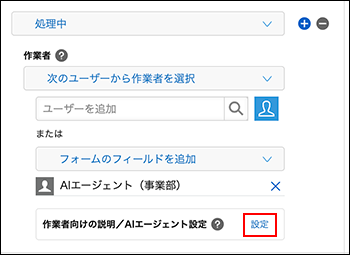
On the Process management screen, go to 3. Process flow settings and click "Settings" in the "Assignee instructions and AI agent settings" section for the status where the AI agent will work.
-
In the dialog's "AI Agent Settings", open the "General Settings" tab.
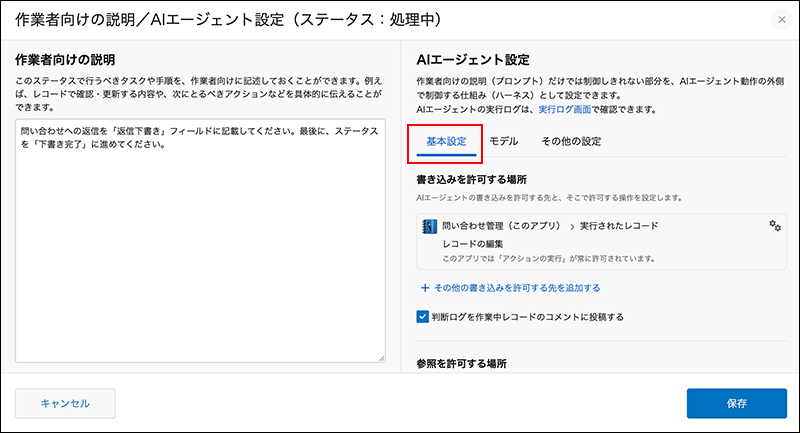
Configure Places Where Posting Is Allowed
Allowed write destinations are used to specify where AI agents can write and what actions they can perform in those places.
Configure the operations that are allowed for this app
Specify the app (this app) in which the AI agent will work, as well as the records it can write to and the actions it is allowed to perform.
Note that Run process actions in this app is always allowed.
The default settings are as follows.
- "Record": "Record the AI agent is run on"
- Allowed actions: Edit record
-
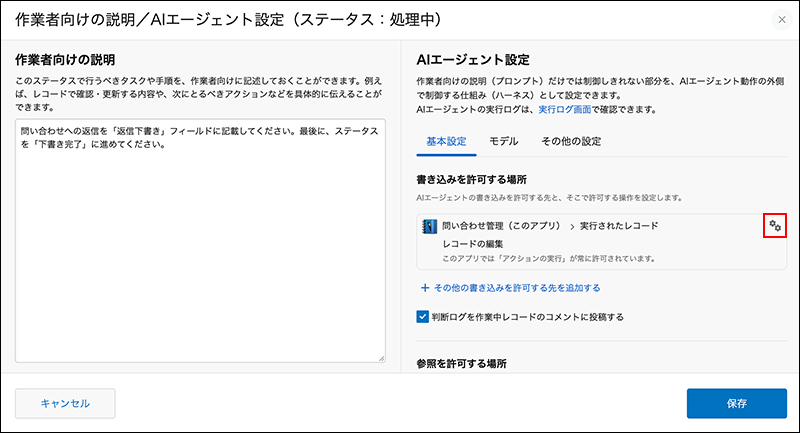
On the "Basic Settings" tab, click the "Edit write destination" button (gear icon) for this app in the "Allowed write destinations" section.
-
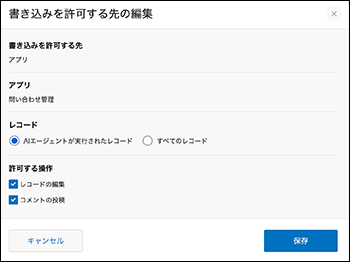
In the "Edit write destination dialog box, under "Records," select which records can be written to from the following options:
- Record the AI agent is run on
AI agents can write only on the record you are working on in this app.
The following permissions can be granted: Edit records and Post comments. - All records
Select this option when you want to edit other records or add new records.
The following permissions are included: Add records, Edit records, and Post comments.
- Record the AI agent is run on
-
In Permissions, select the permissions you want to grant.
If you switch from All records to Record the AI agent is run on, the Add records permission is automatically cleared.
-
Click Save.
Add another destination
You can add places where AI agents can post besides this app. The following are the places where you can add posting destinations and the actions you can allow.
- "App": A specific app or "All apps"
The actions that can be permitted are "Edit records", "Add records", "Post comments", and "Run process actions". If you select "Apply to all apps", "Run process actions" is always permitted.
You cannot select "All apps" and a specific app at the same time as the destination for updates. - "Threads": All threads
The only permission that can be granted is "Post to threads".
If you want to post to threads in a private space, add the AI agent user as a member of the space. - [message]: All users
The operations that can be allowed are: Send messages is.
-
On the Basic Settings tab, click Add write destination in the Allowed write destinations section.
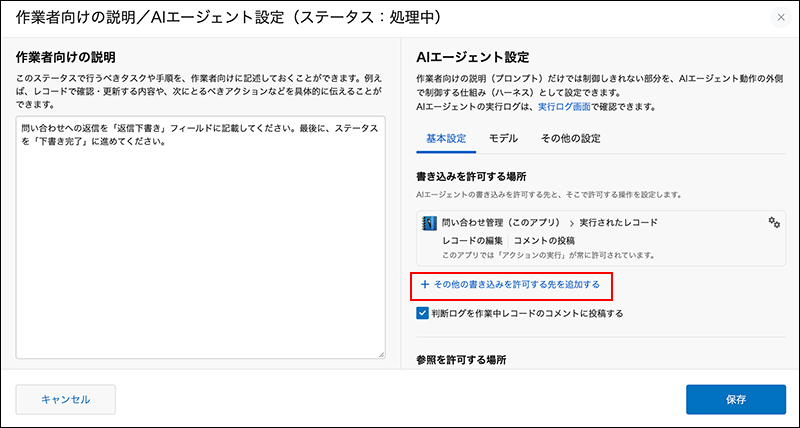
-
In the Add write destination dialog's Destination type, select App, Thread, or Message.
-
If you select "App", specify the app for which you want to allow posting by either of the following:
- Select an app from
"Select an app". - All apps
Check the "Apply to all apps" option.
- Select an app from
-
Select the actions to permit in Permissions.
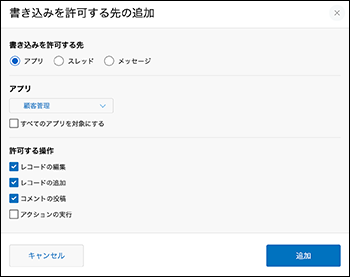
-
Click Add.
Editing or Deleting Added Destinations for Posts
You can edit or delete the added destinations by using the buttons on the right side of each row.
- Edit write destination button (gear shape)
This will only appear in the app's row. The Edit write destination dialog box will open, allowing you to change the actions permitted for that app. - Remove write destination button (minus sign)
The write destination will be removed.
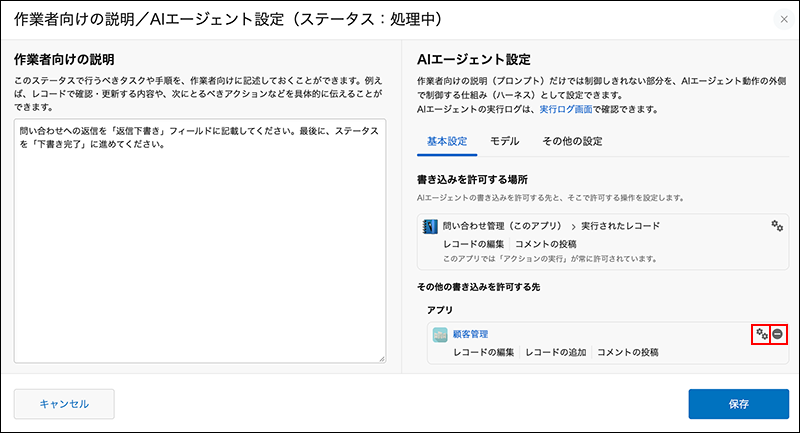
You cannot set All apps and a specific app simultaneously, so switching between them will also change the destination of other files.
If you check
Apply to all apps Add write destination dialog and add the app, the write destinations for that specific app, including this app, will be removed.
If you later delete the destination for All apps or add a specific app, this app's destination will revert to its default setting. Please reconfigure this app's destination as needed.
Posting Action Logs to Record Comments
The judgment log is a record that an AI agent reports at the end of a task, summarizing the conclusion of the task, the process of reaching the conclusion, and any actions that require human confirmation or intervention.
If you check Post decision logs as comments on each record the AI agent is run on, when the AI agent finishes a task, the conclusion from the decision log and any points that require human confirmation or action will be posted to the comments of the work record. This comment will be posted even if you do not check Post comments in Permissions" of this app.
By default, the app is set to post decision logs.
- You can configure this setting by using the checkbox for Post decision logs as comments on each record the AI agent is run on in Allowed write destinations on the Basic Settings tab.
- To post: Select this option.
- If you do not wish to post, uncheck the box.
You can also view judgment logs on the Execution Logs screen. For details, refer to the following page:
Checking AI Agent Actions in Execution Logs
Specify Places where Reference is Allowed
Allowed read scope lets you select where AI agents can read information from: apps, threads, and Garoon schedules.
By default, This app only is selected for apps, and Do not reference is selected for threads and Garoon schedule.
-
In the [Basic Settings] tab, under [Allowed read scope], select one of the following apps to allow access from:
- This app only
Refers to only the app that the AI agent is working in. - Specific apps
Refer to this app and the apps you specify. - All apps
Refers to all apps.
Select this option when you want the AI agent to search for information across all of kintone, without specifying a particular app.
- This app only
-
If you select Specific apps, add apps to which you want to grant view permission by using Add an app.
-
In Threads, select the threads for which you want to allow referencing from the following options. Note that threads are specified on a per space basis.
If you want the AI agent to reference threads in a private space, add the AI agent user as a member of that space.- [Do not reference]
Does not reference threads. - "Specify Spaces"
References threads in the specified spaces. - All spaces
Refers to threads in all spaces.
- [Do not reference]
-
If you select Add spaces to specify spaces, add spaces to allow reference in Add spaces to allow reference.
Only spaces of which you are a member are displayed as options for private spaces.
An error occurs when saving the Process Management settings if no spaces are added.
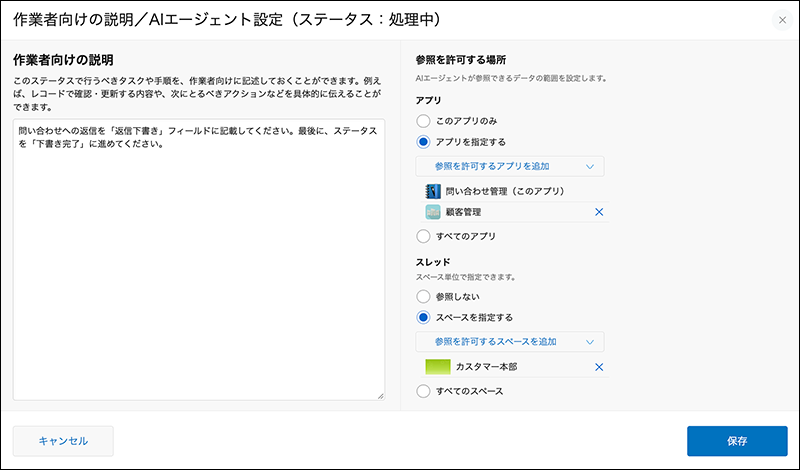
-
If you have a Garoon license, select whether to refer to Garoon schedule in "Schedule (Garoon)".
If you select "Refer to Garoon schedule", make sure that "Garoon" is also selected in "Services to use" for the AI agent user in Users & system administration.- [Do not refer]
Does not refer to Garoon schedule. - [Refer]
Refers to the Garoon schedule that the AI agent user can view.
- [Do not refer]
Save settings and update the app
After you finish configuring the settings, save the dialog and update the app. Note that clicking "Save" on the dialog alone does not apply the changes to the app.
-
Click "Save" on the "Assignee instructions and AI agent settings" dialog.
-
On the "Process management" screen, click "Save" at the bottom right of the screen.
-
On the App settings screen, click Update app.
-
On the Update app dialog, click Update app.
If users cannot write or view records even after permission is granted
Even if you allow AI Agents to access these locations, they will not be able to write or read data in the following cases:
- If an AI agent user does not have permission to view the app
- If viewing is restricted by Automatic Access Control
- If the app or thread is in a guest space:
Whether posting or viewing failed can be checked in the tool logs in the execution logs. For details, refer to the following page:
Checking Details of Tool Logs