
Configuring Apps and Users for Which Process AI Agents Are Available
Specifies the apps in which Process AI agents can be used.
You can also specify the users who can configure AI agents and the AI agents that can be used for each app.
You can assign AI agents as assignees only in the apps that you specify on this screen.
The settings added for each app take precedence over the All apps settings.
Steps
-
Click the "Settings" button (gear icon) at the top of the kintone screen and then click "kintone administration".
-
On the kintone administration screen, click kintone AI management under the AI section.
-
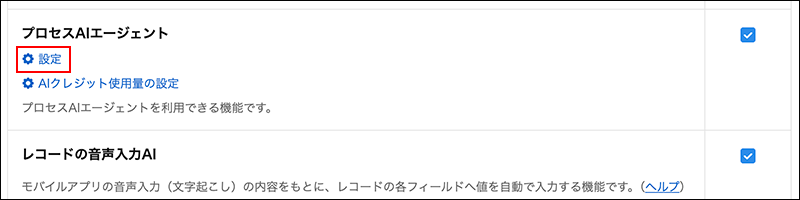
On the kintone AI management screen, in the AI features section, click Settings under the feature name Process AI Agent.
-
On the "Process AI Agent settings" screen, click "Add".
-
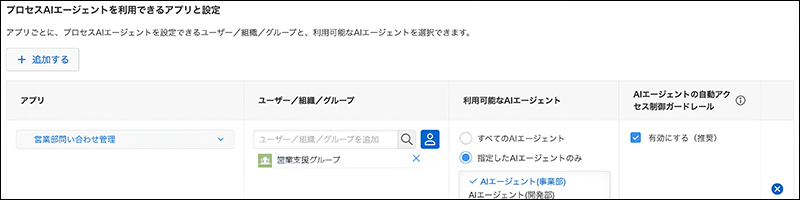
In the "Apps" column, select the apps for which you want to enable the Process AI Agent.
Note that some apps do not appear as candidates even if you enter their names in the "Search apps" field.
The following apps do not appear as candidates:- In the Permissions for app settings, there are apps for which you do not have permission to either View records or [Add Records].
- Apps for which Permissions for app groups are set to not allow Manage/use/delete apps for me
- Private apps that belong to a "App Group" and were created by other users
- Apps that are already set as apps where Process AI agents can be used
- Apps in private spaces that you are not a member of
- Apps that belong to guest spaces
- Deleted apps
-
In the [User/Organization/Group] column, specify the users, organizations, or groups who can configure AI agents for that app.
If you specify an organization, checking Include child departments will allow users belonging to that sub-organization to also set up AI agents. -
In the "Available AI agents" column, select the AI agents that are available for use in the app.
- All AI agents: You can use all AI agents.
- Specified AI agents only: You can use only the AI agents you select. Select AI agents from the displayed suggestions.
-
In the Automatic access guardrail for AI agents column, check Enable (recommended) to enable automatic access control.
The added row is checked by default.
For more details, please refer to the next page.
Set up automatic access control.
-
If you want to configure multiple apps, repeat steps 4 to 8 for each app.
You can delete added rows by clicking the "Delete" button (× shape) at the right end of the row. Note that you cannot delete the "All apps" row. -
Click Save at the bottom right of the screen.