
Key updates for December 2026
Here's what's included in the update released on December 13.
| New features under consideration |
|---|
| Changes to update options |
|---|
The information on this page reflects the update details available at the time of publication and is subject to change.
For information on other changes not listed here, please see the regular maintenance information.Changes made during maintenance (Only available in Japanese)
Tablet appIntroducing "kintone Touch," a tablet app for deskless workers
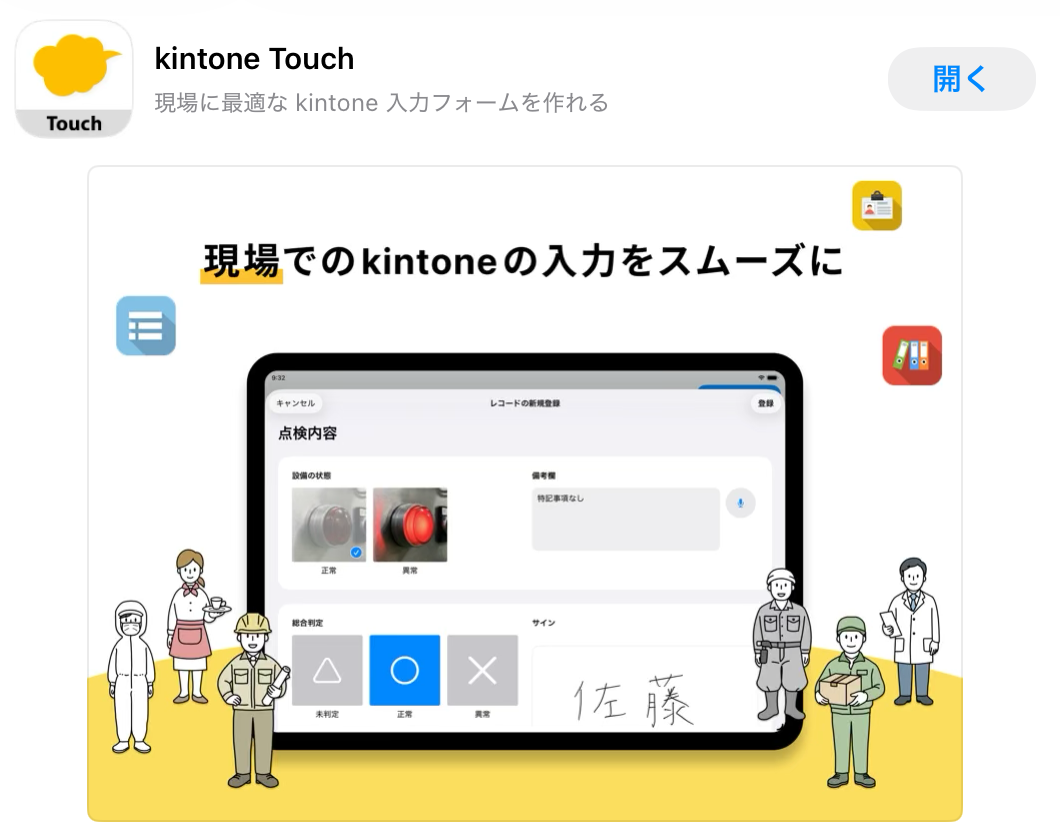
We're launching "kintone Touch," a tablet-only app that lets you create and use forms designed specifically for the work of deskless workers (people who work on-site, away from an office or desk). This release is for iPad.
With this tablet app, you can create forms that are separate from kintone's existing form screens by combining interfaces suited to how deskless workers actually work. This lets you provide forms that are easy to fill in on-site, so you can extend kintone apps, which have mainly been used for desk work, to a wider range of business operations. Going forward, we plan to offer more interfaces, add the ability to add records even when offline, and release an app for Android tablets.
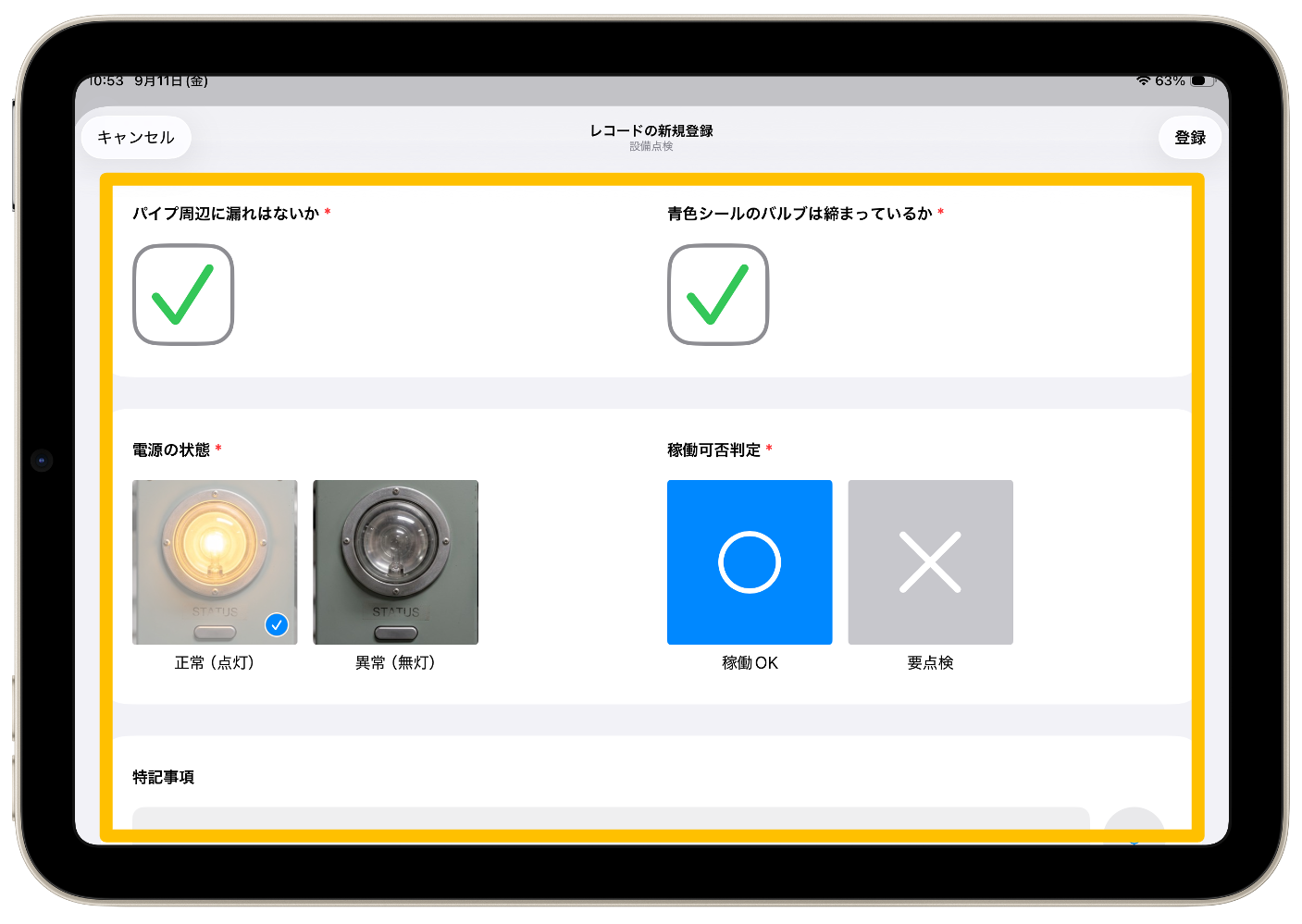
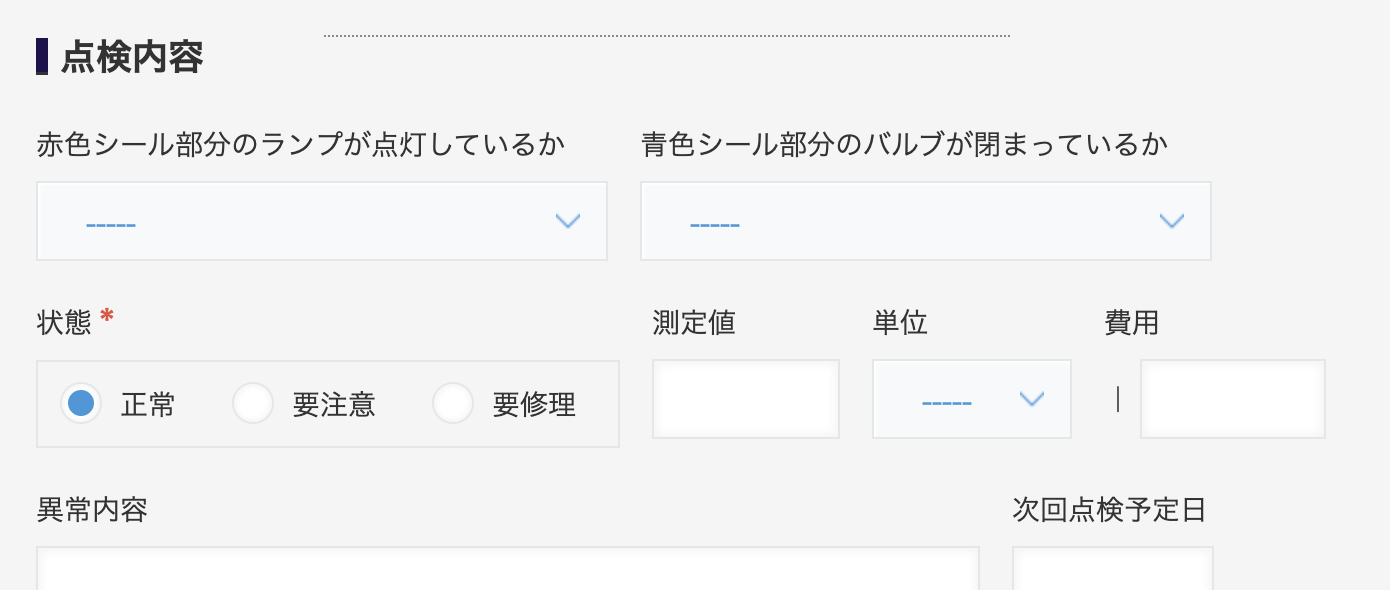
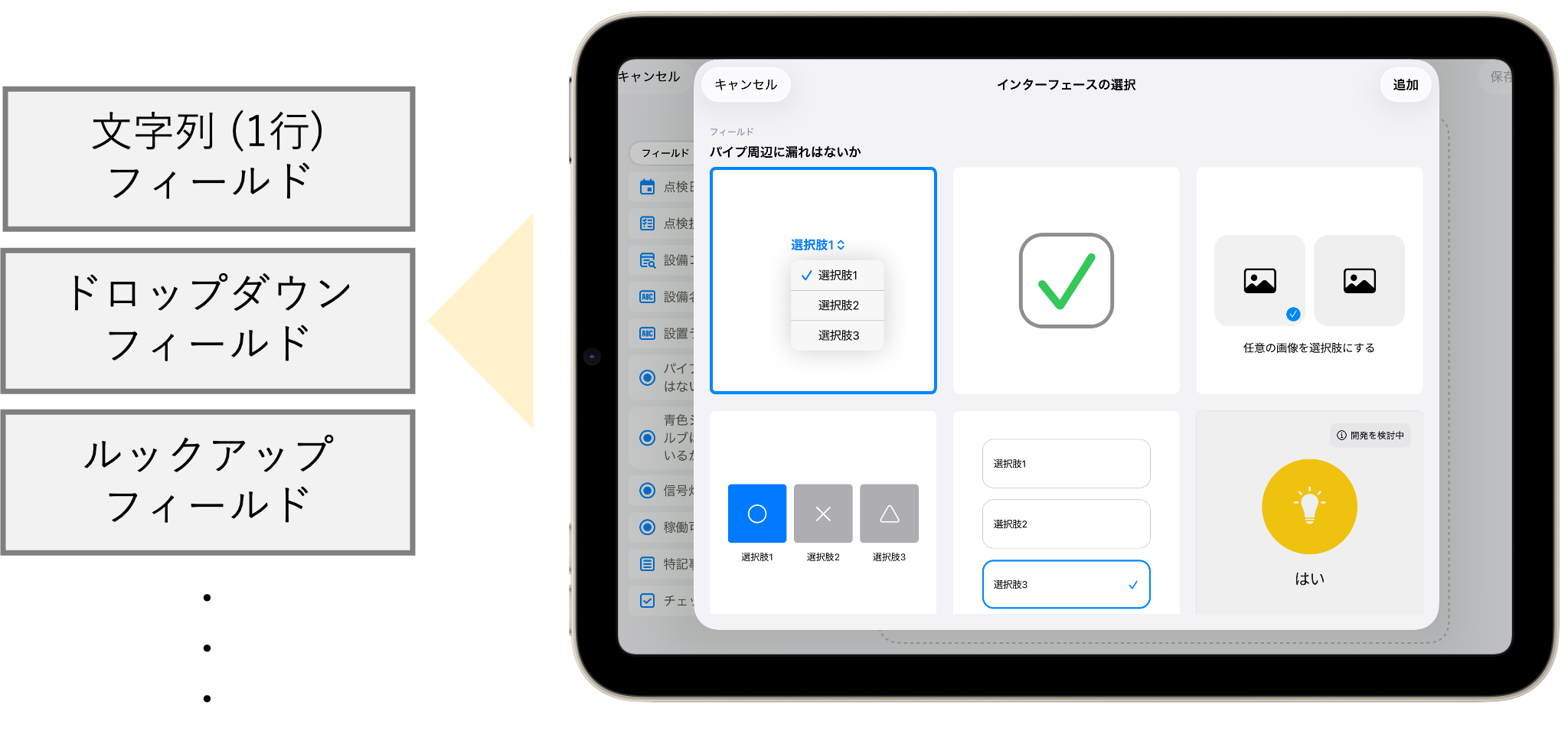
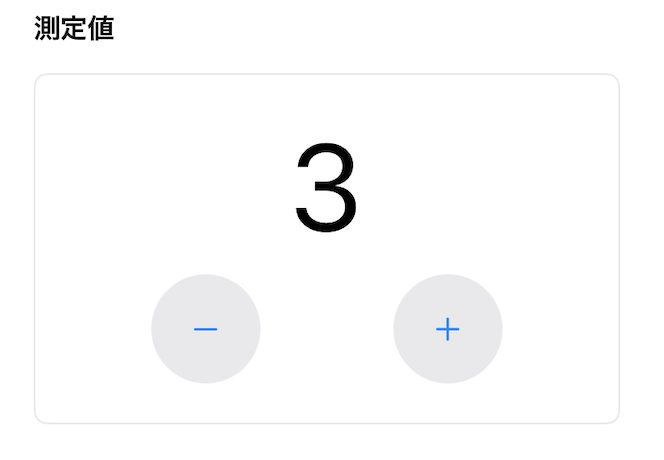
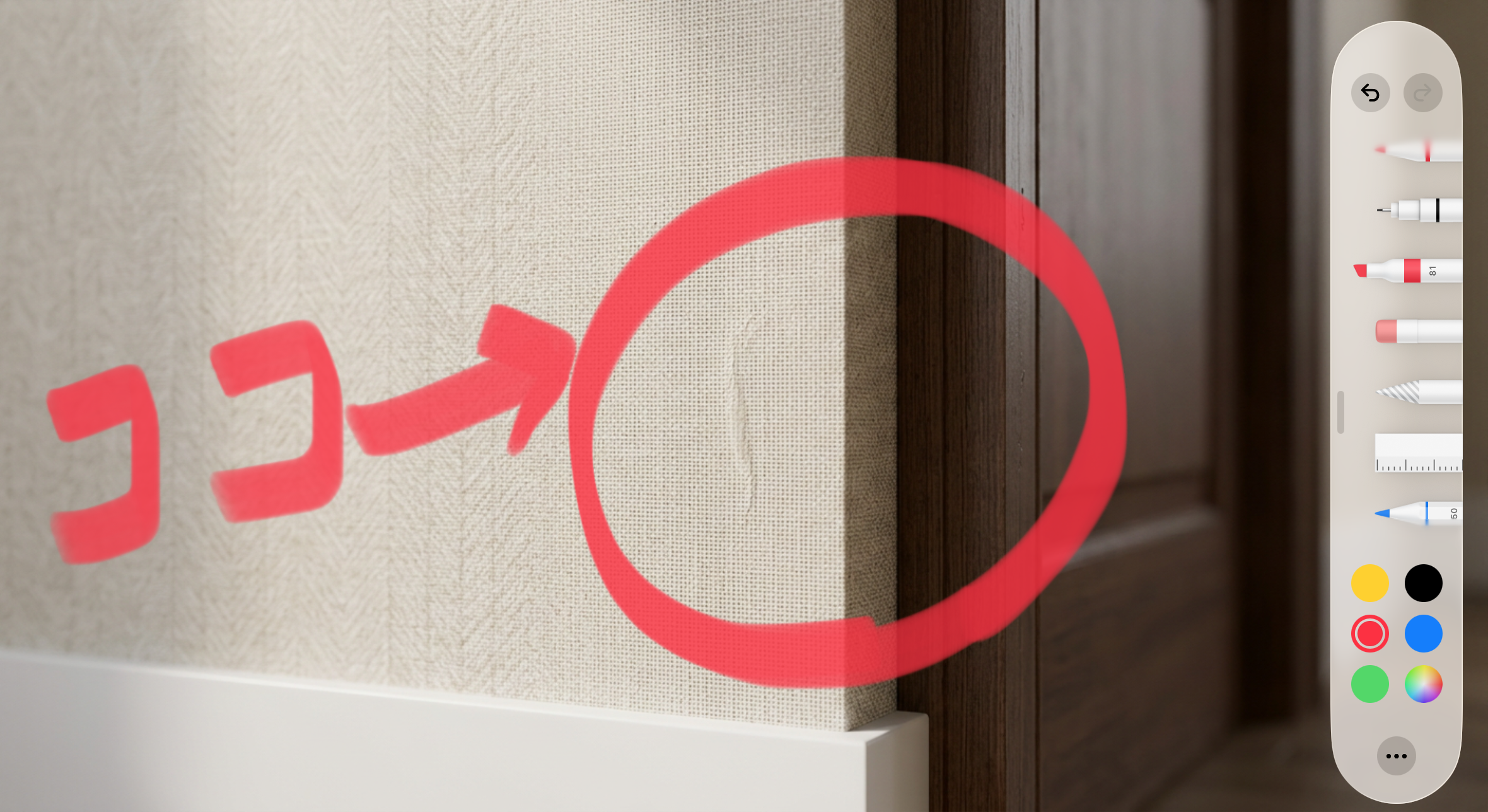
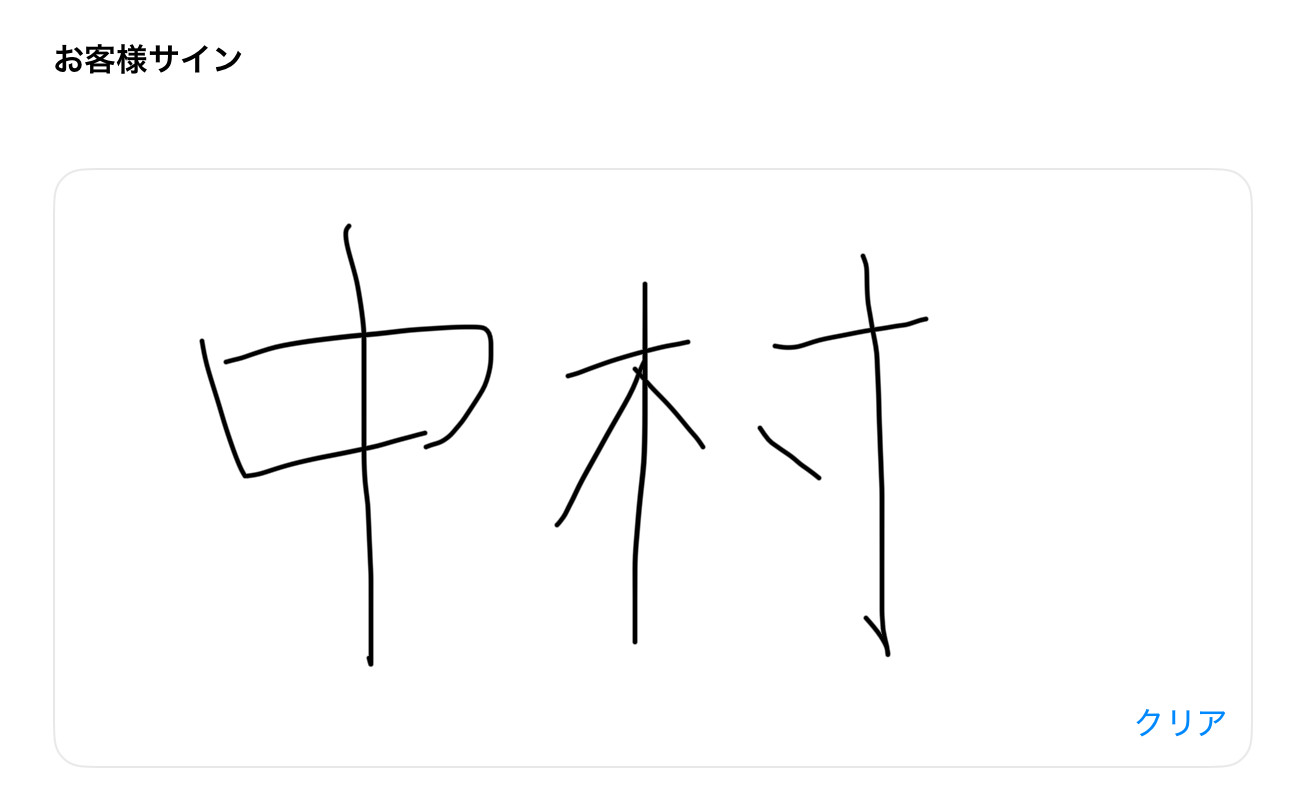
■ Customize field interfaces to make them easier to fill in during on-site work
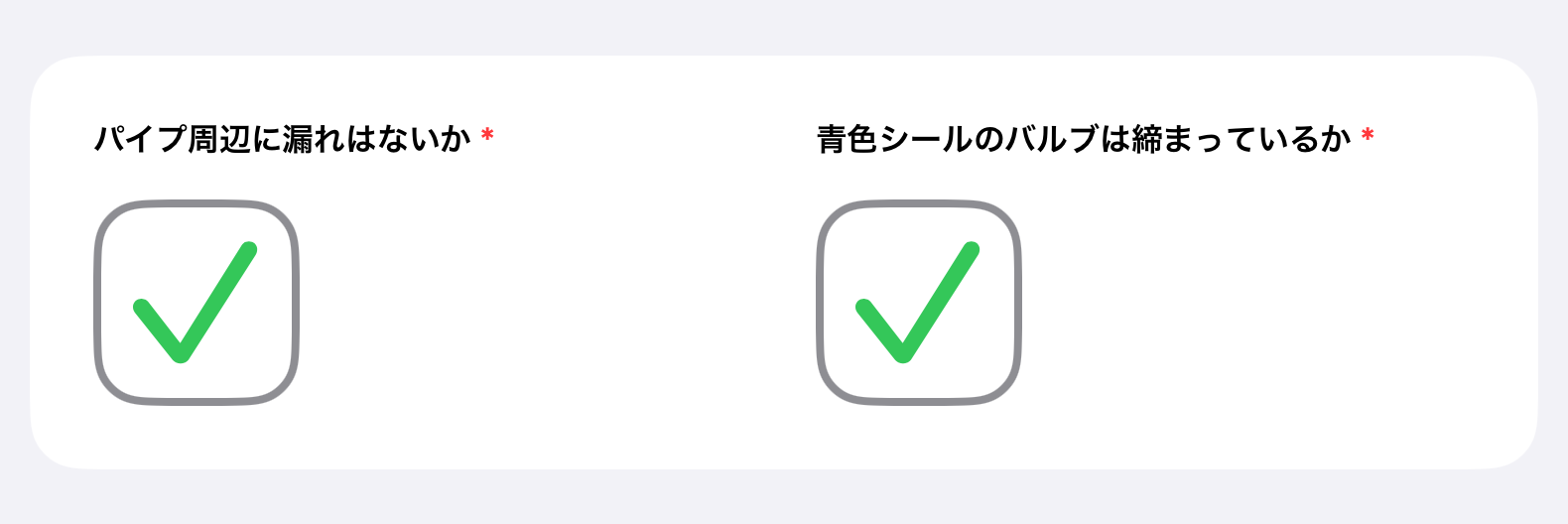
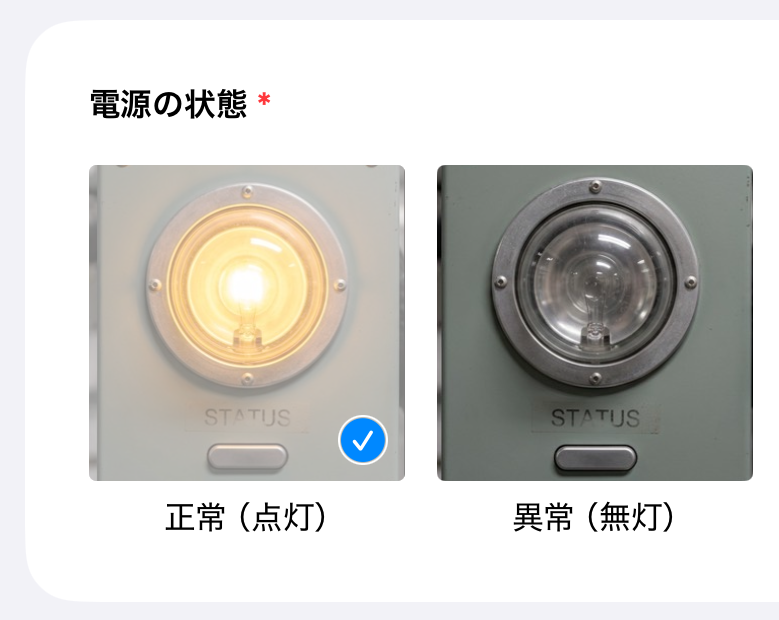
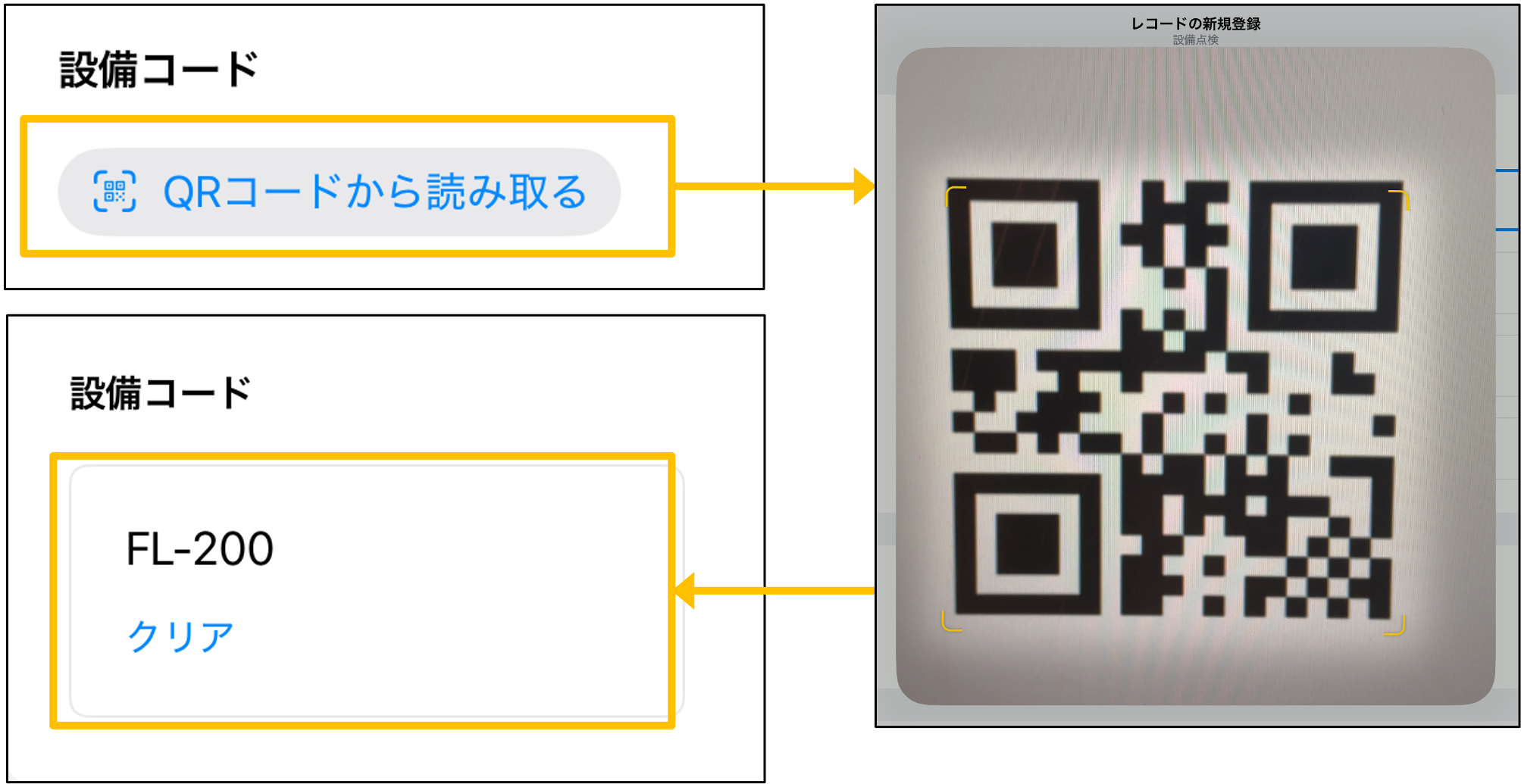
For each field in your kintone app, you can choose from a variety of interfaces designed for on-site work and set the one you want to use.
■ Create multiple form types for the same app
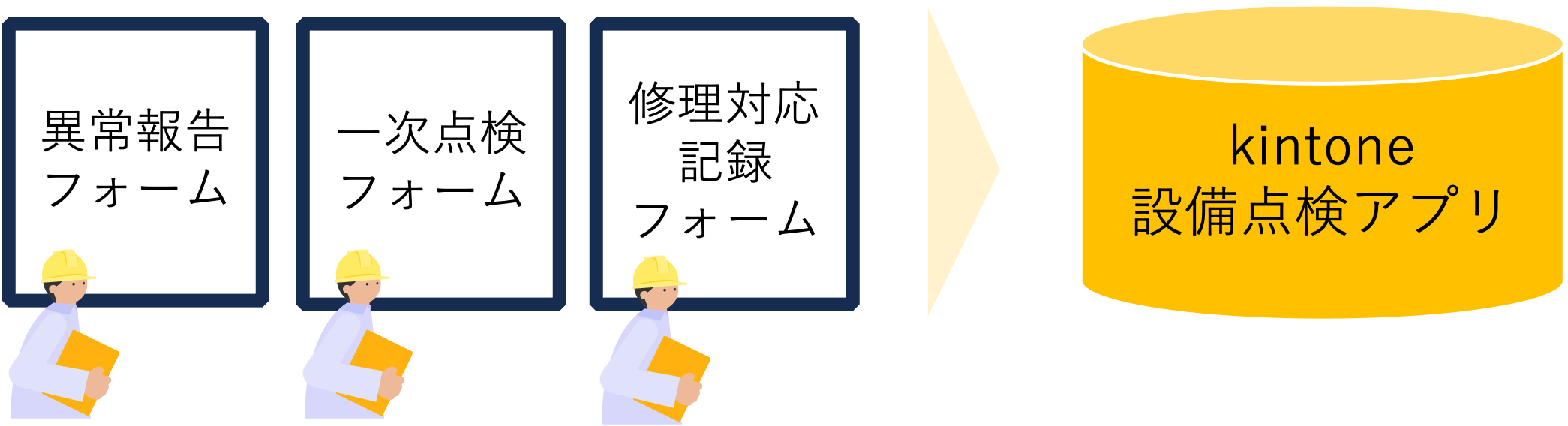
You can create multiple types of iPad input forms for a single kintone app.
For example, if you want to consolidate data in a single app but the data is entered at different times or by different people, you can prepare an iPad input form for each situation. This way, each form shows only the fields that the person in charge needs to fill in.
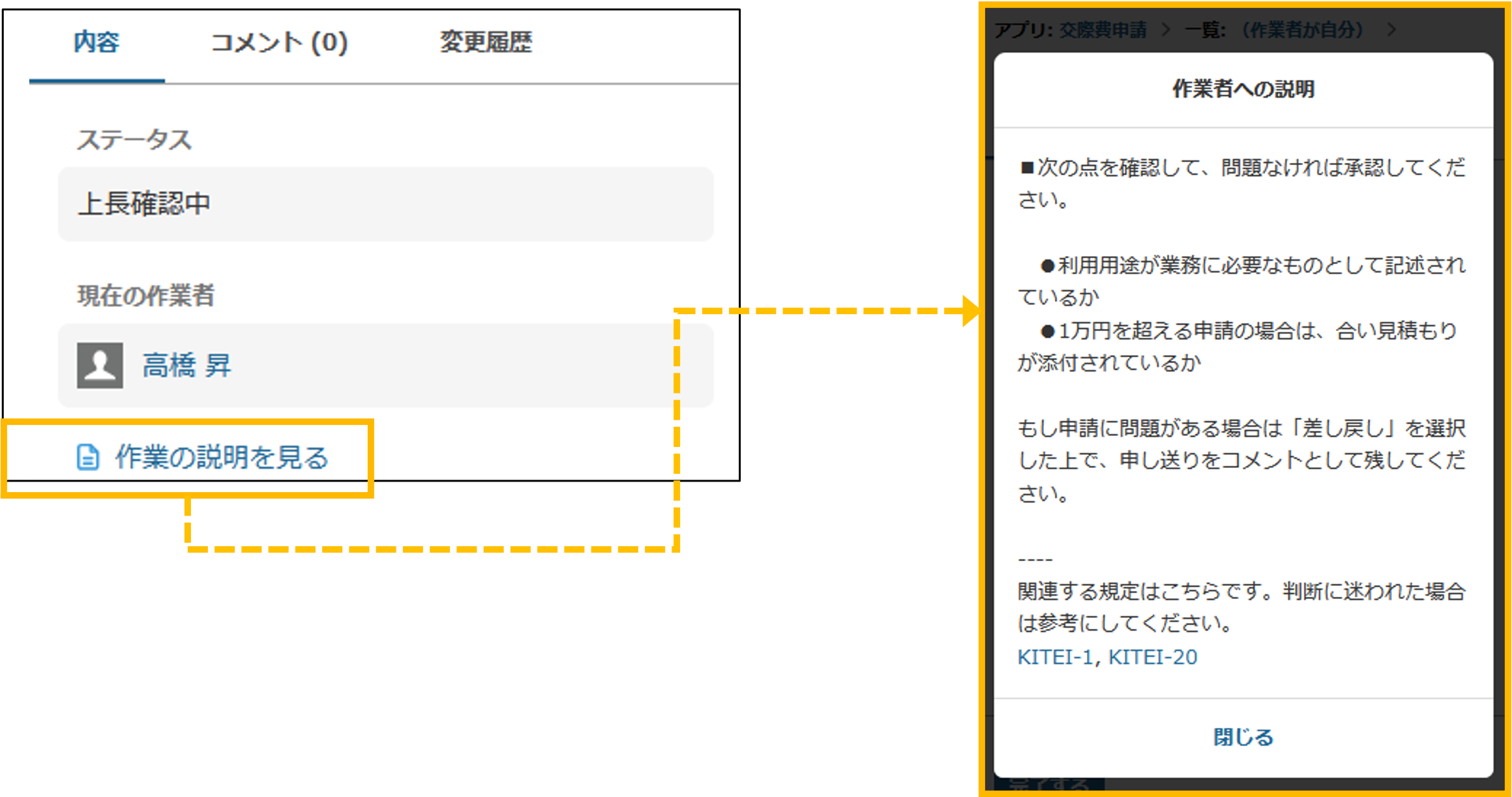
Process management"Assignee instructions" can now be viewed in the mobile view
"Assignee instructions" in process management, which was added in the November 2026 update, can now also be viewed in the mobile view.
When app administrators enter information such as the steps to follow at each status or points to check when approving in "Assignee instructions", users who access kintone where they can't use a PC, such as when they're out of the office, can also see the information they need for their work.
Wide license plan
extensionsWide license plan onlyNew feature for managing customizations made with JavaScript and other code, from request to deployment, through a code review and approval process
extensions
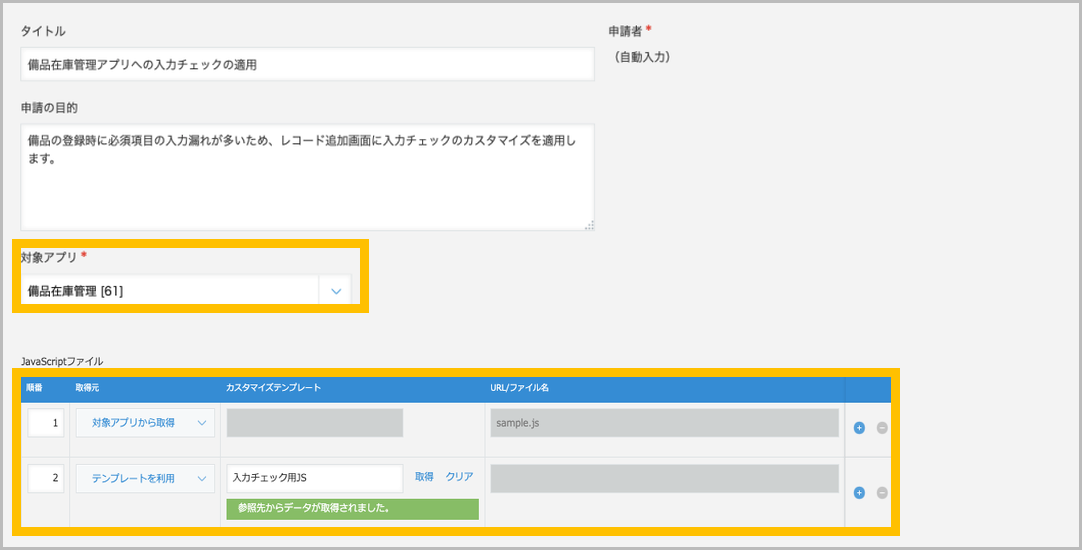
We've added the Customization Request & Deployment feature as one of the extensions exclusive to the Wide license plan, which is designed for large-scale use. App administrators who don't have kintone administrator permissions can request JavaScript/CSS customizations or the addition or modification of custom views for the apps they manage, and then apply them after the requests go through code review and approval. This makes it easier to improve apps safely, including through JavaScript and other customizations, as each team's work changes.
 Requester (app administrator)
 Code reviewer
 Approver
 Requester (app administrator)
- Specify the target app and the customization, and then submit a request. For customizations you use often, you can also choose from templates registered in advance.
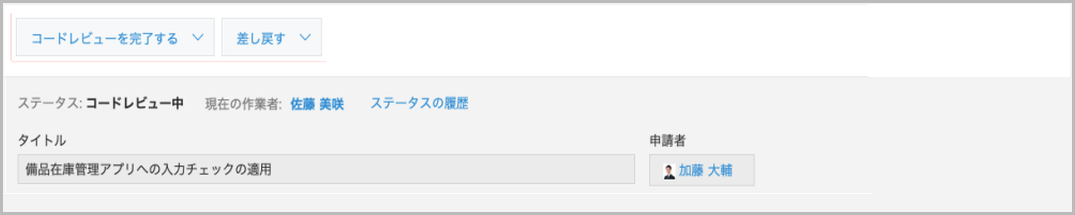
- A code reviewer checks and reviews the source code, and then an approver with administrator permissions approves the request. The request can be sent back at either stage.
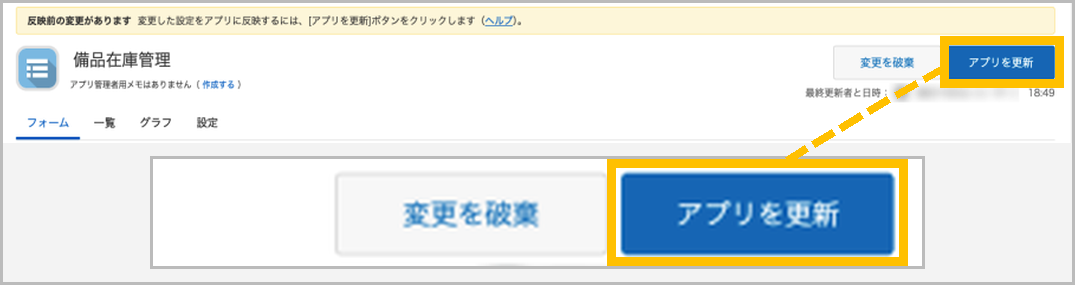
- Approved customizations are automatically applied to the test environment of the target app. After checking that everything works, click "Update app" to apply the changes to the production environment.
- The update that includes this new feature is scheduled to be released on December 22. For details, please contact your Cybozu, Inc. representative directly.
PerformanceImproved response times for some features
■ Improved performance when filtering records (implemented in July 2026)
We've reviewed how kintone extracts data internally and improved the performance of retrieving records. Response times are now shorter when you retrieve records using filter conditions that combine "Multi-choice" fields. As a result, the "View" screen loads faster in apps with a large number of records, and REST API response times are shorter.
■ Improved performance of app searches in the search box and app selection screens (implemented in July 2026)
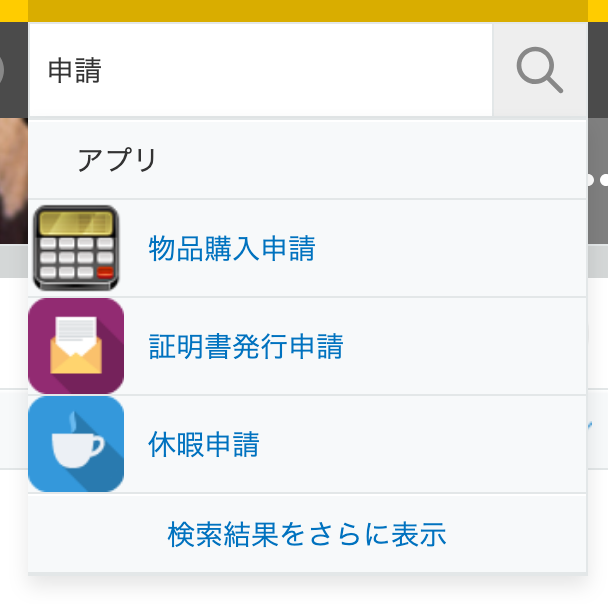
We've improved how kintone searches app information internally to speed up app searches. Response times are now shorter when you search for apps from the search box or search for a datasource app while configuring a "Lookup" field. In environments with many apps in use, you can find the app you're looking for more quickly.
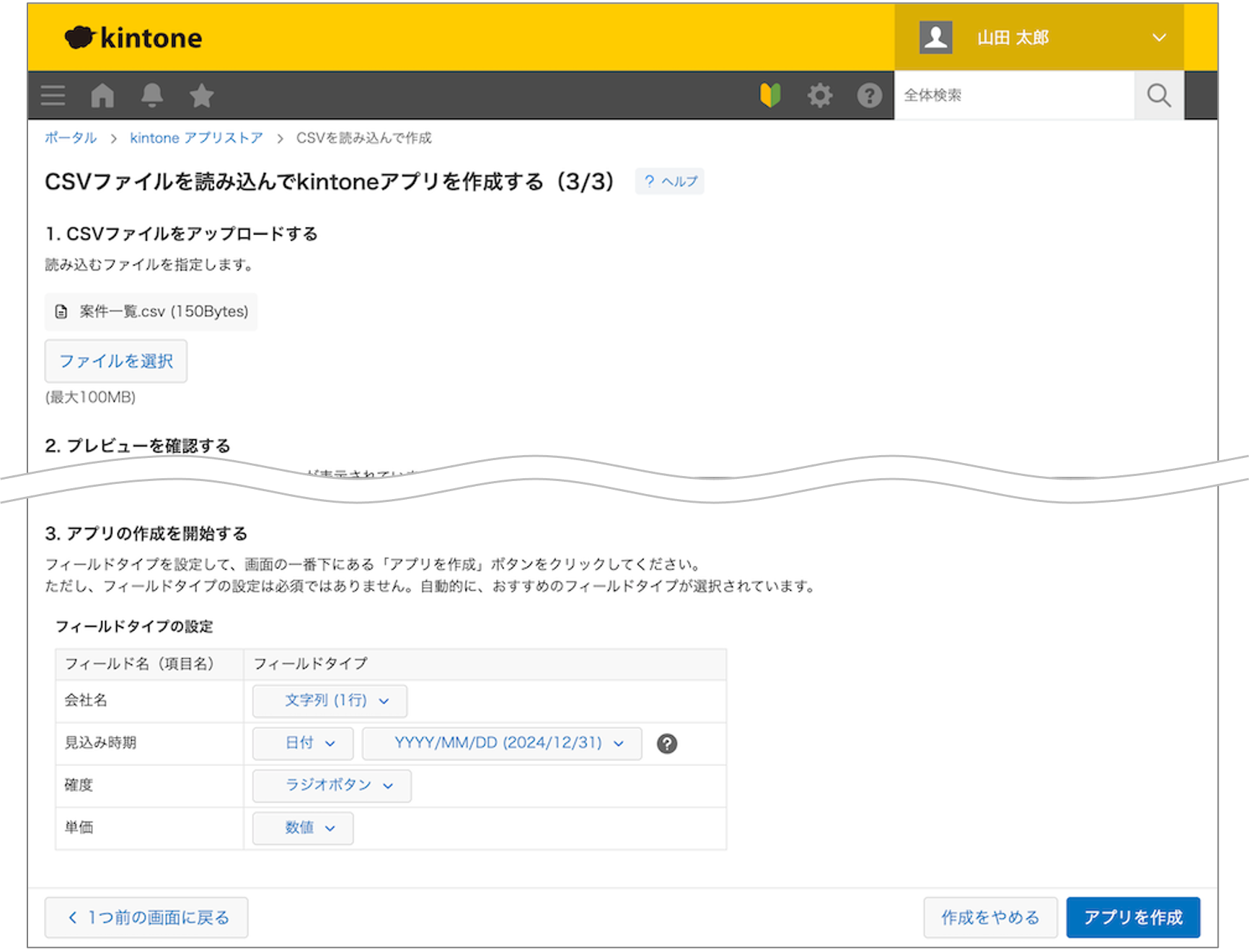
Development platformFront-end update ("Create a kintone app from an Excel/CSV file" screens)
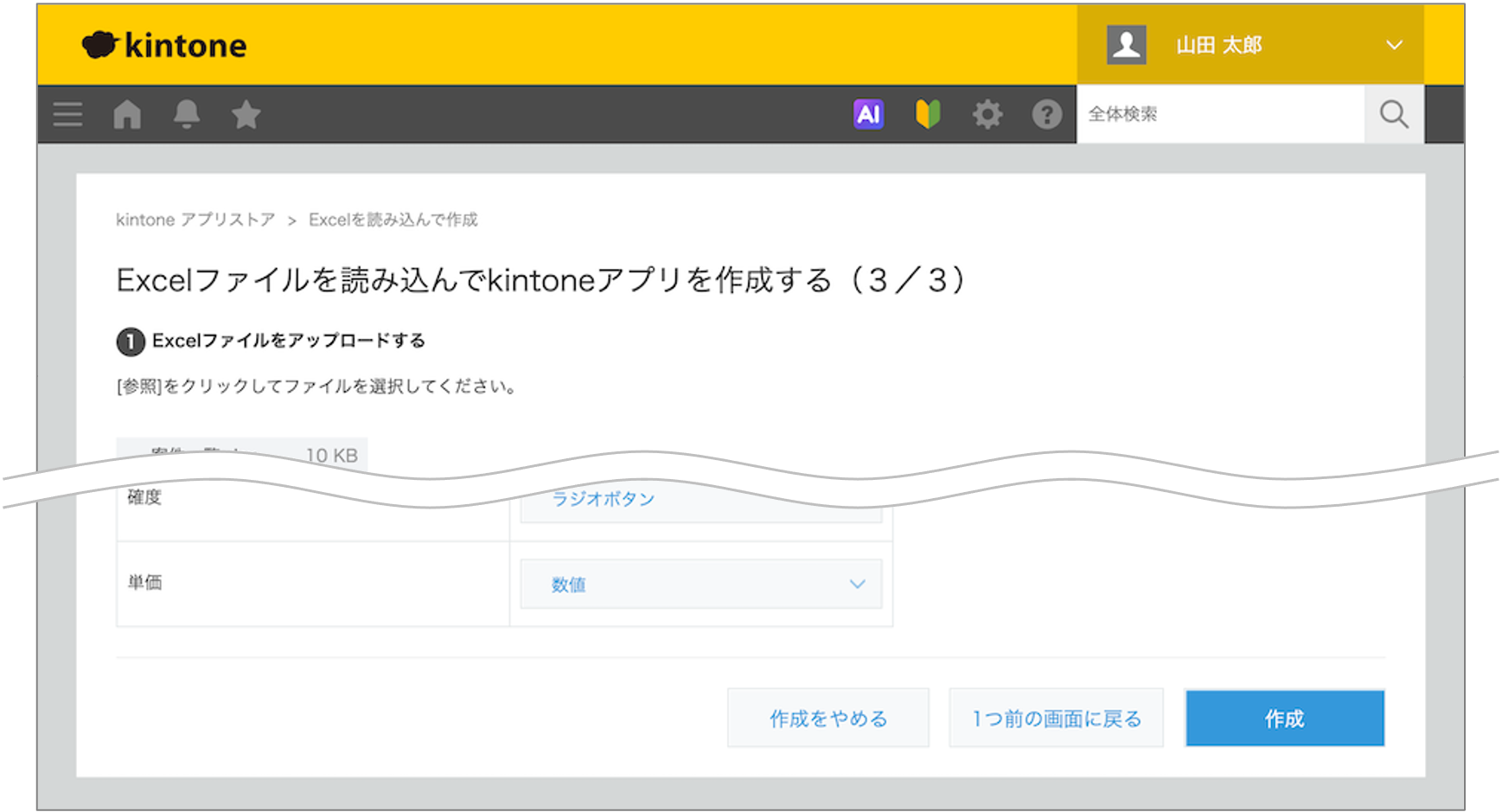
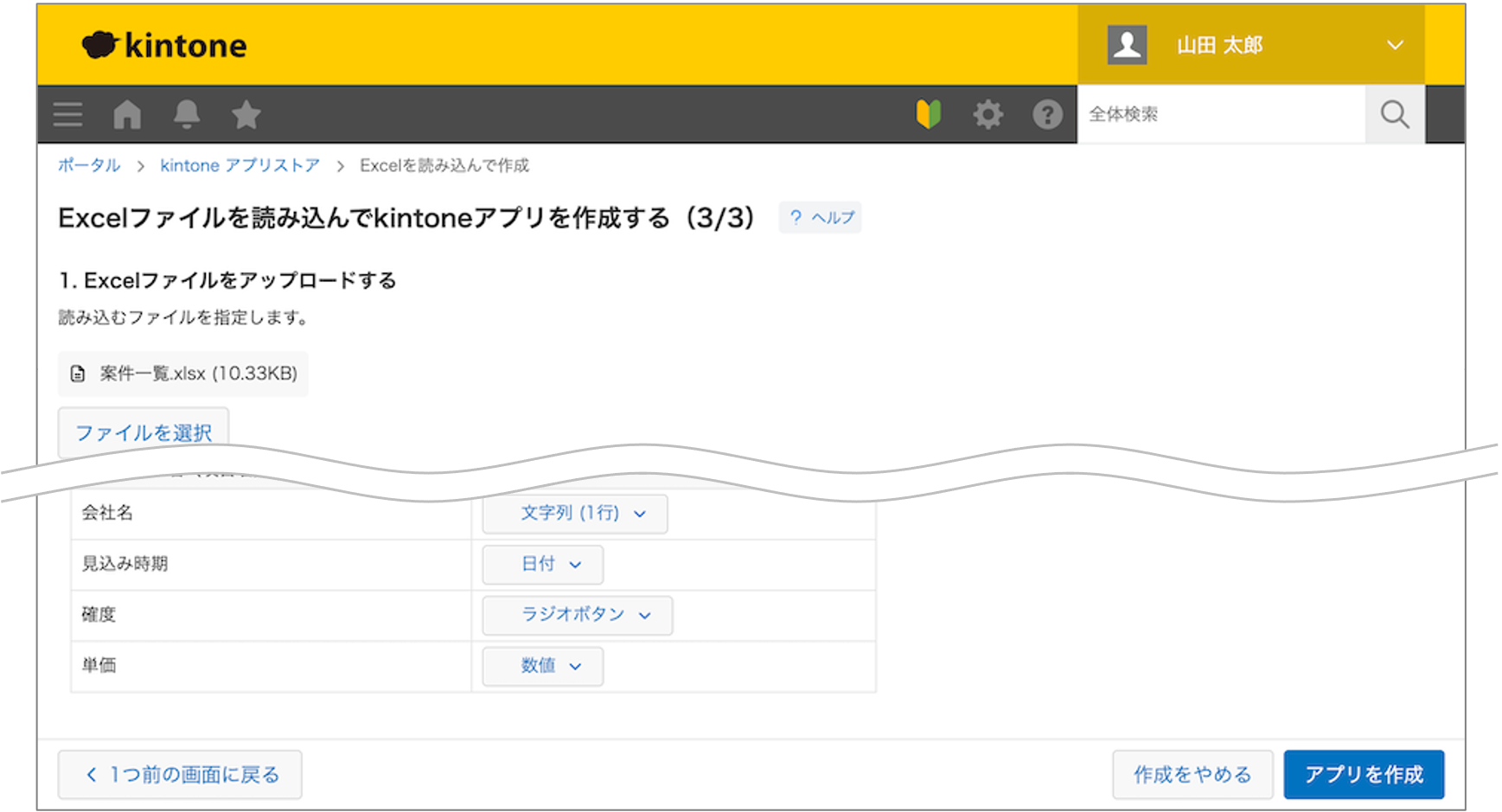
To speed up future product improvements, the kintone development team has been updating the front-end technology that has been used since kintone was first released, one screen at a time. In this update, we've updated the front end of the "Create a kintone app from an Excel file" and "Create a kintone app from a CSV file" screens in the kintone marketplace. Along with this, we've made changes such as standardizing screen components and making layouts more compact.
■ "Create a kintone app from an Excel file" screen
■ "Create a kintone app from a CSV file" screen
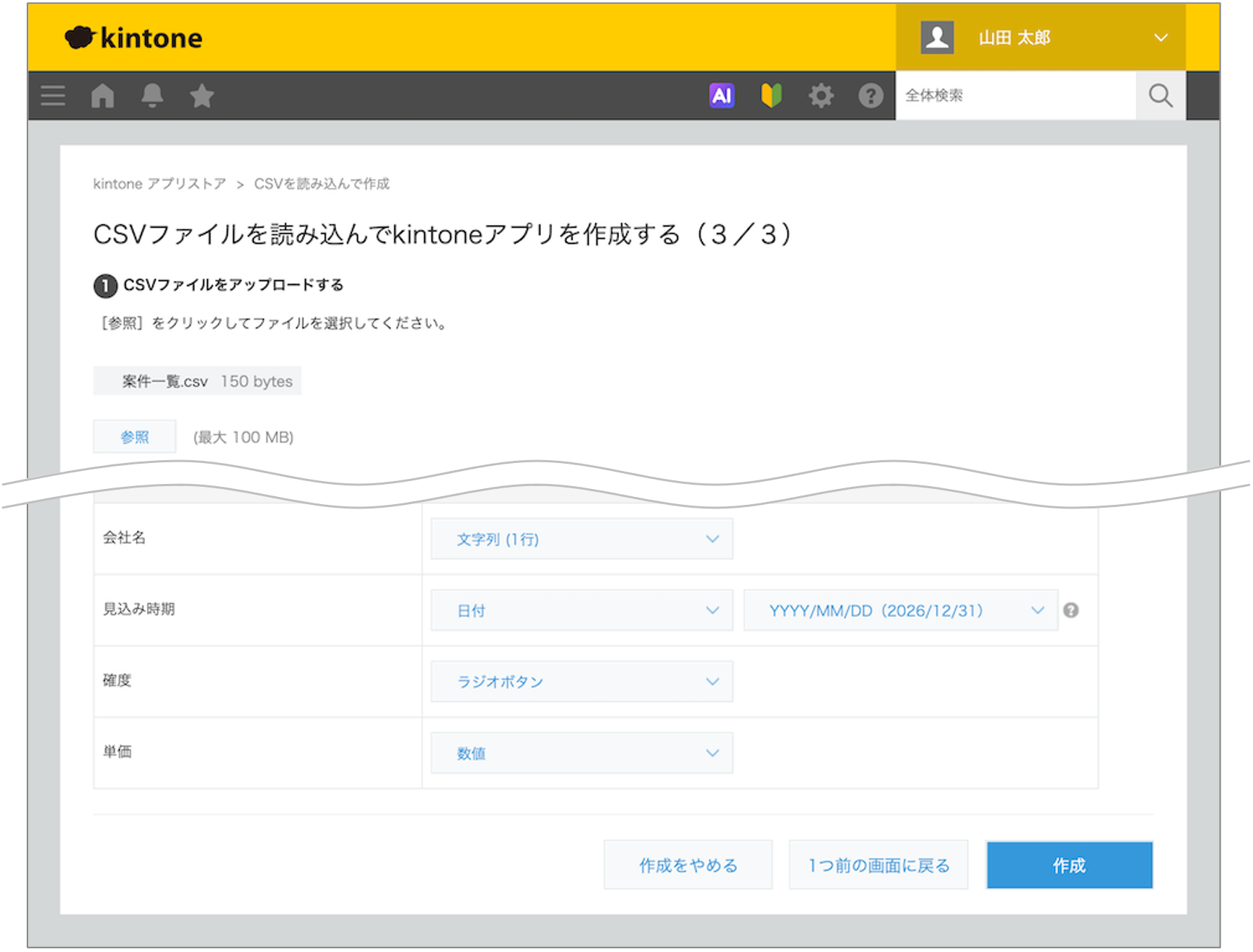
OthersOther updates, improvements, and fixes
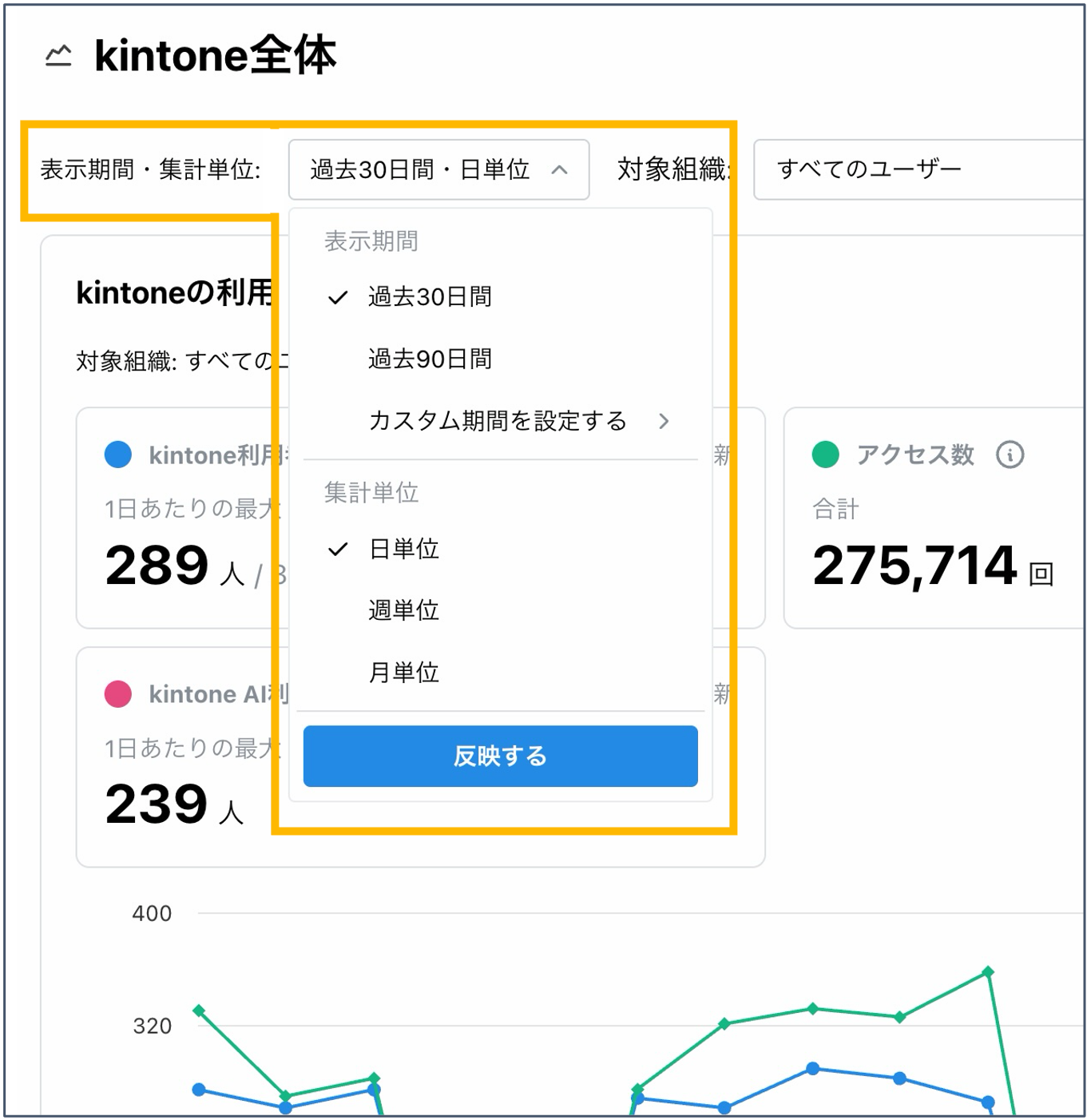
■ Changed how to select the aggregation unit on the Usage dashboard
You now select the aggregation unit (daily, weekly, or monthly) for the entire page instead of for each graph. With a single setting, you can view all the graphs on the page using the same display period and aggregation unit.
New features under consideration
These are features currently under consideration for official release.
You can try them out by enabling them on the "Update options" screen in "kintone administration".
We'd love to hear your feedback on each of the features offered under "New features under consideration". You can share your feedback on these features through the Help us improve kintone form.
| Public form | Public Form feature is now available |
|---|---|
| AI features | Coming soon: Remote MCP server to become available |
Note that features under consideration may have their specifications changed, or be added to or removed from the "Update options" screen, at any time — not only during regular maintenance.
Public formPublic Form feature is now available
We're launching the Public Form feature, which lets you create dedicated forms for kintone apps that people outside your organization can fill in. By accessing the URL of a form you've created, people can enter and submit information without logging in to kintone, and what they submit is saved as a record. Until now, only people within your organization could enter information in kintone apps, but now you can extend kintone to work that requires input from outside your organization.
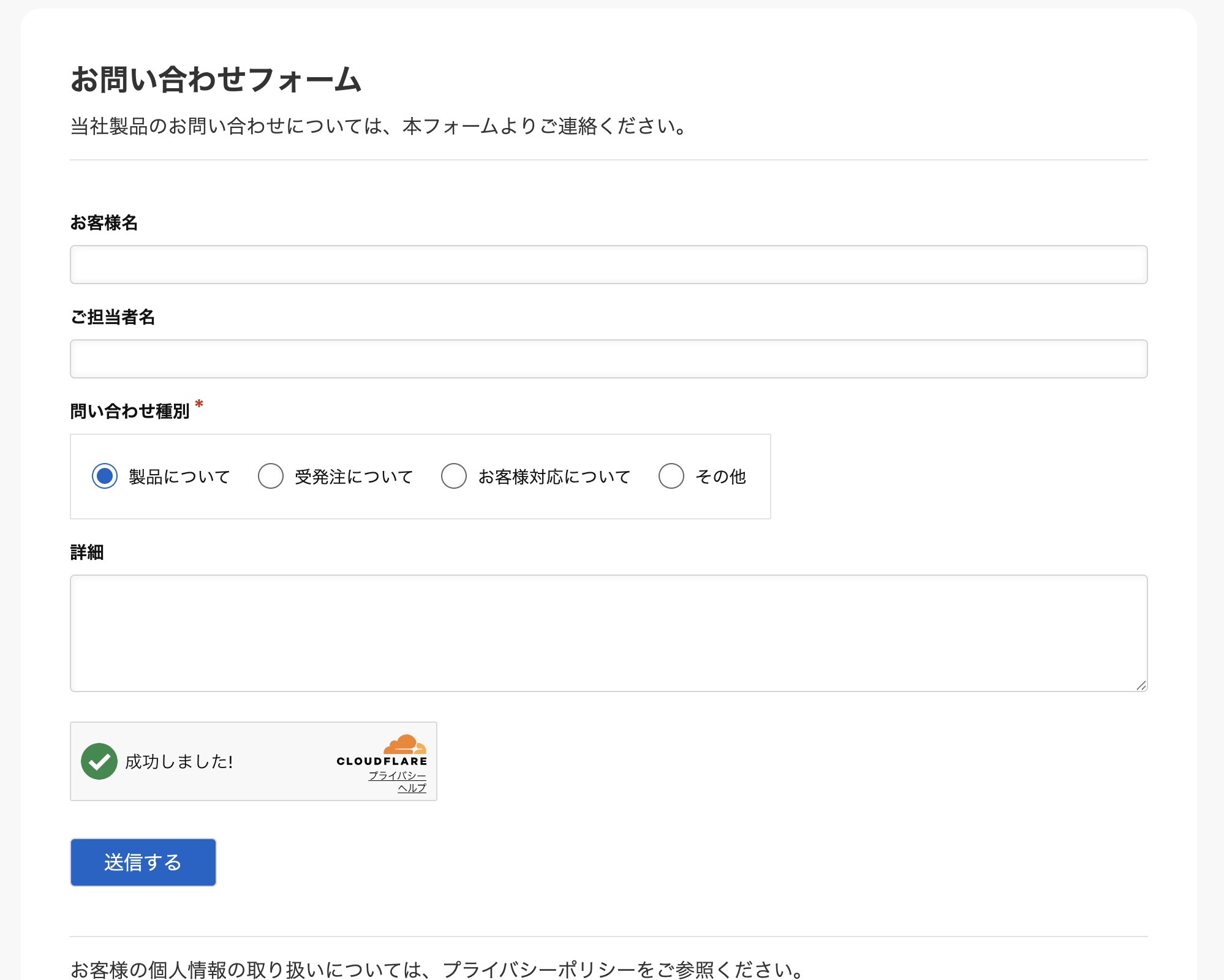
(Used by people outside your organization via a URL)
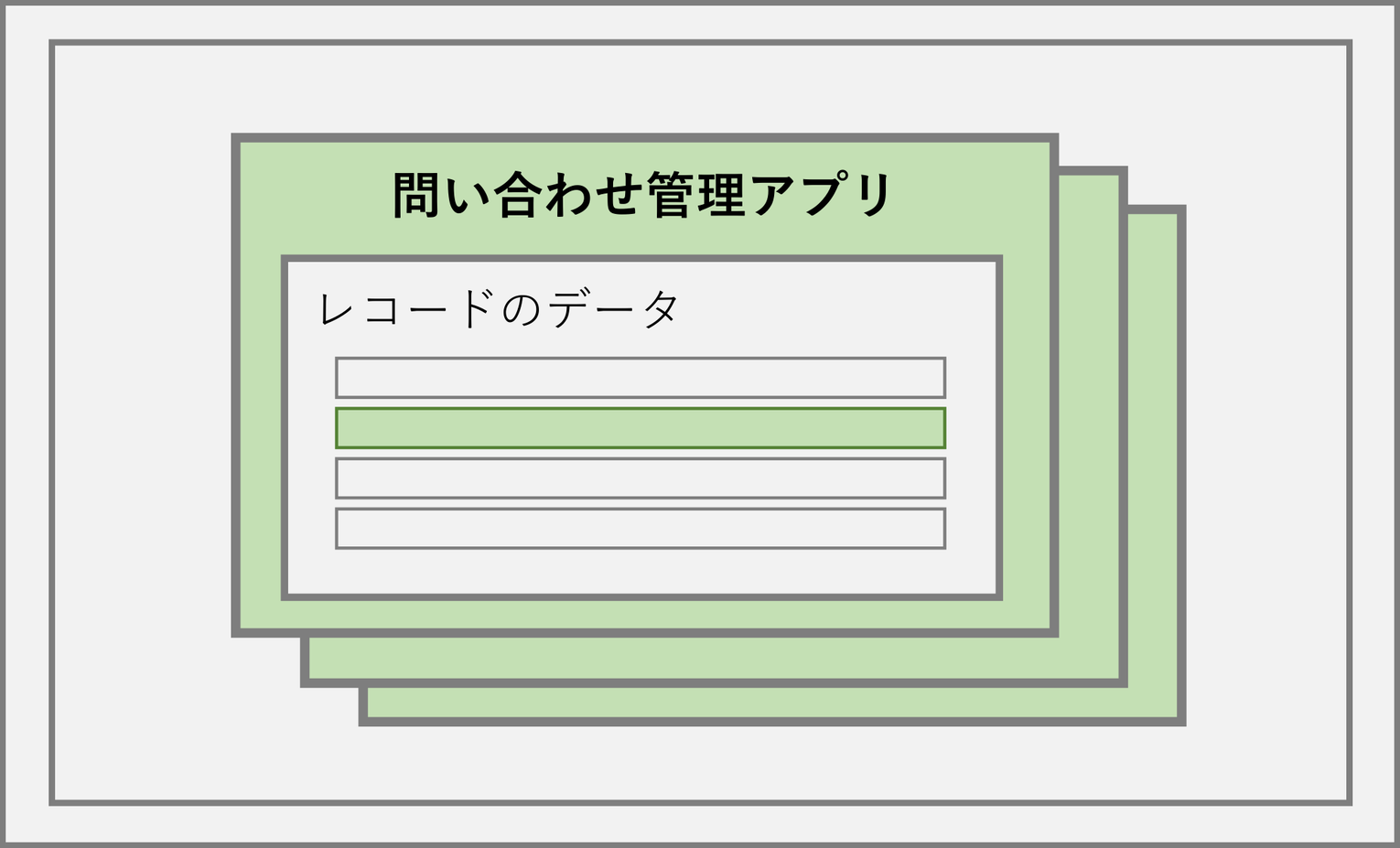
only be added
■ How to start setting up the Public Form feature
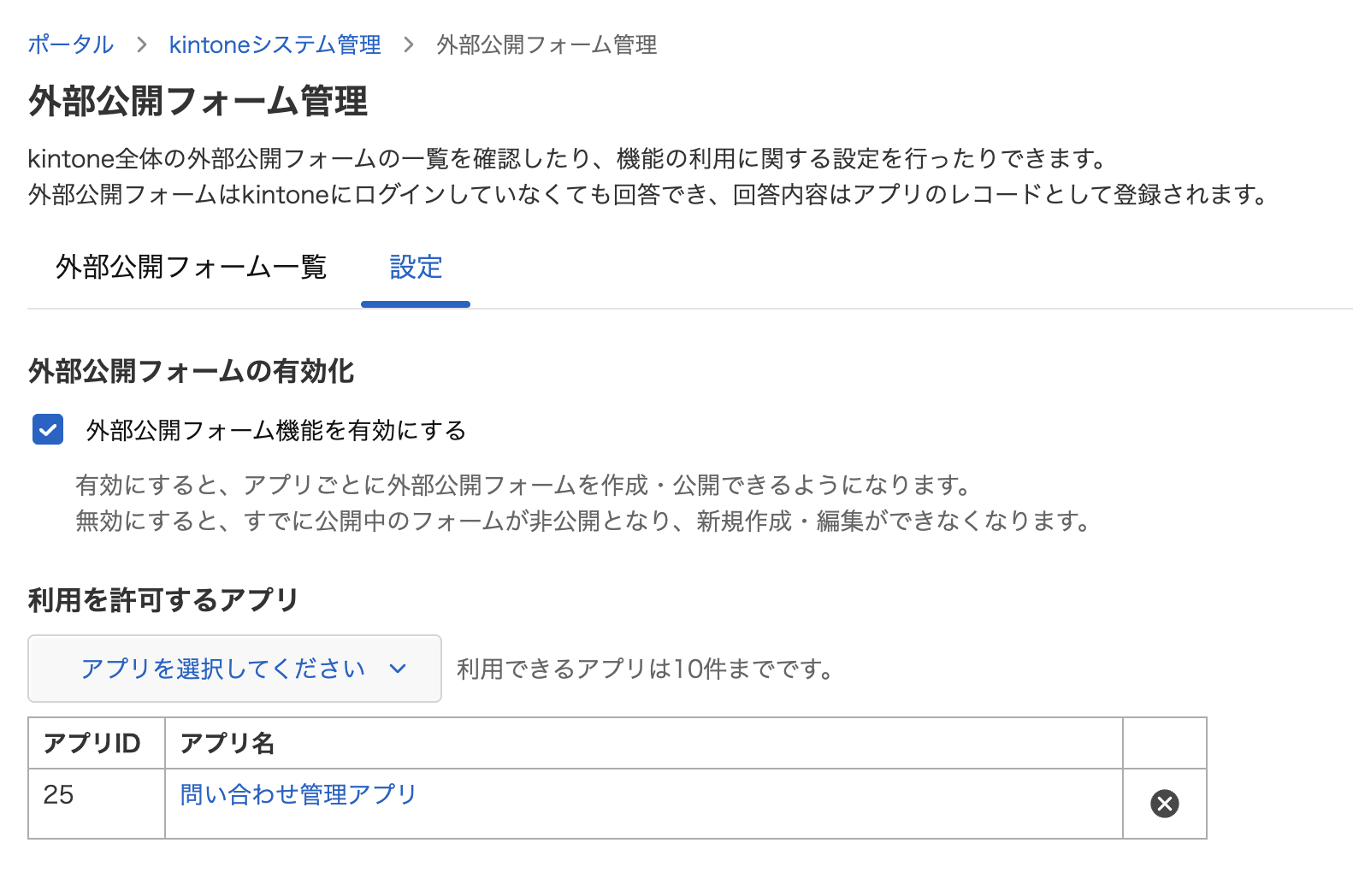
- In kintone administration, open "Public form management" and select the "Enable public forms" checkbox.
- Under "Allowed apps", select the apps that are allowed to use public forms, and then save the settings.
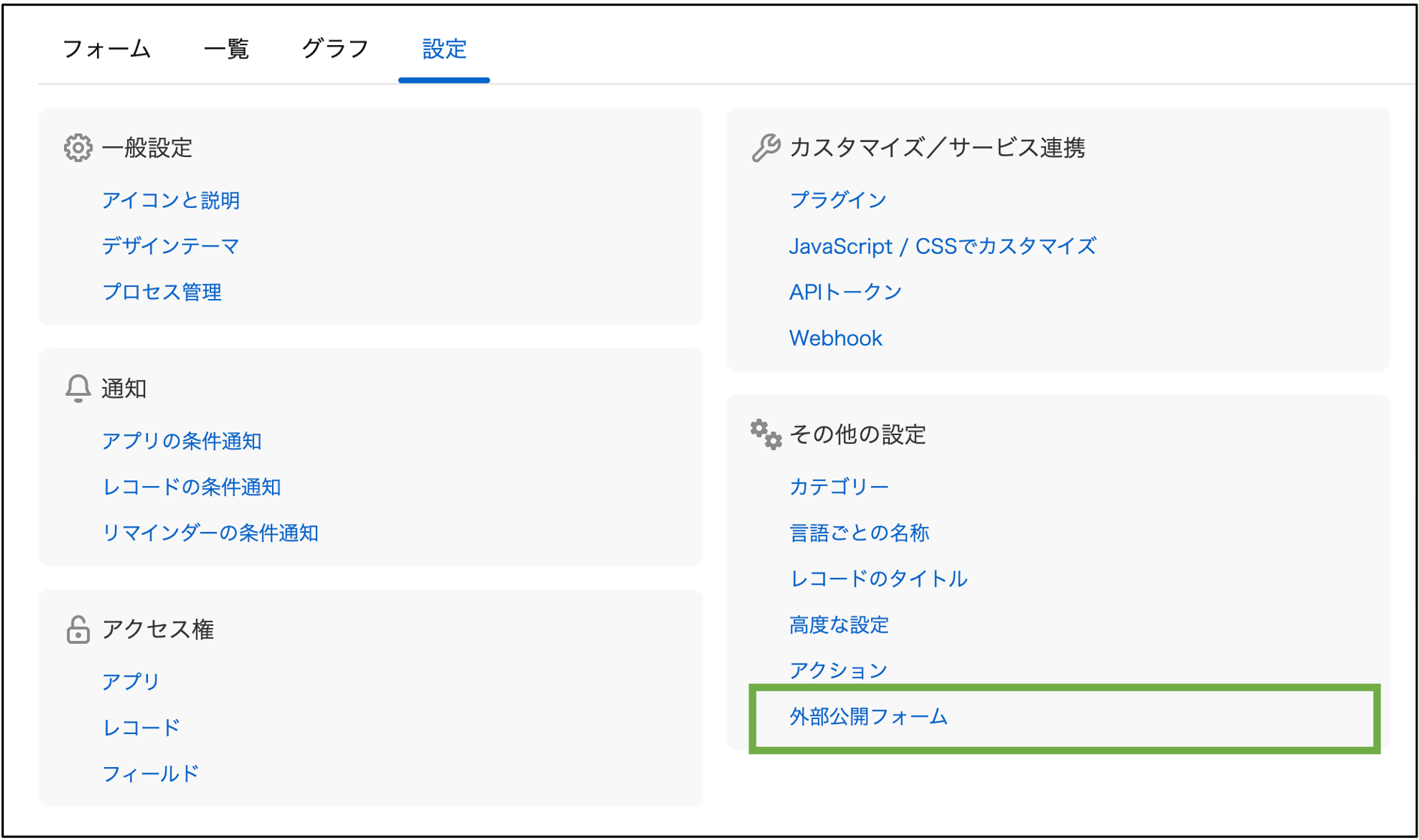
- You can now open the "Public form" settings from the app settings screen of the allowed apps.
AI featuresComing soon: Remote MCP server to become available
We plan to release the kintone remote MCP server in spring 2027. With the remote MCP server, a wide variety of cloud AI services and AI agents used in day-to-day work will be able to access kintone data directly.
Benefits of the remote MCP server:
- A foundation for AI use across your organization: With the remote MCP server, an administrator can set it up for everyone at once, so you can smoothly connect kintone data to the AI environments used in your organization. In addition, because data is shared based on each user's access permissions, you can use AI while maintaining security and governance.
- Integration with cloud AI services and agents: External AI services and autonomous agents running in the cloud connect directly to kintone. With fewer restrictions on the environments and devices you can use, you'll have more opportunities to use kintone data with AI.
Changes to update options
| Disable new features | ||
|---|---|---|
No change Use AI in the mobile app to organize spoken input into the appropriate fields (Available in kintone AI) | Can be disabled until the February 2027 scheduled update. | |
No change Specify apps and spaces to include in or exclude from searches | ||
No change Additional options for filter conditions on the "App management" screen | ||
No change Front-end update for the "App settings" screen | ||
No change Open the "App settings review" screen from the "kintone AI management" screen | ||
No change JavaScript API for showing/hiding the "Add row" and "Delete this row" buttons in "Table" fields and retrieving their display state | ||
No change "Dashboards" category and links to available dashboards added to the "kintone administration" screen | ||
No change Switch between the classic and new "Notifications" screens | ||
No change Visualize how long records spend in each status based on process history | ||
No change Set "Assignee instructions" for each status in Process Management | ||
No change REST API for searching across kintone | ||
New Deskless worker iPad app | Can be disabled until the May 2027 scheduled update. | |
New View "Assignee instructions" on the "Record details" screen in the mobile view | ||
New Front-end updates to the "Create from Excel" app creation screens and changes to import error handling | ||
New Front-end updates to the "Create from CSV" app creation screens and changes to import error handling | ||
| Preview upcoming new features | ||
None | ||
| New features under consideration | No change Improved kintone Administration Design ("Header Color" Screen Design and Layout Change) | |
No longer available Front-end updates to "Create from Excel" app creation screens and changed import error handling | ||
No change Ability to find apps with AI (Available in kintone AI) | ||
No change Front-end update for the "Portal" screen (desktop and mobile views) | ||
No change Front-end update for space and thread screens (desktop and mobile views) | ||
No longer available Front-end updates to "Create from CSV" app creation screens and changed import error handling | ||
No change Front-end update for People pages and the "Messages" screen (desktop and mobile views) | ||
No change Front-end updates to the "Exported files" screen | ||
No change Front-end updates to the "Export aggregation result to file" screen | ||
No change Front-end updates to the "Export to file" screen | ||
No longer available Deskless worker iPad app | ||
No change JavaScript API for Generating Text with AI (Available in kintone AI) | ||
No change JavaScript APIs for assigning IDs to table rows, triggering events on table operations, and manipulating tables | ||
New Set up public forms for kintone apps | ||
Note that these features may be modified outside of scheduled updates. Check the "Update options" screen for the latest status of each feature. | ||
For details on how update options work and on the features currently available, refer to the following Help pages.
| Disable new features | |
|---|---|
No longer available Use the new method for external servers in email server settings | Can no longer be disabled after the December 2026 scheduled update. |
For details on how update options work and on the features currently available, refer to the following Help pages.